Best Laptop Docking Stations and USB-C Hubs for 2026
The best laptop docking stations and USB-C hubs for WFH and home office setups in 2026. Top picks from Anker, CalDigit, and Plugable. Expert picks, pros and...
As an Amazon Associate we earn from qualifying purchases made through our links — this doesn't affect our picks.
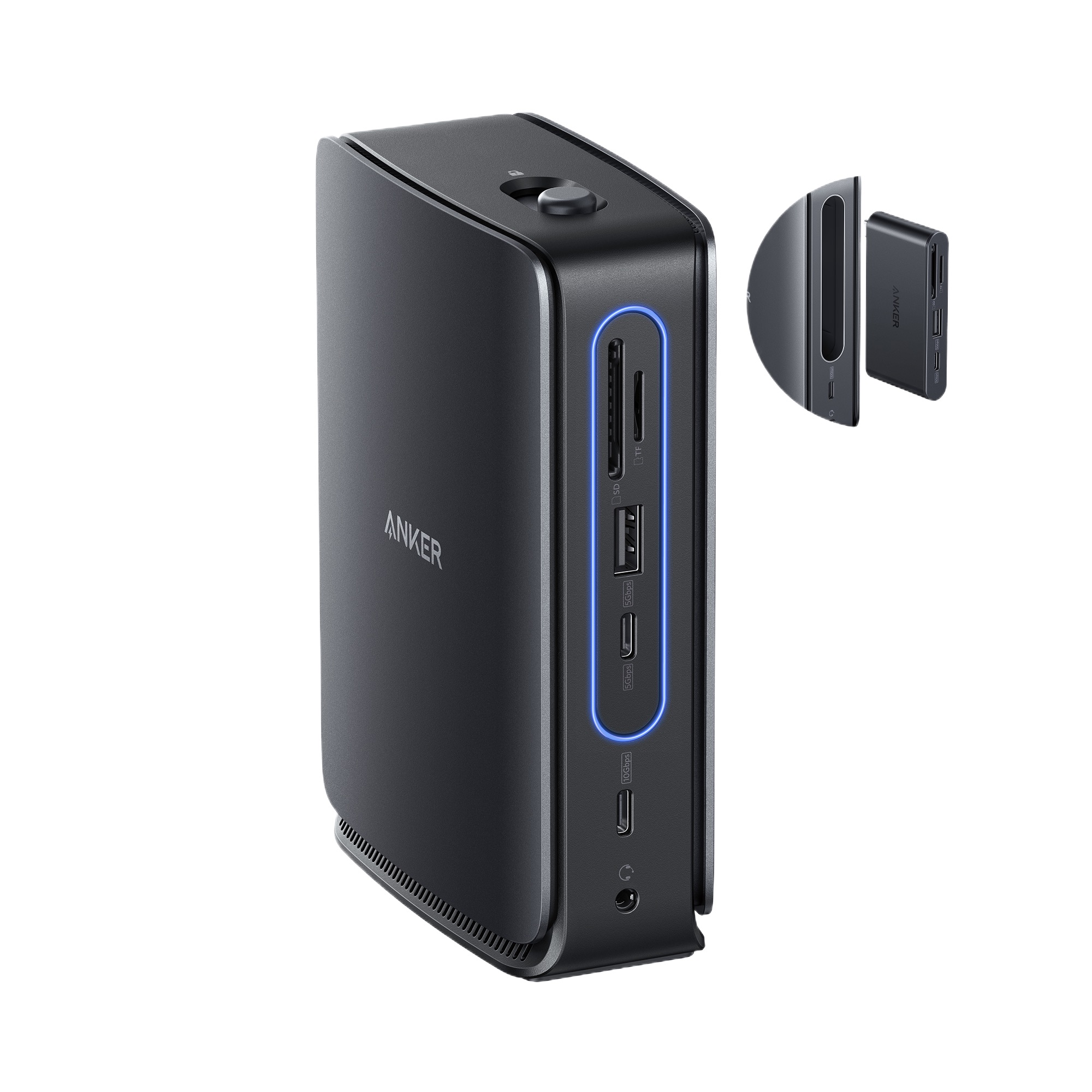
Anker Nano 13-in-1 Docking Station
Our top recommendation for this category
Price as of Feb 28, 2026 — see current price on Amazon.
A single USB-C cable connects your laptop to everything on your desk: two monitors, keyboard, mouse, ethernet, audio, and charging. That is what a good docking station does. A decent hub covers the basics for less money. The problem is the market is full of products that look capable on paper and fail in real use: flickering displays, random USB disconnects after sleep, or charging passthrough that cuts your laptop's wattage to half.
These four picks are compared on port reliability, charging performance, display output, and value. They cover everything from a $69.99 portable hub to a $219.99 Thunderbolt 3 dock that has been the benchmark for Mac users for years.
Our top picks at a glance
| Dock/Hub | Connection | Max Displays | Charging PD | Price | |
|---|---|---|---|---|---|
| Anker Nano 13-in-1 (2026) | USB-C 10Gbps | Triple 4K | 100W | $109.99 | Check Price |
| CalDigit TS3 Plus | Thunderbolt 3 | Dual 4K | 87W | $219.99 | Check Price |
| Plugable UD-6950H | USB 3.0 / USB-C | Dual 4K | None | $99.99 | Check Price |
| Anker 575 USB-C Hub | USB-C 10Gbps | Triple 4K | 100W | $69.99 |
Best new dock for 2026: Anker Nano 13-in-1 Docking Station
Anker Nano 13-in-1 Docking Station
Pros
- Detachable 6-in-1 hub lets you grab just what you need for travel
- Triple display output via 2x HDMI + 1x DisplayPort
- 100W power delivery keeps most laptops fully charged
- 10Gbps USB-C data port for fast external drive transfers
- Compact footprint compared to traditional desktop docks
Cons
- 100W PD may not fast-charge MacBook Pro 16 under heavy load (needs 140W)
- No Thunderbolt 4 support (USB-C 10Gbps only)
- Detachable hub only provides 6-in-1 without the dock portion
- Some users report the detachable connection feels slightly loose over time
Price as of Feb 28, 2026 — see current price on Amazon.
Anker debuted this dock at CES 2026 and the detachable hub concept is the most interesting thing to happen in this product category in years. The dock sits on your desk with 13 ports: two HDMI, one DisplayPort, four USB-A ports, a 10Gbps USB-C data port, a 100W USB-C charging port, ethernet, and an SD card reader. Dock connects to your laptop via USB-C cable, like any other dock.
The difference is the detachable hub. There is a smaller 6-in-1 hub embedded in the front of the dock that pops off and connects directly to your laptop via its own USB-C connector. When you need to work at a coffee shop, you pull off the hub and take it with you. You get HDMI, USB-A, USB-C PD, and card readers on the go without carrying a separate dongle. Then you slot it back into the dock when you return to your desk. It sounds like a gimmick, but if you split time between desk and mobile work, the workflow genuinely works.
Triple display support (two HDMI at 4K@60Hz plus DisplayPort at 4K@60Hz) covers most WFH monitor setups. The 100W charging covers every laptop except the MacBook Pro 16 running a heavy workload, which needs 140W to maintain charge while simultaneously rendering video or compiling. For MacBook Pro 14, MacBook Air, or any Windows ultrabook, 100W is plenty.
At $109.99, this is the most compelling dock launch in the last two years. The Anker Nano replaces the need for both a desk dock and a travel hub in one product.
Who it's for: Anyone who splits time between desk and mobile work. Pairs well with any laptop in our best laptops for programming guide.
Best Thunderbolt dock for Mac: CalDigit TS3 Plus
CalDigit TS3 Plus Thunderbolt 3 Dock
Pros
- Thunderbolt 3 bandwidth means no bandwidth sharing across displays and drives
- 87W charging keeps MacBook Pro fully powered
- UHS-II SD card slot for photographers transfers at 200+ MB/s
- Rock-solid driver stability, minimal random disconnect issues
- Thunderbolt 4 compatible laptops work at full speed
Cons
- No USB-A ports on the front panel
- Requires Thunderbolt 3 or 4 laptop to unlock full features
- $219.99 is a significant investment
- Aging product (2019 design), no Thunderbolt 4 or 5 bandwidth
- Limited to dual display (one DisplayPort, one HDMI)
Price as of Feb 28, 2026 — see current price on Amazon.
The CalDigit TS3 Plus launched in 2019 and it remains the dock people recommend when asked for something reliable. That longevity tells you something about how well it was built. On a Thunderbolt 3 or 4 MacBook Pro, one Thunderbolt cable connects five USB-A ports, USB-C data, DisplayPort, HDMI, ethernet, optical audio out, and an SD card reader. 87W charging is sufficient to keep any MacBook Pro at full charge during light to moderate work.
The UHS-II SD slot is the detail photographers and videographers care about. At 200+ MB/s transfer speeds, it offloads a full camera card meaningfully faster than UHS-I readers. If you shoot a lot or work with large files, this slot alone earns the premium.
Thunderbolt 4 compatibility matters for newer MacBook Pros (M3 and M4 generation). Thunderbolt 4 is backward compatible with Thunderbolt 3, so the TS3 Plus runs at full bandwidth when connected to a TB4 machine. You do not get TB4-specific features like daisy chaining at full bandwidth, but for display output, storage, and peripherals, the real-world difference is minimal for most users.
The honest caveat: if you want Thunderbolt 4 native support, daisy chaining, or future-proofing, the CalDigit TS4 is the upgrade path. The TS3 Plus earns its price by being the most stable dock you can buy today at under $250.
Who it's for: Mac users with Thunderbolt laptops who want one cable to connect everything with zero reliability issues. Also see our best USB-C monitors guide to pair with this dock.
Best budget dual-monitor dock: Plugable UD-6950H
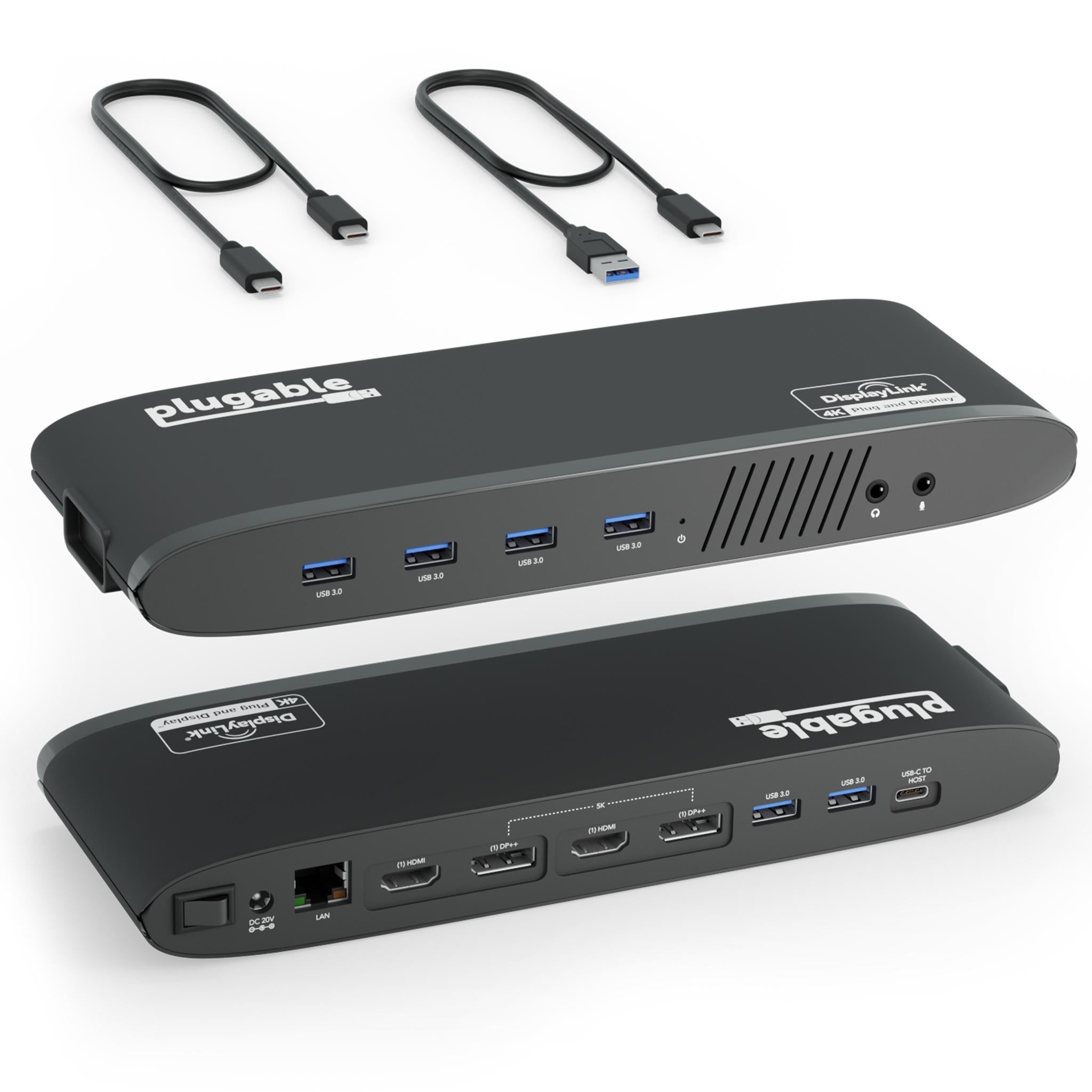
Plugable UD-6950H Dual 4K Docking Station
Pros
- Works with any USB-C or USB 3.0 laptop without Thunderbolt
- Dual 4K monitor support via DisplayLink technology
- Flat horizontal design slides under monitors to save desk space
- Compatible with Windows, Mac, and ChromeOS
- Six USB 3.0 ports covers keyboard, mouse, drives, and more
Cons
- Requires DisplayLink driver install (one-time, easy, but not plug-and-play)
- DisplayLink uses ~10 to 15% CPU vs Thunderbolt direct display output
- No power delivery charging for the laptop
- 4K output limited to 30Hz on some older monitors
- Not ideal for gaming or video editing due to driver overhead
Price as of Feb 28, 2026 — see current price on Amazon.
The Plugable UD-6950H solves a specific problem: you want dual 4K monitors and your laptop does not have Thunderbolt. Most Windows business laptops, Chromebooks, and older MacBooks fall into this category. Thunderbolt docks simply do not work with them. DisplayLink-based docks like this one do.
DisplayLink is a chip technology that encodes display data over USB 3.0, then a driver on your computer decodes it. One-time driver install, then dual 4K monitors just work. The tradeoff is CPU usage: the decoding process pulls about 10 to 15% CPU on an Intel or AMD processor, less on M-series Macs with more efficient silicon. For office work (email, spreadsheets, web browsing, video calls), this overhead is invisible. For gaming or 3D rendering, it causes noticeable lag that makes it unsuitable.
Six USB 3.0 ports plus ethernet, dual DisplayPort, and dual HDMI covers a full desk setup. The horizontal flat body is specifically designed to sit under a monitor stand where vertical docks would not fit. At $99.99 with dual 4K support, nothing else comes close for non-Thunderbolt laptops.
No charging passthrough is the real limitation. You will still need a separate charger for your laptop. For users who already have a quality USB-C charger (see our best USB-C chargers guide), this is not a dealbreaker. The $99.99 price leaves room in the budget for a good charger alongside it.
Who it's for: Windows and Chromebook users who need dual monitors but cannot justify the Thunderbolt premium. Also the right choice when corporate IT restricts driver installs (though DisplayLink requires a driver, which most IT teams approve).
Also worth considering: Anker 575 USB-C Hub
If you only need basic port expansion and do not need a full docking station, the Anker 575 USB-C Hub (B0BNZ4RY3D, ~$69.99) adds triple display output, 10Gbps USB-C and USB-A data, ethernet, and 100W passthrough charging in a compact box that draws power over USB-C without a wall adapter. No Thunderbolt required, no external power brick, and smaller than any dedicated dock.
The limitation is bandwidth sharing: all ports share the 10Gbps USB-C connection, so running two 4K displays while doing high-speed file transfers causes each activity to slow down. For a home office with one or two monitors and light USB device use, you will never notice. For power users moving large files between an NAS and external drives while running dual 4K video, look at the Anker Nano or CalDigit TS3 Plus instead.
At $69.99, the 575 is the right hub for anyone who needs more ports than their laptop provides without spending $100 or more.
What to look for in a docking station or hub
Connection type matters first. Thunderbolt 4 docks offer 40Gbps bandwidth with zero sharing across ports. USB-C (non-Thunderbolt) hubs share a 10Gbps pipe across everything. If you run dual monitors plus external drives, Thunderbolt is worth the premium. For basic setups with one monitor and USB peripherals, USB-C 10Gbps is plenty.
Display output depends on your laptop, not just the dock. Apple Silicon MacBook Air (M1, M2) can only drive one external display natively. Using two requires a DisplayLink dock and driver, or a Thunderbolt dock with the correct configuration. MacBook Air M3 and all MacBook Pro models support dual display natively. Check your specific laptop model before assuming a dock will run multiple monitors.
Power delivery numbers have fine print. A dock that advertises "100W PD" often delivers 100W only on one specific port when nothing else is connected. Add USB devices or a second display and the effective laptop charging wattage drops. MacBook Pro 16 needs 96 to 140W under load. If that is your machine, confirm the dock maintains at least 96W with your display configuration.
DisplayLink vs Thunderbolt for Mac. DisplayLink docks (like the Plugable) work on Mac but require installing the DisplayLink Manager app. Apple restricts third-party screen recording apps from running simultaneously with DisplayLink due to how the driver captures the display. For most users this does not matter. For people who use Loom, CleanShot, or similar screen capture tools daily, Thunderbolt is the cleaner path.
FAQ
Frequently asked questions
- Do I need a Thunderbolt dock or will a USB-C hub work?
- For basic setups with one monitor, a USB keyboard and mouse, and occasional USB drives, a USB-C hub handles everything fine. If you run dual monitors, frequently transfer large files, and want zero performance degradation, Thunderbolt provides 40Gbps bandwidth without sharing. The CalDigit TS3 Plus is the right step up. Most home office workers do not saturate a 10Gbps USB-C connection and will not notice the difference.
- Can I connect a dock to a laptop without Thunderbolt?
- Yes. Docks like the Plugable UD-6950H use DisplayLink technology over USB 3.0 and work with any laptop that has a USB-C or USB-A port. You install a small driver once, and dual 4K monitors work over standard USB. The tradeoff is modest CPU usage (10 to 15%) for the display encoding, which is negligible for office work but noticeable for gaming or video rendering.
- Why does my laptop charge slower when connected through a hub?
- Most USB-C hubs draw 5 to 15W from the passthrough power to run the hub circuitry, reducing what reaches your laptop. A hub rated at 100W PD typically delivers 85 to 90W to the laptop. Under heavy load, a MacBook Pro 16 (which wants 96 to 140W) may discharge slowly despite being connected. Check the hub's effective passthrough spec, not just the advertised PD rating, when shopping for a MacBook Pro 16 or high-performance Windows laptop.
- What is the difference between Thunderbolt 3, 4, and 5?
- Thunderbolt 3 and 4 both provide 40Gbps bandwidth, with TB4 adding stricter certification requirements for reliability. For most users they are interchangeable. Thunderbolt 5 (available in a few 2025 to 2026 laptops) doubles bandwidth to 80Gbps, enabling triple 4K displays at 144Hz or higher refresh rates. TB5 docks cost more and only offer advantages over TB4 if your laptop supports TB5. Most people buying today should focus on Thunderbolt 4 and ignore TB5 until their next laptop.
- Is the Anker Nano Docking Station worth it over a regular hub?
- If you split time between desk and mobile work, yes. The detachable 6-in-1 hub is genuinely useful: dock at your desk with 13 full ports, then pop off the hub and take 6 ports with you. For someone who only works at a desk, a regular dock or the CalDigit TS3 Plus offers more Thunderbolt bandwidth for similar money. The Nano is specifically compelling for hybrid workers who want to carry one accessory that serves both contexts.
The bottom line
For new buyers in 2026: the Anker Nano 13-in-1 at $109.99 is the practical choice for most WFH setups. Triple display support, 100W charging, and the detachable hub make it more versatile than any single-purpose dock at this price.
If you have a Thunderbolt MacBook and want maximum reliability, the CalDigit TS3 Plus at $219.99 is still the benchmark for Thunderbolt 3 stability.
If you need dual monitors but your laptop lacks Thunderbolt, the Plugable UD-6950H at $99.99 is the solution that simply works.
For more ways to build out your desk setup, see our best USB-C monitors and best wireless chargers guides.
How We Pick
We pick products by combining spec-level research, price checks, trusted third-party benchmarks, and owner sentiment from high-signal sources.
- Performance and real-world value in the category this guide targets
- Price-to-performance and deal consistency over recent pricing windows
- Build quality, reliability patterns, and known long-term issues
- Recommendation refresh cadence to keep these picks current
Author
TheTechSearch Editorial Team
Independent product reviewers & PC builders
We compare real-world specs, reviews and owner reports, price trends, and user feedback to recommend gear that actually makes sense to buy.