Best Laptop for College Students in 2026
Best laptops for college students in 2026. Top picks for every major and budget, from the MacBook Air M4 to budget Windows options under $500. Expert picks,...
As an Amazon Associate we earn from qualifying purchases made through our links — this doesn't affect our picks.
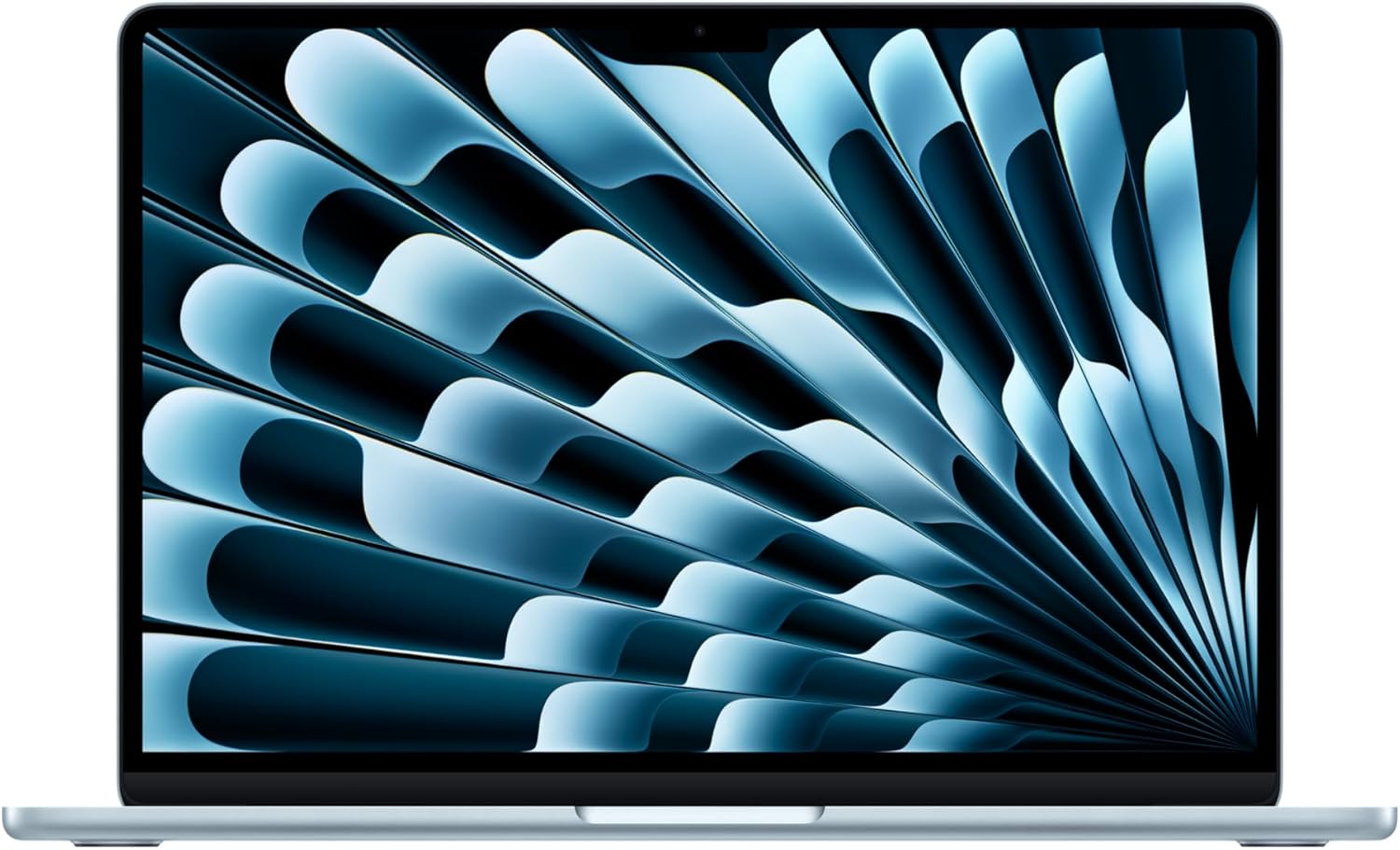
Apple MacBook Air M4 (13-inch, 2025)
Best Overall
Price as of Mar 3, 2026 — see current price on Amazon.
College laptops get judged by a different standard than gaming rigs or workstations. Battery life matters more than raw clock speed. Portability matters more than screen size. Durability matters more than RGB. And price sensitivity is real when you are already spending thousands on tuition.
I reviewed testing data from PCMag, RTINGS, Wirecutter, and Laptop Mag, cross-referenced with student feedback on Reddit and Amazon, and narrowed the field to five laptops that cover every major and every budget. Each pick balances what students actually need: enough power for coursework, long battery for lecture halls without outlets, a screen that is comfortable for hours of reading, and a keyboard that does not make essay writing miserable.
Quick picks
| Laptop | Best For | Battery | Weight | Price | |
|---|---|---|---|---|---|
| MacBook Air M4 | Overall / Apple users | 18 hrs | 2.7 lbs | ~$1,099 | Check Price |
| Dell 14 Plus | AI features / 2-in-1 | 14 hrs | 3.2 lbs | ~$780 | Check Price |
| ASUS Zenbook 14 OLED | Creative / arts majors | 13 hrs | 2.8 lbs | ~$900 | Check Price |
| Lenovo IdeaPad Slim 5 | STEM / value | 12 hrs | 3.5 lbs | ~$700 | Check Price |
| Acer Aspire 3 | Budget | 10 hrs | 3.9 lbs | ~$400 | Check Price |
Best overall: MacBook Air M4
Apple MacBook Air M4 (13-inch, 2025)
Best for: Best OverallPros
- 18-hour battery life is the longest of any laptop on this list
- M4 chip handles coding, design, video editing, and multitasking without breaking a sweat
- 2.7 pounds and fanless design means silent, lightweight portability
- 13.6-inch Liquid Retina display with P3 wide color and 500 nits brightness
- 16GB unified memory standard across all configurations
- Apple Intelligence built in for writing assistance, summaries, and image tools
- Center Stage 12MP camera adjusts framing automatically for video calls
Cons
- Starts at $1,099 which is the highest entry point on this list
- Only two USB-C/Thunderbolt ports and one MagSafe -- no USB-A, no SD card slot
- macOS is not compatible with some Windows-only software required by certain programs
- 256GB base storage fills up fast with large projects and media
Price as of Mar 3, 2026 — see current price on Amazon.
The MacBook Air M4 is the default recommendation for college students who can afford it, and the reasons are straightforward. Battery life is 18 hours in Apple's testing, and real-world usage consistently lands at 12 to 15 hours with mixed web browsing, document editing, and streaming. That means a full day of classes without carrying a charger.
The M4 chip is absurdly efficient for what students need. It compiles code faster than most Intel laptops at double the price. It runs Adobe Creative Cloud apps without lag. It edits 4K video in Final Cut Pro without the fans spinning up -- because there are no fans. The fanless design means silent operation in libraries, lecture halls, and study groups.
At 2.7 pounds and 0.44 inches thin, carrying this in a backpack all day is a non-issue. The build quality is aluminum unibody, which survives the daily abuse of being shoved into bags, set on desks, and transported between buildings.
The 13.6-inch Liquid Retina display is bright enough for outdoor use at 500 nits and accurate enough for design coursework with P3 wide color support. Text rendering is crisp at the default scaled resolution, which matters when you are reading PDF textbooks and writing papers for hours.
The honest trade-offs: $1,099 is real money for a student budget. The two Thunderbolt ports mean you need a dongle for USB-A peripherals. And if your program requires Windows-only software (some engineering, accounting, or IT programs do), macOS is a compatibility wall. Check your department's software requirements before committing.
For students in humanities, business, pre-law, pre-med, or any program that primarily uses web-based tools and Microsoft Office, the MacBook Air M4 is the safest four-year investment you can make.
Best Windows all-rounder: Dell 14 Plus
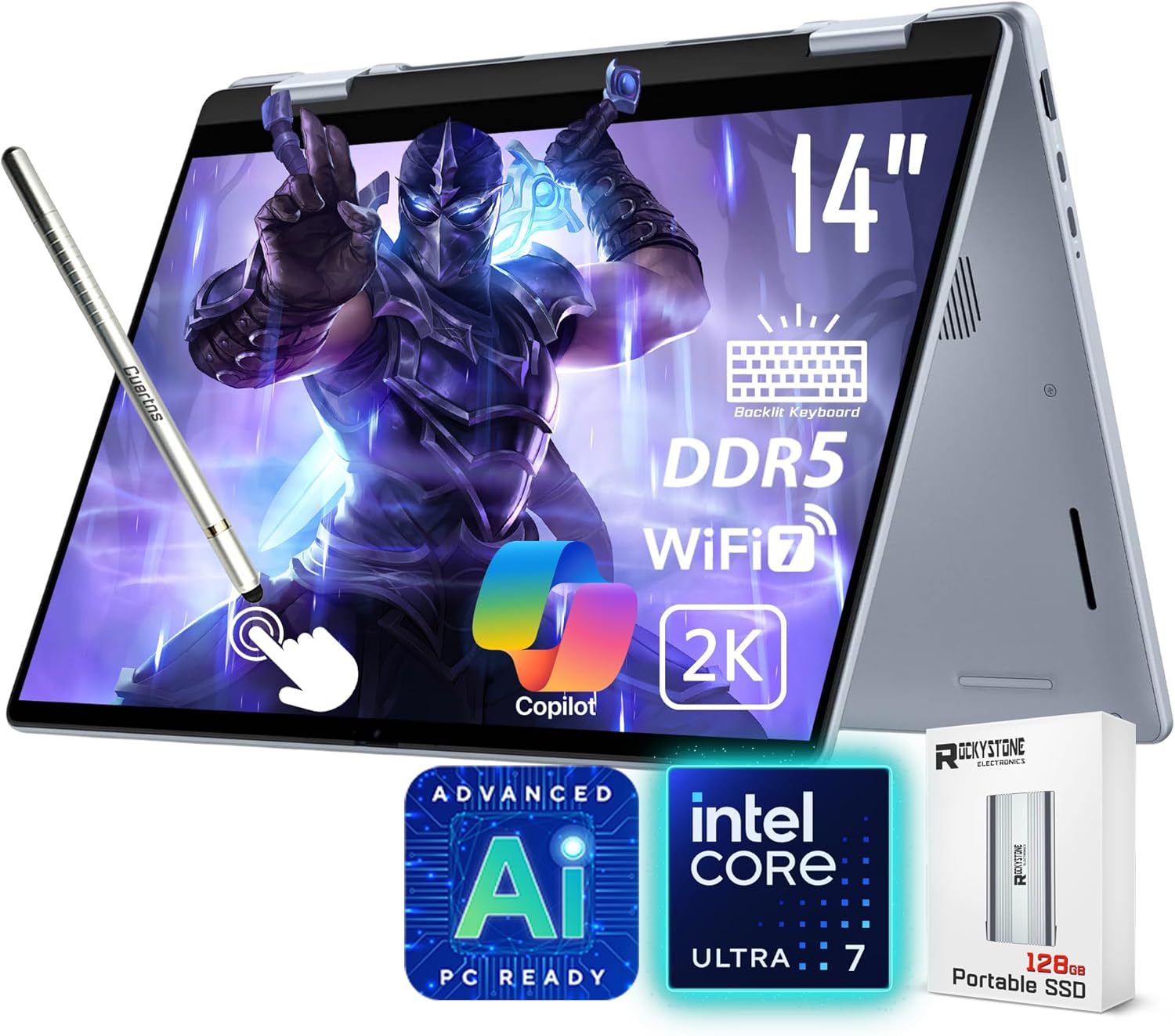
Dell 14 Plus (Copilot+ PC)
Best for: Best Windows / AI FeaturesPros
- 2-in-1 touchscreen flips to tablet mode for note-taking with a stylus
- Intel Core Ultra 7 256V with NPU for on-device AI processing
- Copilot+ PC features including Live Captions, Cocreator, and Windows Studio Effects
- 14-inch 2K (2560x1600) display with sharp text and vivid colors
- WiFi 7 and Thunderbolt 4 for future-proof connectivity
- 16GB DDR5 and 1TB SSD in the standard configuration at $780
Cons
- 3.2 pounds is slightly heavier than the MacBook Air
- Battery life at 14 hours is good but trails the MacBook Air by a few hours
- The 2-in-1 hinge adds thickness compared to clamshell designs
- Fan noise is noticeable under sustained heavy loads
Price as of Mar 3, 2026 — see current price on Amazon.
The Dell 14 Plus hits a sweet spot that is hard to find elsewhere: a 2-in-1 convertible with strong specs, a good display, and AI features at $780. PCMag highlighted it as one of the best Copilot+ PCs for the value proposition, and the combination of features makes sense for students who want flexibility.
The 2-in-1 form factor is genuinely useful in college. Flip the screen around for tablet-mode note-taking in lectures with a stylus. Tent it for watching video content. Fold it flat for touch-based collaboration. These are not gimmicks when your daily workflow shifts between writing papers, reviewing slides, and consuming media.
The Intel Core Ultra 7 256V processor includes a dedicated NPU (Neural Processing Unit) that handles AI tasks locally. Copilot+ features like Live Captions transcribe lectures in real time on-device, which is a practical advantage for students in large lecture halls. Windows Studio Effects improves webcam quality for Zoom classes. These features work without internet, which matters in buildings with poor WiFi.
The 14-inch 2K display at 2560x1600 resolution provides sharp text and enough screen space for split-view multitasking -- a research paper on one side, source material on the other. Color accuracy is good enough for casual design work but falls short of the ASUS Zenbook OLED for color-critical projects.
16GB DDR5 RAM and 1TB SSD in the base configuration is generous. Most competitors at this price give you 512GB storage and charge extra for the upgrade. For students who store lecture recordings, project files, and media locally, the extra space prevents the "storage full" headache that hits mid-semester.
Best display: ASUS Zenbook 14 OLED
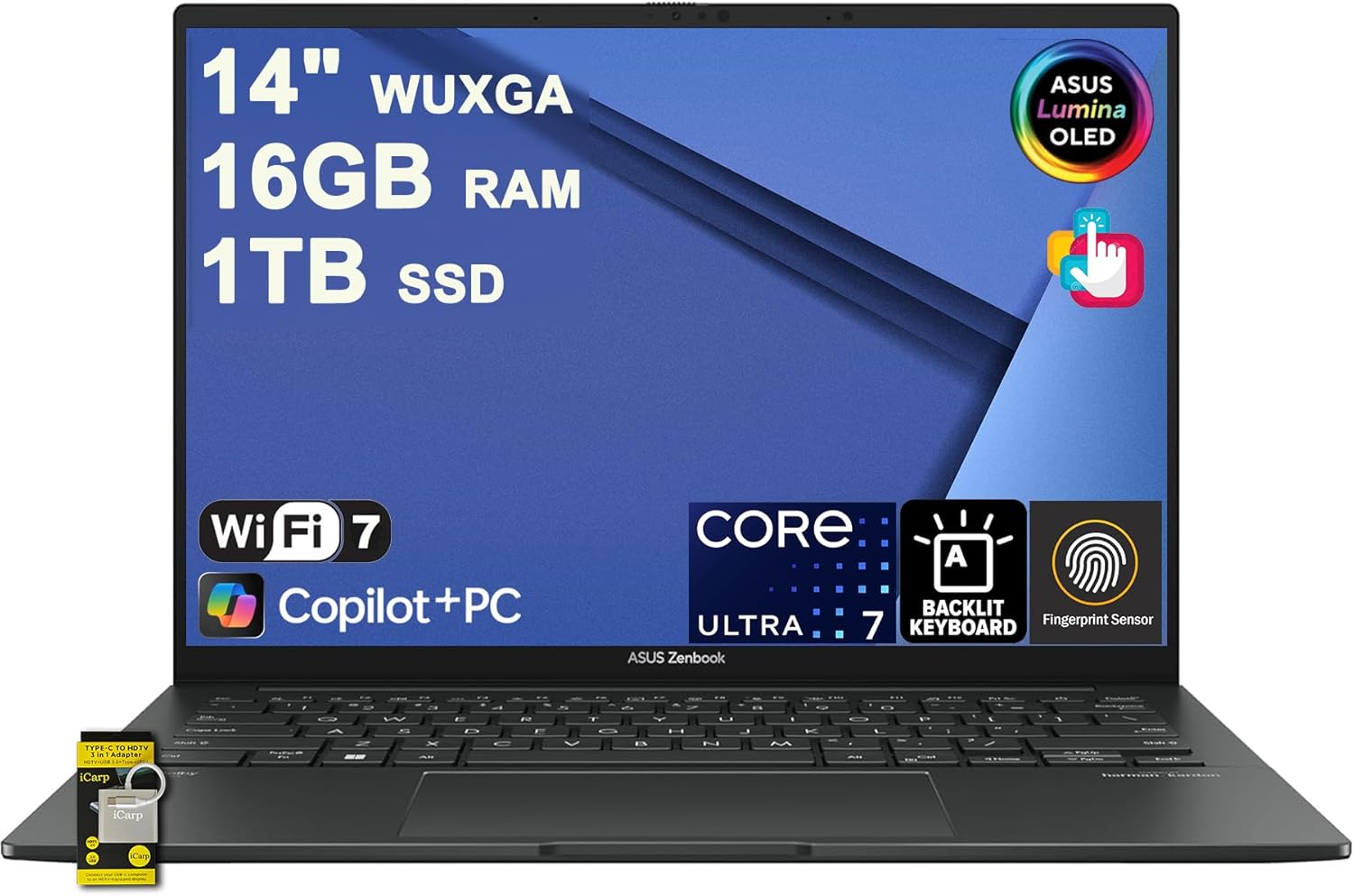
ASUS Zenbook 14 OLED (2025)
Best for: Best for Creative MajorsPros
- 14-inch OLED touchscreen with 100% DCI-P3 color and true blacks
- Pantone Validated and DisplayHDR True Black 600 certified
- Intel Core Ultra 7 155H delivers strong multi-threaded performance
- Thunderbolt 4 and WiFi 6E for fast connectivity
- 2.8 pounds makes it easy to carry between studios and classes
- Backlit keyboard with comfortable 1.4mm key travel
Cons
- OLED burn-in risk with static content displayed for very long sessions
- Battery at 13 hours is decent but shorter than the Dell or MacBook
- No 2-in-1 functionality -- clamshell only
- Intel Arc graphics handle light creative work but not heavy 3D rendering
Price as of Mar 3, 2026 — see current price on Amazon.
If your major involves any kind of visual work -- graphic design, photography, film studies, architecture, or digital art -- the OLED display on the Zenbook 14 is worth paying for. The difference between a standard IPS panel and a 2880x1800 OLED with 100% DCI-P3 coverage and true blacks is immediately visible when editing photos, color grading video, or reviewing design work.
Pantone Validation means the display is factory-calibrated for color accuracy. DisplayHDR True Black 600 certification means HDR content looks the way creators intended. In practical terms, your design projects look on this screen the way they will look in print or on calibrated monitors. That consistency matters when professors or clients are evaluating color choices.
The Intel Core Ultra 7 155H is a strong all-around processor with 16 performance and efficiency cores. It handles Adobe Photoshop, Illustrator, and Lightroom without stutter. It manages Premiere Pro timeline scrubbing for 1080p projects. It runs coding IDEs, virtual machines, and browser tabs in parallel. Where it falls short is GPU-intensive 3D work -- the integrated Intel Arc graphics are not a substitute for a discrete GPU if you are doing heavy Blender or After Effects rendering.
At 2.8 pounds, the Zenbook 14 is nearly as portable as the MacBook Air. The aluminum chassis feels solid without being heavy. The keyboard has 1.4mm key travel, which is above average for a thin laptop and makes long writing sessions comfortable.
Battery life at roughly 13 hours is good but not exceptional. OLED displays consume more power than LCDs, especially with bright content. Expect closer to 9 to 10 hours with real-world mixed use. Carry a charger if your schedule includes back-to-back classes.
Best for STEM: Lenovo IdeaPad Slim 5
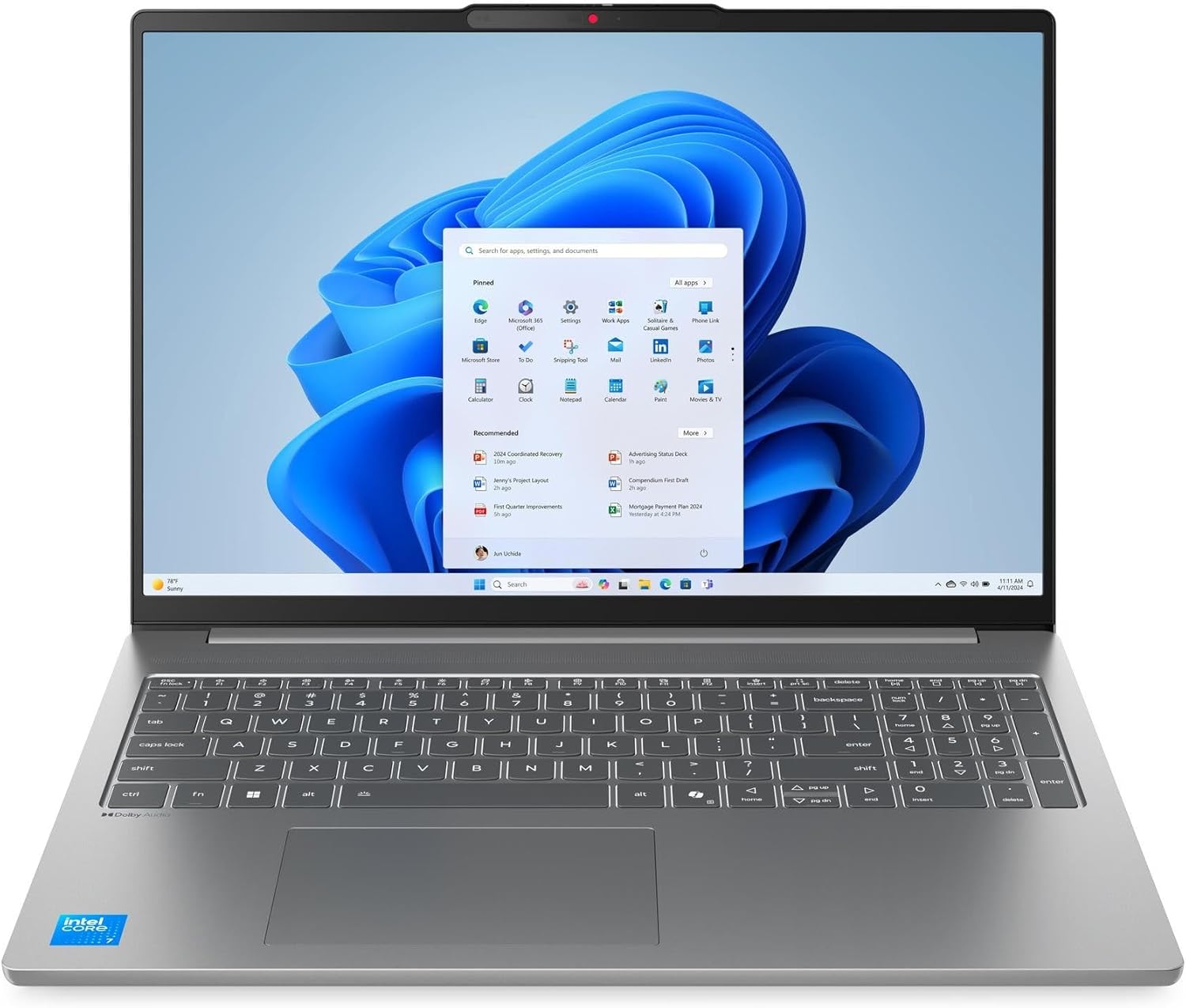
Lenovo IdeaPad Slim 5 (16-inch, 2025)
Best for: Best for STEM StudentsPros
- 16-inch FHD+ touchscreen provides more workspace for code and spreadsheets
- Intel Core 7 240H handles demanding STEM applications and compiling
- 16GB DDR5 RAM runs virtual machines and heavy IDEs without slowdown
- 512GB NVMe SSD with room to upgrade in the M.2 slot
- WiFi 6 and Bluetooth 5.2 for reliable campus connectivity
- $700 price puts strong performance within student budget range
Cons
- 3.5 pounds and 16-inch chassis is noticeably bigger than 14-inch options
- Display is FHD+ IPS, not OLED -- color accuracy is average
- Battery at 12 hours is adequate but drains faster under heavy compute loads
- Plastic lid flex under pressure is noticeable compared to aluminum competitors
Price as of Mar 3, 2026 — see current price on Amazon.
STEM students need screen space and processing power more than extreme portability. The IdeaPad Slim 5's 16-inch FHD+ display gives you enough room to run an IDE on one half and documentation on the other without everything feeling cramped. For engineering, computer science, data science, and mathematics majors, that extra space is a daily productivity gain.
The Intel Core 7 240H is a 10-core processor that handles compiling code, running Jupyter notebooks, spinning up Docker containers, and managing MATLAB simulations without bogging down. Paired with 16GB DDR5, you can run Linux VMs alongside Windows without the performance cliff that 8GB machines hit. If your coursework involves any kind of computational work, this baseline configuration handles it.
At $700, the IdeaPad Slim 5 represents strong value for the specs. Competitors offering the same processor and RAM at this screen size typically cost $100 to $200 more. Lenovo keeps the price down with an IPS display rather than OLED and a plastic-aluminum hybrid build rather than full aluminum. These are reasonable trade-offs for budget-conscious students.
The 512GB SSD is sufficient for most coursework but can fill up if you work with large datasets or VMs. The M.2 slot is accessible for a storage upgrade down the road, which extends the laptop's useful life through graduate school.
The main compromise is size and weight. At 3.5 pounds and a 16-inch footprint, this is the largest laptop on the list. It fits in a standard backpack but is noticeably heavier than the sub-3-pound options. If you prioritize portability over screen space, the Dell 14 Plus or MacBook Air are better choices.
Best budget: Acer Aspire 3
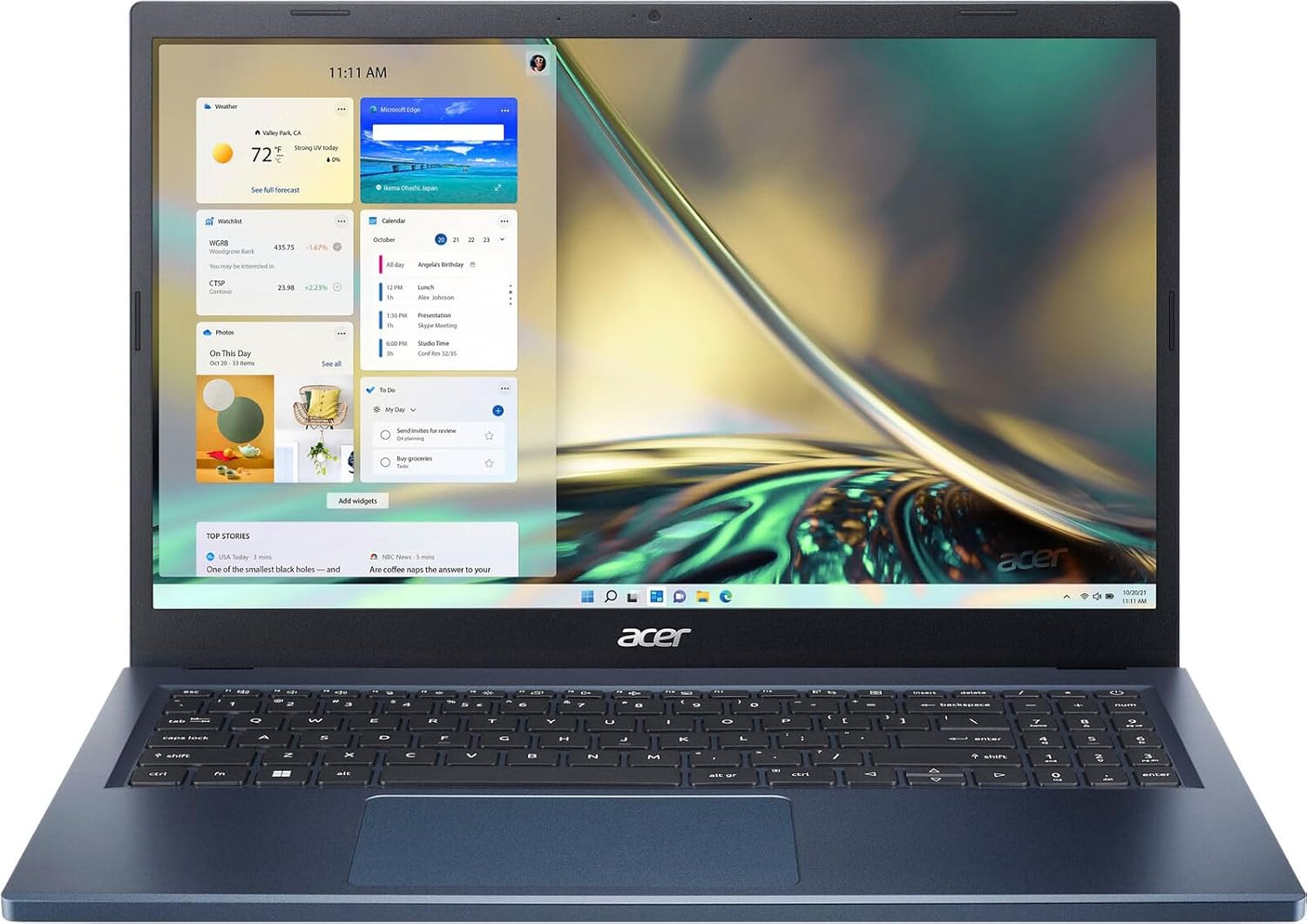
Acer Aspire 3 (15.6-inch)
Best for: Best BudgetPros
- $400 price makes it the most accessible laptop on this list
- 15.6-inch Full HD IPS touchscreen at this price is uncommon
- AMD Ryzen 5 7520U handles everyday college tasks without lag
- 8GB LPDDR5 RAM and 512GB NVMe SSD is adequate for coursework
- WiFi 6 support for campus networks
- Available in multiple colors
Cons
- 8GB RAM is the minimum for comfortable multitasking and cannot be upgraded
- Battery at 10 hours is the shortest on this list
- Build quality is all-plastic with noticeable flex
- Display brightness tops out around 250 nits which struggles in bright rooms
- Speakers are below average for media consumption
Price as of Mar 3, 2026 — see current price on Amazon.
Not every student can spend $700-plus on a laptop, and the Acer Aspire 3 exists to prove that $400 is enough for a functional college machine. The AMD Ryzen 5 7520U handles Google Docs, Microsoft Office, web browsing, Zoom calls, and streaming without meaningful lag. For students in programs that primarily use web-based tools and standard productivity software, this covers the essentials.
The 15.6-inch Full HD IPS touchscreen at this price is a genuine value. Most $400 laptops offer 768p displays or skip the touchscreen entirely. The 1080p panel provides sharp enough text for reading documents and writing papers. Touch support adds convenience for scrolling through PDFs and navigating presentations.
512GB NVMe SSD storage is sufficient for four years of coursework. Load times are fast for a budget machine -- booting to the desktop takes under 15 seconds, and apps launch without the spinning wait that budget laptops used to inflict.
The honest limitations: 8GB RAM is functional but tight. Having 15 browser tabs open while running Spotify and a Word document will occasionally trigger slowdowns. The RAM is soldered and cannot be upgraded. Battery life at around 10 hours gets you through a typical class day but does not leave much room for evening study sessions without plugging in. The 250-nit display is fine indoors but washes out near windows or in outdoor study spots.
If your budget ceiling is $400, the Aspire 3 is the right answer. If you can stretch to $700, the Lenovo IdeaPad Slim 5 is a significant upgrade in performance, build quality, and screen size.
Windows vs Mac: a quick guide for students
The Windows-vs-Mac decision for college often comes down to your major, not personal preference.
Choose Mac if: You study business, humanities, pre-law, pre-med, journalism, or any field where your tools are Microsoft Office, web apps, and general productivity. macOS runs all of these well, battery life is exceptional, and the Apple ecosystem (iPhone, iPad, AirDrop) creates real workflow advantages. Design and media students also benefit from native app optimization in Final Cut Pro, Logic Pro, and Adobe Creative Cloud.
Choose Windows if: Your program requires specific Windows-only software. Engineering programs often mandate AutoCAD, SolidWorks, or MATLAB with Windows-specific plugins. Some accounting programs require particular tax software. IT and cybersecurity programs may need tools that only run natively on Windows. Check with your department before buying.
Either works for: Computer science (IDEs run on both), general studies, social sciences, and any program that primarily uses browser-based tools like Google Workspace or Canvas LMS.
What to prioritize when buying a college laptop
Battery life over raw speed. Lecture halls and library desks do not always have outlets nearby. A laptop that lasts 12-plus hours on a charge eliminates the anxiety of watching the battery indicator drop during a three-hour lecture. Every laptop on this list hits at least 10 hours.
Weight under 3.5 pounds. You carry this between classes, to the library, and home. Every ounce adds up across a mile of campus walking. The sub-3-pound options (MacBook Air, Zenbook 14) feel noticeably lighter in a backpack.
16GB RAM is the new minimum. 8GB works today but shows its age with modern browsers and multitasking. If you can afford 16GB, buy it. The IdeaPad Slim 5, Dell 14 Plus, and MacBook Air all start at 16GB.
512GB storage minimum. Four years of documents, lecture recordings, project files, and apps add up. 256GB runs out by sophomore year. 512GB is comfortable. 1TB is generous.
Keyboard quality matters for papers. You will write hundreds of pages in college. A keyboard with good travel and consistent feedback reduces fatigue. Test before buying if possible.
Already have a laptop picked and need accessories? See our guide to the best laptops for programming 2026 for software-focused recommendations. Budget-conscious? Our best laptop under $500 roundup covers more affordable options. And if you want a machine that handles both studying and gaming, check the best gaming laptop under $1000.
Frequently asked questions
How We Test
We score products by combining spec-level research, pricing history, trusted third-party benchmarks, and owner sentiment from high-signal sources.
- Performance and real-world value in the category this guide targets
- Price-to-performance and deal consistency over recent pricing windows
- Build quality, reliability patterns, and known long-term issues
- Recommendation refresh cadence to keep these picks current
Author
TheTechSearch Editorial Team
Independent product reviewers & PC builders
We test and compare real-world specs, price trends, and user feedback to recommend gear that actually makes sense to buy.