Best 27 Inch Monitors 2026
The five best 27-inch monitors for productivity, creative work, and everyday use — ranked for 2026. Expert picks, pros and cons, and side-by-side comparisons...
As an Amazon Associate we earn from qualifying purchases made through our links — this doesn't affect our picks.
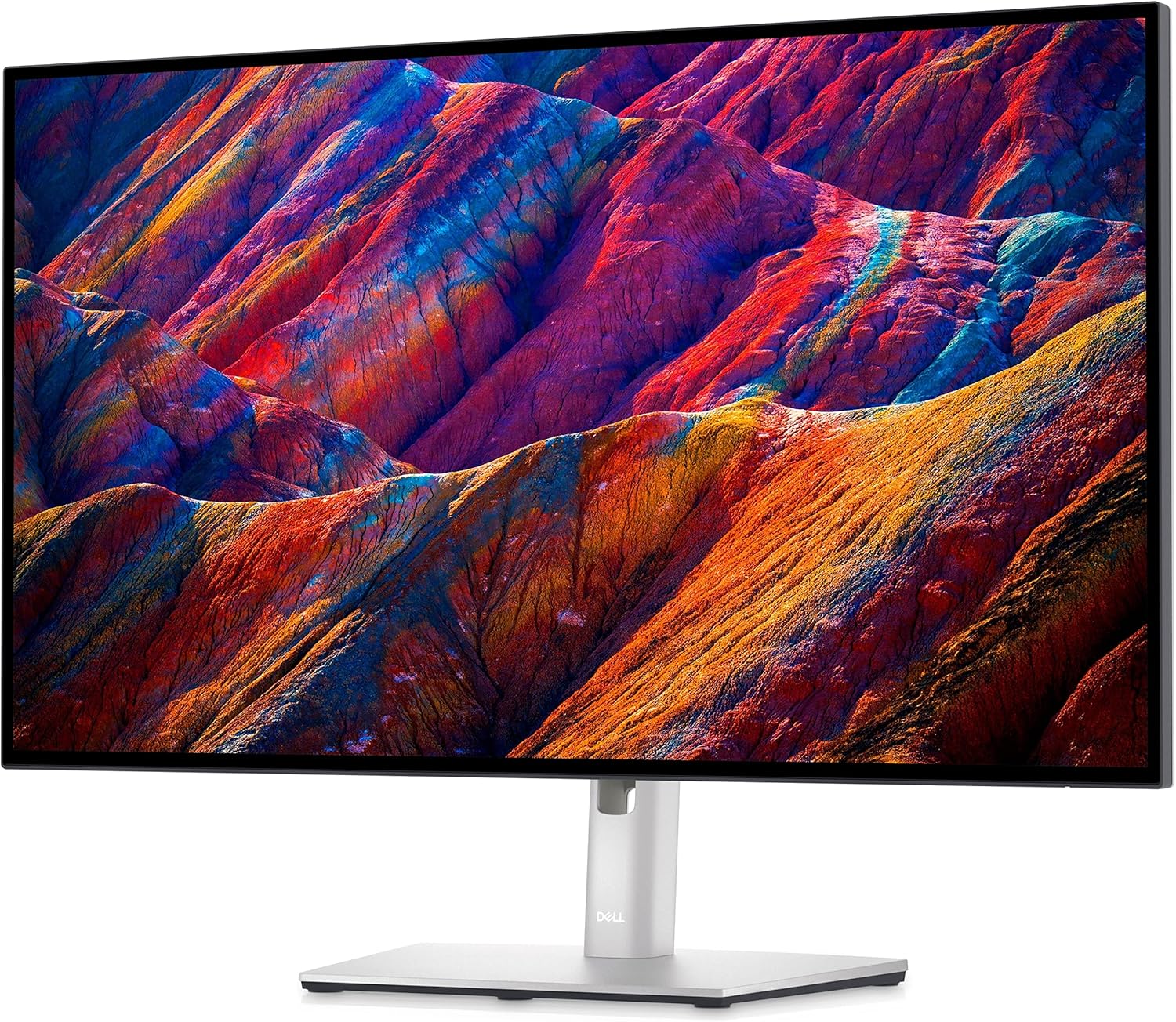
Dell UltraSharp U2723QE 27-Inch 4K IPS Black Monitor
Our top recommendation for this category
Price as of Apr 11, 2026 — see current price on Amazon.
The 27-inch monitor market looks very different than it did two years ago. USB-C Power Delivery above 90W is becoming standard rather than a flagship perk. Factory-verified color accuracy, once a premium-tier feature, now shows up at $395. And a 1440p designer panel from a name brand can be had for $230. The one thing that has not gotten cheaper is contrast: IPS Black is still the premium tier, and you pay for it.
This guide covers five monitors across the $230-$639 range. I focused on displays that work for professionals who need accurate color, remote workers who want a clean single-cable desk, and anyone who just wants a great all-purpose screen they won't need to replace in two years.
Quick Picks
| Monitor | Panel / Resolution | Refresh Rate | USB-C PD | Price | |
|---|---|---|---|---|---|
| Dell U2723QE | IPS Black / 4K | 60Hz | 90W | ~$639 | Check Price |
| LG 27UP850-W | IPS / 4K | 60Hz | 96W | ~$398 | Check Price |
| ASUS ProArt PA279CV | IPS / 4K | 60Hz | 65W | ~$395 | Check Price |
| BenQ PD2705Q | IPS / 1440p | 60Hz | 65W | ~$230 | Check Price |
| ASUS ZenScreen MS27UC | IPS / 4K | 60Hz | 90W | ~$249 | Check Price |
Dell U2723QE: Best Overall
Dell UltraSharp U2723QE 27-Inch 4K IPS Black Monitor
Pros
- IPS Black panel hits 2000:1 contrast, roughly double standard IPS
- 90W USB-C handles display, hub, and MacBook Pro charging over one cable
- Ships with a per-unit factory calibration report
- Built-in KVM lets one keyboard and mouse switch between two computers
Cons
- 60Hz only, no path to higher refresh rates
- Glossy bezel picks up fingerprints faster than it should at this price
Price as of Apr 11, 2026 — see current price on Amazon.
The IPS Black panel is what separates this monitor from the rest of the IPS field. Standard IPS panels land around 1000:1 contrast; the U2723QE reaches 2000:1, which is close enough to VA territory that you stop noticing the difference in most lighting conditions. Blacks look like blacks, not gray rectangles.
Color accuracy is excellent and Dell backs it with numbers. The box includes a per-unit calibration report, not a batch certificate. Dell publishes coverage of 100% sRGB, 100% Rec.709 and 98% DCI-P3, which is the widest gamut in this group and enough for client-facing photo and video work.
The USB-C implementation is the right kind of practical. One cable handles the 4K signal, three USB-A ports, one USB-B hub upstream, and 90W charging. 90W is enough to keep most 16-inch laptops charged under sustained load. The KVM is a genuine quality-of-life feature if you run a personal and a work machine side by side.
The catch is the price. At $639 the Dell now costs more than the LG and the ASUS put together, and the two things it gives you for that money are contrast and the KVM. If neither is worth $240 to you, buy further down this list. The other people who shouldn't buy it are gamers: 60Hz at 4K is fine for work, but anything fast-paced needs a different shortlist.
LG 27UP850-W: Best Value 4K
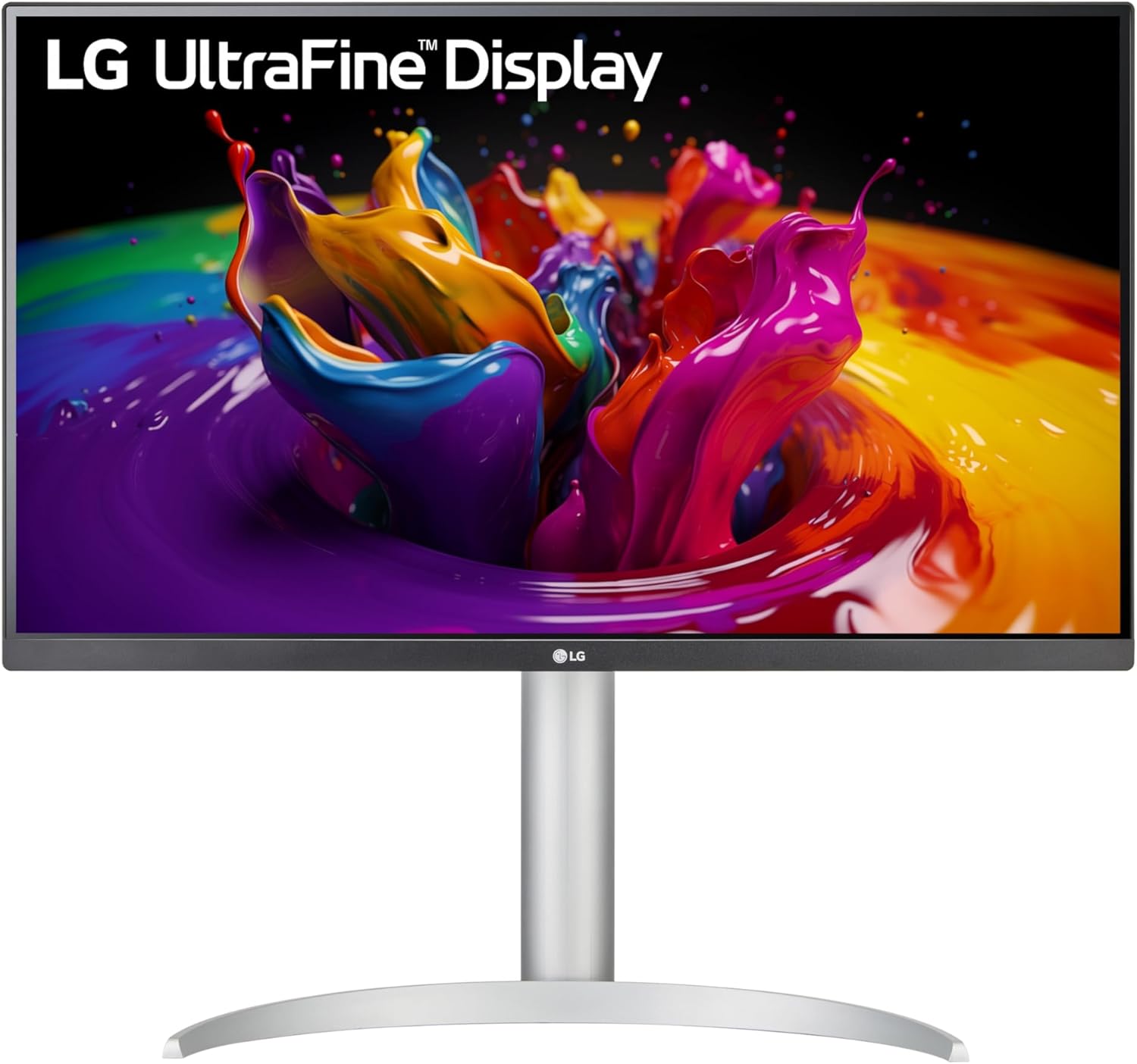
LG 27UP850-W 27-Inch 4K IPS Monitor
Pros
- 96W USB-C is the highest power delivery of any monitor on this list
- LG rates the panel at 95% DCI-P3 coverage
- VESA DisplayHDR 400 certified
- Solid price for a proper 4K IPS panel
Cons
- Standard IPS at 1000:1 contrast, visibly weaker in dark rooms versus the Dell
- No KVM
Price as of Apr 11, 2026 — see current price on Amazon.
If $639 is more than you want to spend, the LG 27UP850-W closes most of the gap for $241 less. You lose the IPS Black panel and the KVM. What you get instead is 96W USB-C charging, the highest wattage in this group, which matters if you're running a power-hungry 16-inch MacBook Pro.
Color accuracy sits at good but not exceptional. LG rates the panel at 95% DCI-P3 and certifies it to VESA DisplayHDR 400, and publishes no Delta E figure for it. That absence is the difference between this and the two monitors either side of it in price: both the Dell and the ASUS tell you in writing how accurate the panel is before you plug it in. The LG asks you to take its word.
The contrast gap versus the Dell is real. In a bright office you won't care. Working late in a dim room, standard IPS blacks look visibly gray compared to the U2723QE. That's the trade-off you're making at this price.
There is one wrinkle worth naming. The ASUS below now sells for $395, three dollars less than this LG, and it publishes the Delta E figure the LG does not. The LG wins on charging (96W against 65W) and on the pivot stand. If you never charge a laptop off the monitor, buy the ASUS instead. If a single cable to a 16-inch MacBook Pro is the whole point of the purchase, the 96W here is the reason to stay.
ASUS ProArt PA279CV: Best for Creative Professionals
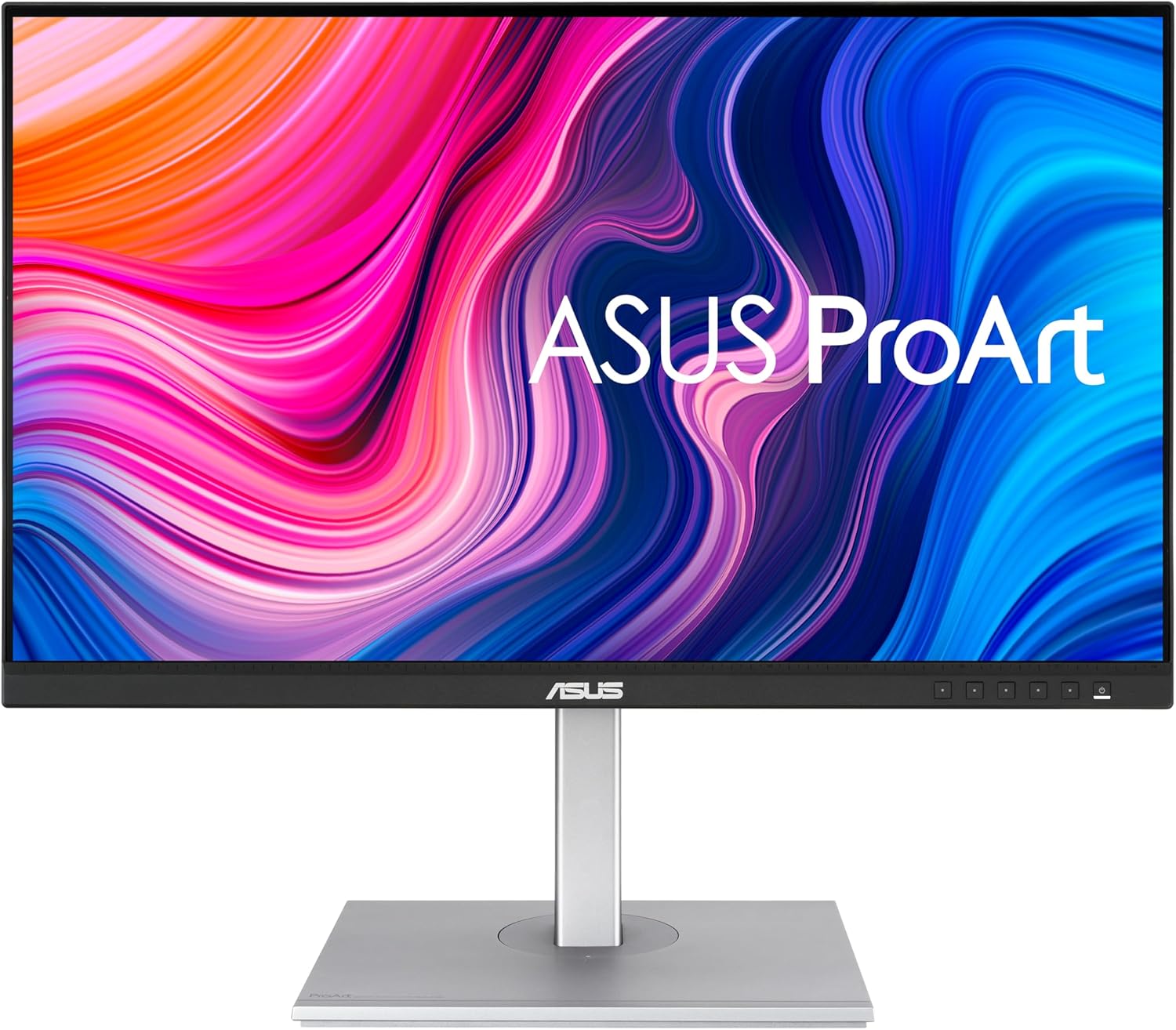
ASUS ProArt PA279CV 27-Inch 4K IPS Monitor
Pros
- Calman Verified with a Delta E under 2 and a colour pre-calibration report in the box
- 100% sRGB coverage, the figure ASUS actually publishes for this panel
- Four USB 3.2 Gen 1 Type-A ports on the built-in hub
- Cheapest 4K panel here with a published Delta E figure
Cons
- 65W USB-C won't sustain charge on a 16-inch MacBook Pro under heavy load
- OSD menu navigation is sluggish compared to Dell's joystick control
- 350 nits and 1000:1 contrast, dimmer and flatter than the Dell
Price as of Apr 11, 2026 — see current price on Amazon.
The ProArt PA279CV is built around one promise: you can trust the colors out of the box. It is Calman Verified, ASUS rates it at Delta E under 2, and a colour pre-calibration report ships in the carton. That is the same class of assurance the Dell gives you, on a monitor that now costs $244 less.
Be careful about which coverage numbers you trust here. ASUS publishes one figure for this panel: 100% sRGB. DCI-P3 and Rec.2020 coverage are not stated, and plenty of listings quote numbers ASUS itself does not. If your work is sRGB and Rec.709 (web, UI, most photo delivery) this panel is fully specified for it. If you need a documented P3 gamut for video, the Dell's published 98% DCI-P3 is the one to buy.
The hub is the practical draw. Four USB 3.2 Gen 1 Type-A ports hang off the back, so a keyboard, mouse, webcam and drive all land on the monitor rather than the laptop. Note what the panel does not do: at 350 nits and 1000:1 it is dimmer and flatter than the Dell, and in a bright room that shows before any gamut argument does.
The 65W USB-C ceiling is the genuine limitation. It works fine with a MacBook Air or 13-inch Pro. Run a 16-inch MacBook Pro through a rendering pipeline and you'll watch the battery slowly decline. For that use case, the LG with 96W is the right call, and it costs three dollars more.
BenQ PD2705Q: Best 1440p Option
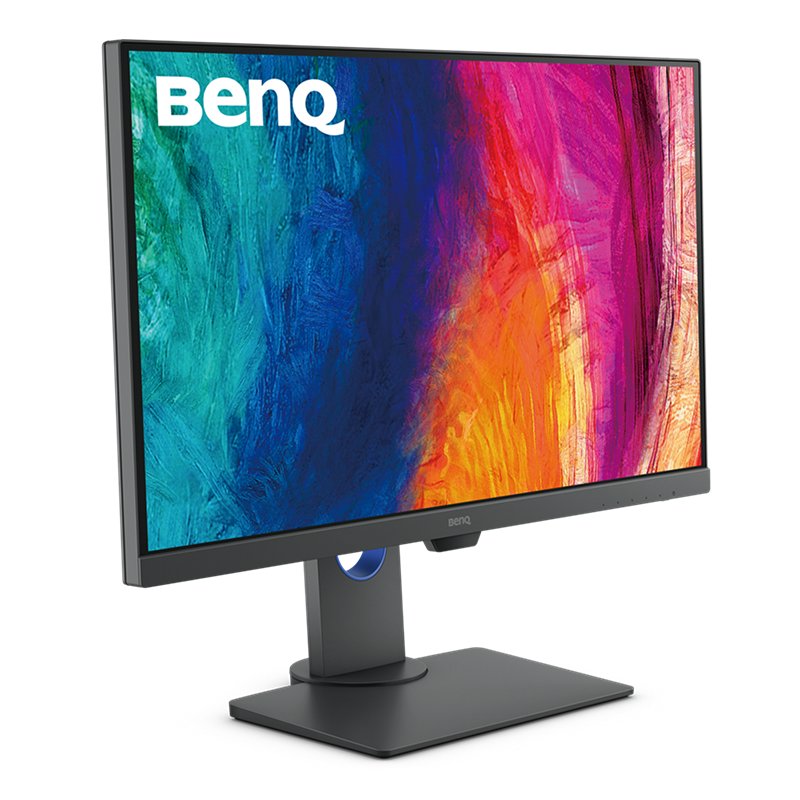
BenQ PD2705Q 27-Inch 1440p IPS Designer Monitor
Pros
- Native 1440p with no scaling needed, every pixel is sharp
- 100% sRGB and 100% Rec.709 with a rated Delta E of 3 or better
- Built-in 2W stereo speakers, which the ASUS matches and the Dell does not
- DisplayPort out with MST for daisy-chaining a second screen
Cons
- 1440p will feel limiting sooner than 4K at this price point
- 250 nits and HDR10 in name only, too dim for real HDR
- Stand footprint is large relative to competitors
Price as of Apr 11, 2026 — see current price on Amazon.
Making the case for 1440p in 2026 requires honesty about when it makes sense. At a normal desk distance of 60-80 cm, a 27-inch 4K display at 200% scaling (macOS) or 150% scaling (Windows) looks sharper than 1440p native for text. But some applications, particularly older Win32 software that doesn't handle DPI scaling properly, can look soft at fractional scaling. Native 1440p at 27 inches is around 108 PPI, which means pixel-perfect rendering for every app, no scaling math involved.
The PD2705Q targets developers, content writers, and anyone running reference UI work where native pixel rendering matters. BenQ rates the panel at 100% sRGB and 100% Rec.709 with Delta E of 3 or better, which is exactly the coverage a web developer checking colours on typical monitors needs and nothing they don't.
BenQ specifies DP out with MST, so a second screen can hang off this one instead of off a second laptop port. The 2W stereo speakers are not good, but they exist, which is more than the Dell can say. Where the panel gives ground is brightness: 250 nits is the dimmest here, and the HDR10 badge on the box is a label rather than a capability at that level.
At $230 the argument has changed since this guide first ran. The PD2705Q is now $168 below the cheapest 4K panel here, which is real money rather than a rounding difference. I'd still point most buyers toward the LG 27UP850-W, because 4K will feel like a smarter investment in three years. But if native 1440p with zero scaling is what you're after, this is the cheapest way to get it from a brand that publishes its colour figures.
ASUS ZenScreen MS27UC: Best Smart Monitor
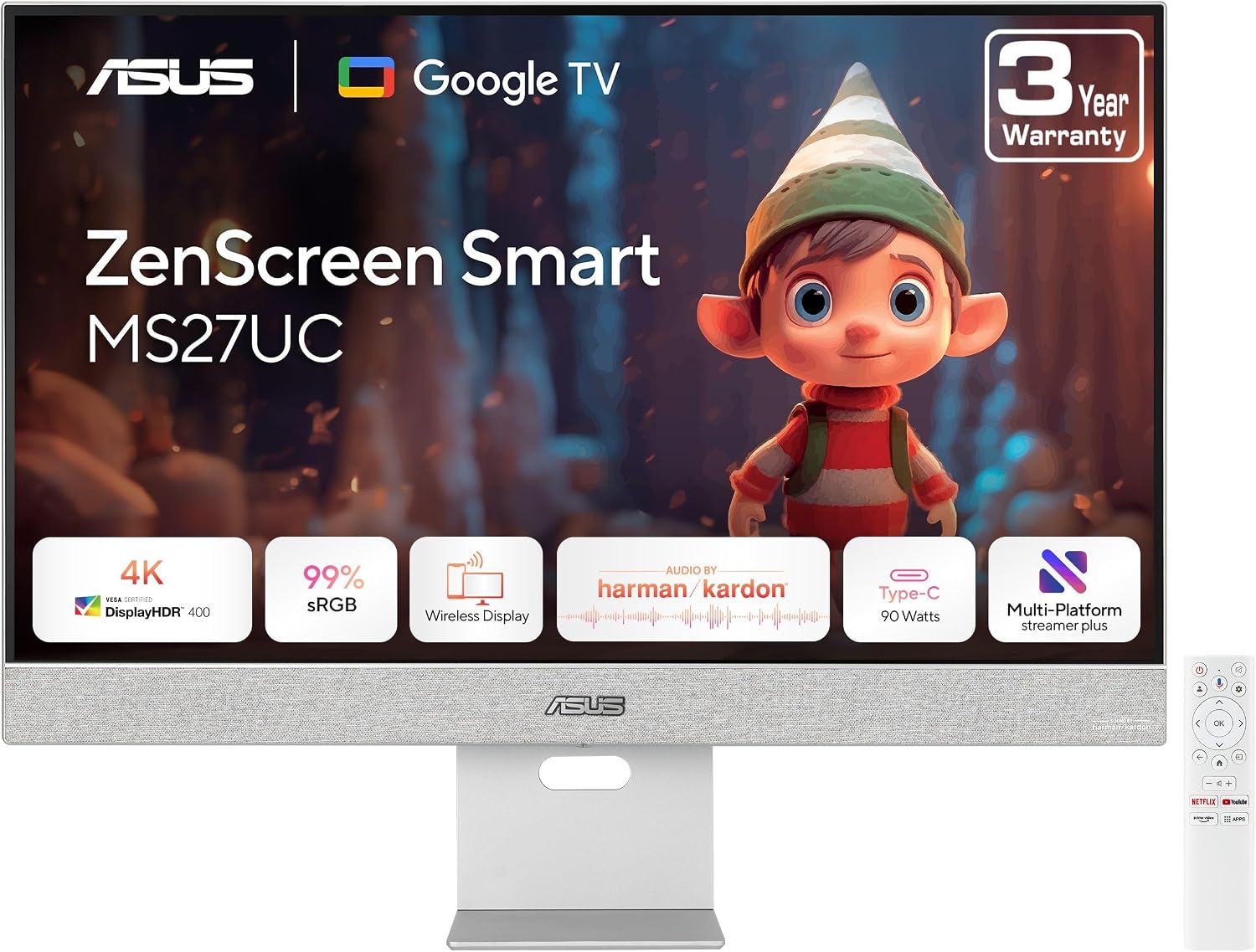
ASUS ZenScreen MS27UC 27-Inch 4K Smart Monitor
Pros
- Runs Google TV on board, so Netflix and YouTube work with no PC attached
- 90W USB-C, the joint-highest charging on this list outside the LG
- 5W stereo speakers tuned by Harman Kardon, far beyond the 2W pairs elsewhere here
- Cheapest 4K panel in this guide by $146
Cons
- Android 11 underneath, so app updates lag a dedicated streaming stick
- Tilt and 100mm height only, no pivot or swivel
- No webcam in the box despite the video-call pitch
Price as of Apr 11, 2026 — see current price on Amazon.
The ZenScreen MS27UC is the only monitor here that works without a computer. Google TV runs on the monitor itself, so Netflix, YouTube and the rest of the Play Store catalogue play with nothing plugged in, and a remote ships in the box. If you want one screen for a desk by day and streaming in a small apartment by night, this is the 27-inch display to look at.
What makes it more interesting than the usual smart-monitor compromise is that ASUS did not gut the panel to pay for the software. It is a 4K IPS panel at 99% sRGB with 350 nits and 90W USB-C charging. That is the same charging as the $639 Dell and better than either 65W monitor above it, on a screen that costs $249. The Harman Kardon 5W speakers are the best audio on this list by a wide margin, which matters on a display bought partly for video.
Compromises show up in the chassis and the software rather than the panel. Tilt and 100mm of height are the only adjustments, so there is no pivot for a portrait code window. Contrast is ordinary IPS at 1000:1, well short of the Dell's 2000:1, and the HDR10 and HDR10+ badges are marketing at 350 nits. The smart platform is Android 11, which is old enough that app support will age faster than the panel does.
For a focused work setup where colour precision matters, one of the panels above makes more sense. The MS27UC earns its place by being the cheapest 4K screen here and the only one that entertains a room on its own.
What to Look for in a 27-Inch Monitor
Panel Type
IPS is the default recommendation for most buyers. Wide viewing angles, accurate color, and fast enough pixel response for scrolling and productivity work. The traditional weakness was contrast at 1000:1, but IPS Black panels have pushed that to 2000:1, which is close enough to VA for everyday use.
VA panels produce deeper blacks natively, which is appealing for video and dark-mode workflows. The trade-off is motion smearing on dark-to-dark pixel transitions, which becomes distracting when you scroll fast in a code editor or a terminal. Nothing on this list is VA. Every panel here is IPS, and the Dell's IPS Black is the way to get VA-class contrast without the smearing.
OLED delivers perfect black levels and no smearing. At 27 inches and 4K in 2026, OLED monitors still start around $700-800 and carry real burn-in risk for static interface elements like taskbars and docks. The category is developing fast, but for most buyers today, a good IPS panel is the practical choice.
Resolution and Scaling
On macOS, 4K at 200% scaling is equivalent to Retina: every element renders at double pixel density and text looks noticeably sharper than 1440p native. Most macOS users should buy 4K.
On Windows, 150% scaling at 4K works well for modern apps. Older applications without DPI awareness can look slightly soft at fractional scaling. If your workflow centers on legacy Windows software, native 1440p at 27 inches (108 PPI) avoids the scaling issue entirely.
USB-C Power Delivery
- 45-65W: Sufficient for MacBook Air, most thin Windows laptops, iPad Pro
- 90W: Handles MacBook Pro 14-inch under most workloads
- 96W+: The number to hit for reliable MacBook Pro 16-inch charging under sustained load
Highest here is the LG 27UP850-W at 96W. Both the Dell U2723QE and the ASUS ZenScreen MS27UC deliver 90W. The ASUS ProArt PA279CV and the BenQ PD2705Q cap at 65W.
Color Accuracy
Delta E under 3 looks accurate to most eyes in everyday use. For professional photo editing or video colour grading, buy a monitor that publishes the number and ships a report against it. The Dell U2723QE and the ASUS ProArt PA279CV both do, and the BenQ PD2705Q states Delta E of 3 or better. The LG and the ZenScreen publish no Delta E figure at all, which is not the same as being inaccurate, but it does mean you are buying on trust rather than on a specification.
Frequently asked questions
- Is 4K worth it on a 27-inch monitor?
- Yes for most people, with one caveat. On macOS, 4K at 200% Retina scaling makes text noticeably sharper than 1440p native. On Windows, 4K at 150% scaling looks great in modern apps. If your workflow involves older Win32 software without DPI scaling support, native 1440p can look cleaner since there's no scaling math involved. For a new purchase in 2026, 4K is the better long-term investment.
- Which of these monitors works best with a MacBook Pro?
- The LG 27UP850-W if you have a 16-inch MacBook Pro and power draw is the concern (96W USB-C). The Dell U2723QE if you want the KVM to switch between a MacBook and a second machine on one keyboard and mouse. Both handle single-cable setup: one USB-C carries display signal, USB hub, and charging.
- Are any of these monitors good for gaming?
- Honestly, no. All five monitors here run at 60Hz, which works fine for slow-paced or casual games, but falls short for anything competitive or fast-action where 144Hz makes a real difference. None support G-Sync or FreeSync at meaningful refresh rates. If gaming is part of your use case, you need a different list focused on high-refresh panels.
- What's the difference between USB-C and Thunderbolt on monitors?
- USB-C is the physical connector. Thunderbolt 3 or 4 is a protocol that runs over USB-C cables and adds higher bandwidth, daisy-chaining support, and faster external device transfer speeds. None of the monitors here are Thunderbolt. If you want to run a second screen off the first one, the BenQ PD2705Q is the one on this list that specifies DisplayPort out with MST. Check that spec by name, because plenty of USB-C monitors do not have it.
- Should I wait for OLED 27-inch monitors instead?
- If you're buying in early 2026, the IPS panels here represent better value. OLED 27-inch 4K monitors exist but start above $700 and carry burn-in risk for static elements like taskbars, menu bars, and fixed UI panels. The risk is manageable with screensavers and sleep timers, but it's a real trade-off. The category is improving fast. In 12-18 months the math may change.
- How do I choose between the Dell U2723QE and the ASUS ProArt PA279CV?
- Both ship with a colour report, so the question is what you are being paid to match. Buy the Dell at $639 if you need a documented wide gamut: it publishes 98% DCI-P3, 100% sRGB and 100% Rec.709, plus 2000:1 contrast, 400 nits and 90W charging. Buy the ASUS at $395 if your delivery is sRGB and Rec.709, because that is the only coverage ASUS publishes for it and you save $244. The Dell is also the brighter and higher-contrast panel, which matters more day to day than either gamut figure.
Bottom Line
Buy the Dell U2723QE at $639 if contrast is what you are short of. The IPS Black panel at 2000:1, 400 nits, a published 98% DCI-P3 and the built-in KVM are things nothing else here does, and it is the one monitor on this list you buy once and stop thinking about. For most desks that is more monitor than the job needs. The ASUS ProArt PA279CV at $395 gives you the same class of colour report for $244 less, provided your work delivers in sRGB. The LG 27UP850-W at $398 is the same money again and swaps that report for 96W charging and a pivot stand, which is the right trade only if the monitor is also powering a 16-inch laptop. Want native 1440p with no scaling maths? The BenQ PD2705Q at $230 is the cheapest honest way to get it. And if the screen has to entertain a room as well as run a desk, the ASUS ZenScreen MS27UC at $249 is the only one here with Google TV built in, and it undercuts every other 4K panel in this guide.
How We Test
We score products by combining spec-level research, pricing history, trusted third-party benchmarks, and owner sentiment from high-signal sources.
- Performance and real-world value in the category this guide targets
- Price-to-performance and deal consistency over recent pricing windows
- Build quality, reliability patterns, and known long-term issues
- Recommendation refresh cadence to keep these picks current
Author
TheTechSearch Editorial Team
Independent product reviewers & PC builders
We test and compare real-world specs, price trends, and user feedback to recommend gear that actually makes sense to buy.