Best 4K Monitors in 2026
The best 4K monitors in 2026. Four picks from $370 to $619, covering content creators, Mac setups, professional workstations, and value buyers. Expert picks,...
As an Amazon Associate we earn from qualifying purchases made through our links — this doesn't affect our picks.
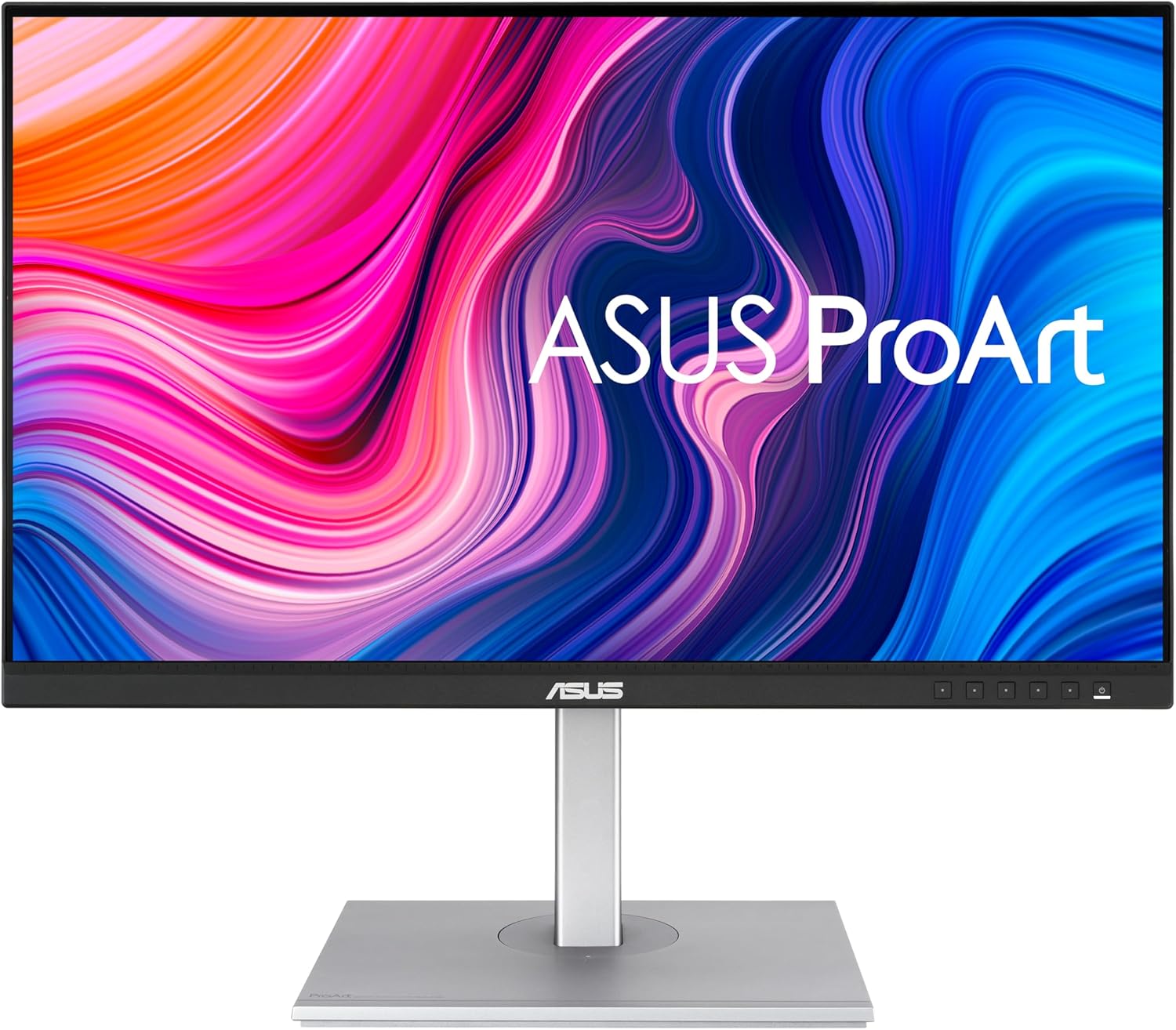
ASUS ProArt PA279CV
Our top recommendation for this category
Price as of Feb 27, 2026 — see current price on Amazon.
The 4K monitor market has consolidated around a handful of genuinely excellent panels, and the decision is no longer "should I buy 4K" but "which type of 4K person are you." Creative professionals need color accuracy and USB-C. Business users need hub connectivity and ergonomics. Mac users need clean integration and a calibrated display. And everyone has a budget ceiling.
This guide started from a wide field of 27-inch 4K monitors and cut everything with mediocre factory calibration or weak USB-C implementations. What's left are four monitors that each win clearly in their lane.
If your budget tops out under $200, see the best budget monitors guide instead. This guide focuses on the step-up tier where color accuracy and connectivity start to matter.
Quick picks
| Monitor | Panel | Color Coverage | USB-C PD | Price | |
|---|---|---|---|---|---|
| ASUS ProArt PA279CV | IPS 4K 60Hz | 100% sRGB, Delta E < 2 | Yes (90W) | $393 | Check Price |
| Dell UltraSharp U2723QE | IPS Black 4K 60Hz | 100% sRGB, 98% P3 | Yes (90W) | $619 | Check Price |
| BenQ PD2705U | IPS 4K 60Hz | 99% sRGB, Delta E <= 3 | Yes (65W) | $399 | Check Price |
| LG 27UK850-W | IPS 4K 60Hz | 99% sRGB, HDR10 | Yes | $370 | Check Price |
Best overall: ASUS ProArt PA279CV
ASUS ProArt PA279CV
Pros
- Delta E < 2 out of the box
- 90W USB-C charges most laptops
- 100% sRGB and Rec.709 coverage
- Calman Verified color accuracy
- Built-in 4-port USB hub
Cons
- No built-in speakers
- 60Hz only (no gaming use case)
Price as of Feb 27, 2026 — see current price on Amazon.
The ProArt PA279CV earns the top spot because it does the hard part for free: the factory calibration is actually good. ASUS ships every unit Calman Verified, which means the display has been tested by a third party against a Delta E standard below 2. That matters because most monitors at this price bracket claim wide color coverage but deliver it inconsistently across the panel.
The specs are strong across the board. You get 100% sRGB and 100% Rec.709 coverage, IPS with wide viewing angles, and a 4K IPS panel running 3840x2160 at 60Hz. The USB-C port delivers 90W of power delivery, which handles most modern laptops without a separate charger. The four-port USB hub on the side means you can plug in peripherals once and forget them.
This monitor works particularly well for photographers, video editors, and designers who need a calibrated display for client work. You are not paying for a name here. You are paying for consistent color from the moment you plug it in.
The one genuine limitation is 60Hz. If you split time between color work and gaming, this is the wrong monitor. But for anyone with a separate gaming rig or a work-only MacBook, the refresh rate is a non-issue.
Best professional hub: Dell UltraSharp U2723QE
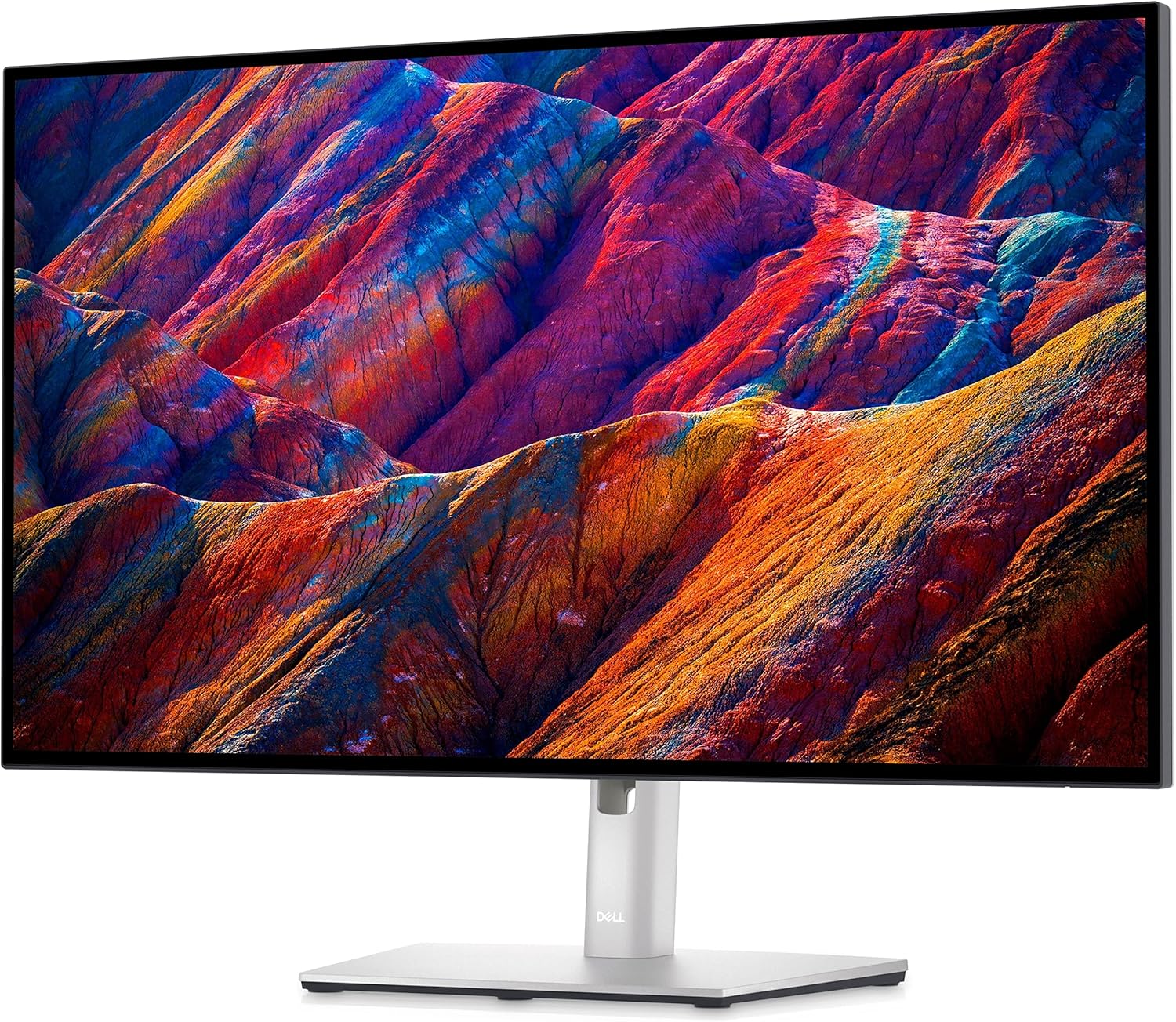
Dell UltraSharp U2723QE
Pros
- IPS Black panel with deeper blacks than standard IPS
- USB-C hub with Ethernet built in
- 98% DCI-P3 for video work
- Dell's 3-year Advanced Exchange warranty
- Best ergonomic stand in this group
Cons
- Most expensive pick by a wide margin
- Large price premium over ASUS for some overlapping features
Price as of Feb 27, 2026 — see current price on Amazon.
Dell's UltraSharp line has been the corporate standard for a reason, and the U2723QE justifies its price with a technology upgrade that the others in this list lack: an IPS Black panel.
Standard IPS displays have a black level around 0.25 nits, which looks fine in a bright room but washes out in ambient light or dim environments. The IPS Black panel in the U2723QE brings that down to around 0.1 nits, closer to the black performance of a VA panel without the color shift and slow response that VA brings. The result is a monitor that looks dramatically better with dark UI elements, movie content, and design work that involves shadows and gradients.
Beyond the panel, the connectivity story is excellent. The USB-C port delivers 90W and the dock includes RJ-45 Ethernet, which matters in office environments where reliable wired network performance beats Wi-Fi. Build quality is a step up as well: the stand adjusts for height, tilt, swivel, and pivot, and the bezels are genuinely thin on all four sides.
The price is the honest discussion. At $619, it costs nearly $230 more than the ASUS above it. If you are buying one monitor for a home office and mostly run Lightroom, Figma, or Premiere, the ASUS closes the gap significantly. The U2723QE earns its premium most clearly for anyone who needs the hub, the Ethernet, and the IPS Black panel together.
Best for Mac users: BenQ PD2705U
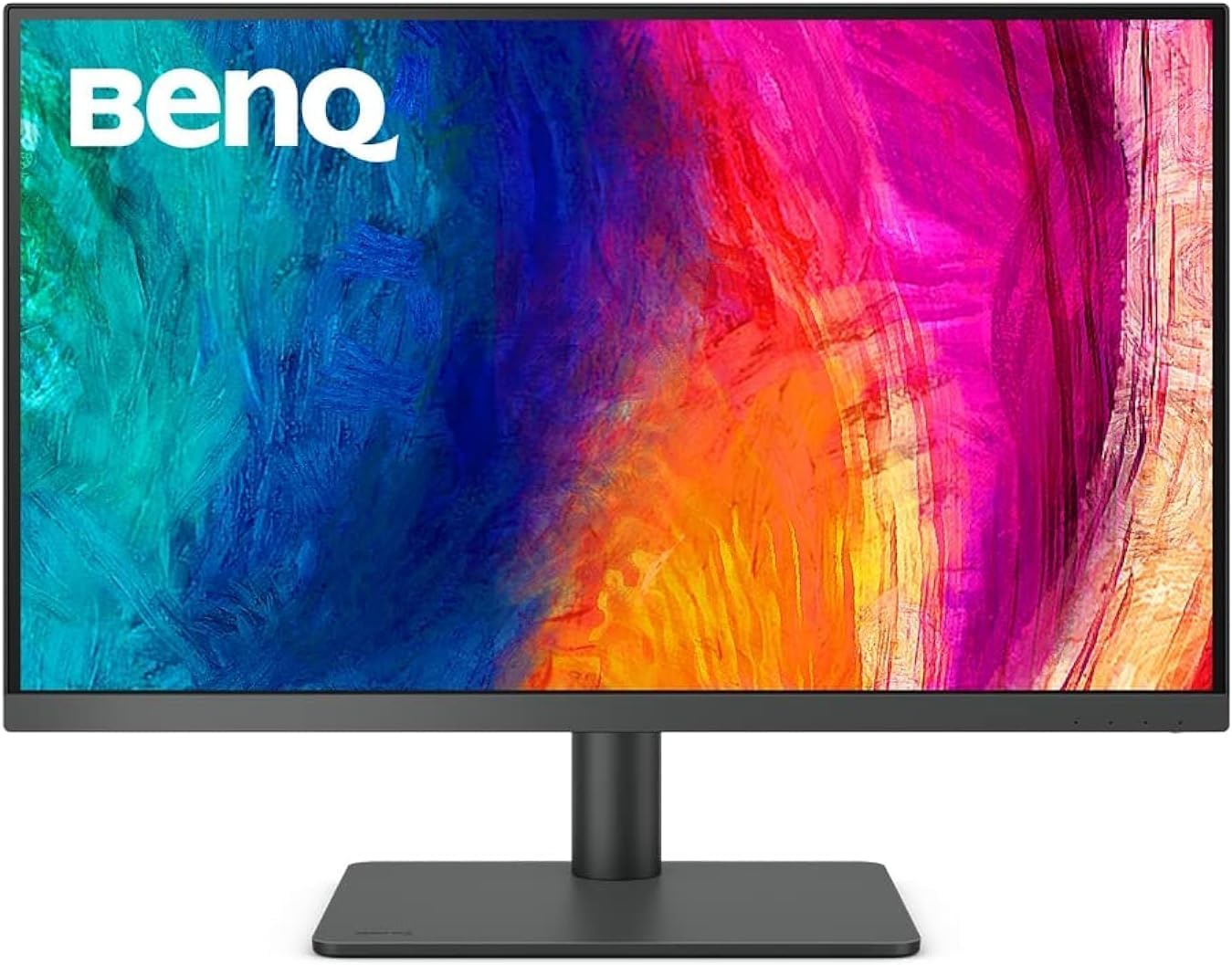
BenQ PD2705U
Pros
- Mac-optimized display modes and ICC profiles
- HotKey Puck for one-button profile switching
- KVM switch for two computers on one set of peripherals
- Factory calibrated, 99% sRGB
- USB-C 65W power delivery
Cons
- 65W USB-C is not enough for high-end MacBook Pro under load
- No 96W+ option without a dock
Price as of Feb 27, 2026 — see current price on Amazon.
BenQ has been making professional monitors for designers longer than most people realize, and the PD2705U reflects that experience in a few specific ways that matter if you use a Mac.
The display ships with Mac-specific ICC profiles and display modes that handle the color management differences between macOS and Windows. On most non-Mac-optimized monitors, the default color profile on macOS will either look oversaturated or slightly cool because the OS and the monitor are talking past each other. The PD2705U includes a mode calibrated for macOS Color LCD behavior that eliminates that back-and-forth.
The HotKey Puck is a physical controller that lets you switch between color profiles, inputs, and preset modes without going into the OSD menu. It sounds like a minor feature until you have worked with one. Switching from a sRGB preset for general use to a DCI-P3 preset for video color grading takes two seconds instead of eight menu clicks.
The KVM switch is the other major differentiator. If you have a work laptop and a personal Mac, you can connect both to the PD2705U and switch between them with a single button press while keeping the same keyboard, mouse, and peripherals.
The 65W USB-C is sufficient for M-chip MacBook Air and 14-inch MacBook Pro under moderate loads. Heavy sustained workloads on a 16-inch MacBook Pro will need supplemental power.
Best value 4K: LG 27UK850-W
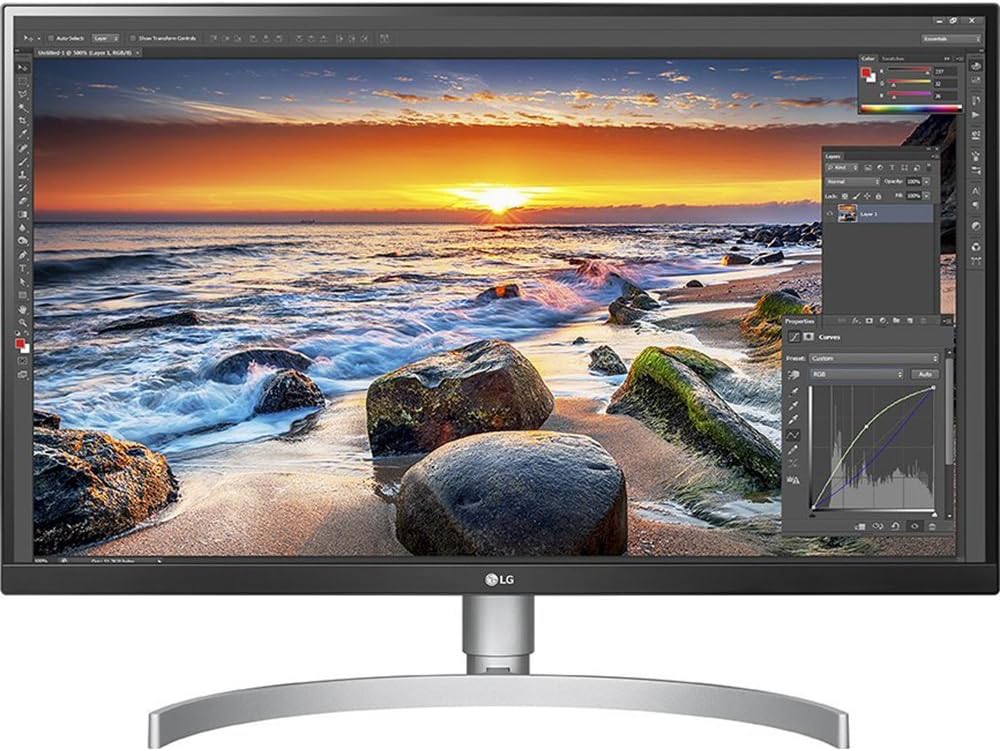
LG 27UK850-W
Pros
- Lowest price of the group
- USB-C with passthrough charging
- AMD FreeSync for light gaming
- 99% sRGB, HDR10 support
- Slim three-side borderless design
Cons
- Older design with fewer USB-A ports than newer models
- HDR10 impact limited by brightness ceiling
- Stand pivot rotation not available
Price as of Feb 27, 2026 — see current price on Amazon.
The LG 27UK850-W is the oldest monitor in this lineup and still the right answer for a specific buyer: someone who wants a 4K IPS display with USB-C connectivity and is not interested in paying for professional calibration features.
At $370, it undercuts the BenQ and ASUS by $20-25 while delivering the core 4K IPS panel experience. The USB-C port handles passthrough charging, the AMD FreeSync support means occasional gaming sessions look smoother than on a locked display, and LG's three-side virtually borderless design makes it easy to pair with a second monitor without a noticeable gap.
The caveats are real. Factory calibration is not documented to the same standard as the ASUS or BenQ, and the HDR10 certification means little in practice because the backlight brightness is not high enough to deliver meaningful HDR contrast. If you are buying this monitor for professional color work, move up to the ASUS.
For home office workers, students upgrading from 1080p, and developers who want 4K screen real estate without spending $400+ on calibration credentials, the LG is a strong buy. The screen is sharp, the viewing angles are good, and the USB-C setup keeps cable clutter low. It has shipped for years, which means real-world reliability data is excellent.
How to choose a 4K monitor
Color accuracy vs. color coverage: Color coverage (sRGB %, P3 %) tells you the range the display can show. Delta E tells you how accurately it hits those colors. A monitor with 100% sRGB coverage at Delta E 4 is worse for color work than one with 99% sRGB at Delta E 1.5. For creative work, always prioritize Delta E.
USB-C power delivery wattage: A 65W USB-C port charges most thin-and-light laptops. Heavy 15-16 inch laptops with discrete GPUs may need 90-100W under load or a separate charger. Check your laptop's included charger wattage before assuming you can drop the brick.
IPS vs. IPS Black vs. VA: Standard IPS offers wide viewing angles and good color, but black levels look grayish in dim environments. IPS Black (Dell U2723QE) improves contrast without sacrificing the color consistency of VA panels. VA panels offer deeper blacks but narrow viewing angles and slower response times that cause motion blur. For productivity and color work, IPS or IPS Black is the right choice.
4K vs. 1440p at 27 inches: At 27 inches, 4K delivers 163 pixels per inch. At 1440p, that drops to 109. The difference is visible when reading text, looking at fine design details, or doing any work that involves typography. If you sit 24 inches or closer to your monitor, the upgrade is noticeable. For USB-C monitors specifically, check out the best USB-C monitors guide which covers both resolutions.
Frequently asked questions
- Do I need 4K for video editing?
- For YouTube and streaming content, 1440p is acceptable. If you are editing for cinema, broadcast, or any delivery format that goes above 1080p, 4K on the monitor lets you see the actual pixels of your footage rather than a downsampled preview. The bigger benefit is the extra screen real estate for timeline work.
- Is 60Hz good enough for a 4K monitor?
- For office work, content creation, and general use, yes. You will not notice the difference between 60Hz and 144Hz when reading, browsing, or editing photos. For gaming, 60Hz feels noticeably less smooth. If you split time between creative work and gaming, consider a 4K 144Hz monitor instead of these picks.
- What is the difference between sRGB and DCI-P3?
- sRGB is the standard for web, photos, and most everyday content. DCI-P3 is wider and used in cinema and high-end streaming. A monitor that covers 98-100% DCI-P3 can display HDR content and professional video accurately. For photographers and designers working in standard delivery, 100% sRGB is the more important number.
- Will any of these work well with a gaming GPU?
- All four connect via DisplayPort or HDMI, so they work with any discrete GPU. The LG 27UK850-W has AMD FreeSync for some adaptive sync benefit. The others are professional displays without gaming-focused sync features. For a workstation GPU like an RTX 4080 or similar, any of these monitors will display games at 4K 60fps without issue.
The bottom line
The ASUS ProArt PA279CV is the best starting point for most people: it is factory calibrated, USB-C ready, and priced below $400. Dell's U2723QE earns its premium for anyone who needs the IPS Black panel and dock-level connectivity. The BenQ PD2705U is purpose-built for Mac users who want color-managed workflows and KVM functionality. LG's 27UK850-W is the right call when you want 4K IPS quality without the professional feature tax.
None of these are bad choices. The question is how much of the extra feature set you will actually use. For most buyers working from a laptop and managing their own workspace, the ASUS or BenQ is the right match. For business environments where IT manages hardware and reliability warranties matter, the Dell pays for itself.
Complete your setup: check the best webcam under $100 for a matching video conferencing camera, or browse the best mechanical keyboards under $100 if your desk peripherals need an upgrade.
How We Pick
We pick products by combining spec-level research, price checks, trusted third-party benchmarks, and owner sentiment from high-signal sources.
- Performance and real-world value in the category this guide targets
- Price-to-performance and deal consistency over recent pricing windows
- Build quality, reliability patterns, and known long-term issues
- Recommendation refresh cadence to keep these picks current
Author
TheTechSearch Editorial Team
Independent product reviewers & PC builders
We compare real-world specs, reviews and owner reports, price trends, and user feedback to recommend gear that actually makes sense to buy.