Best Budget Monitor Under $200 in 2026
The best monitors under $200 right now. Four picks covering every need from $99 to $158, ranked for real-world work and everyday use. Expert picks, pros and...
As an Amazon Associate we earn from qualifying purchases made through our links — this doesn't affect our picks.
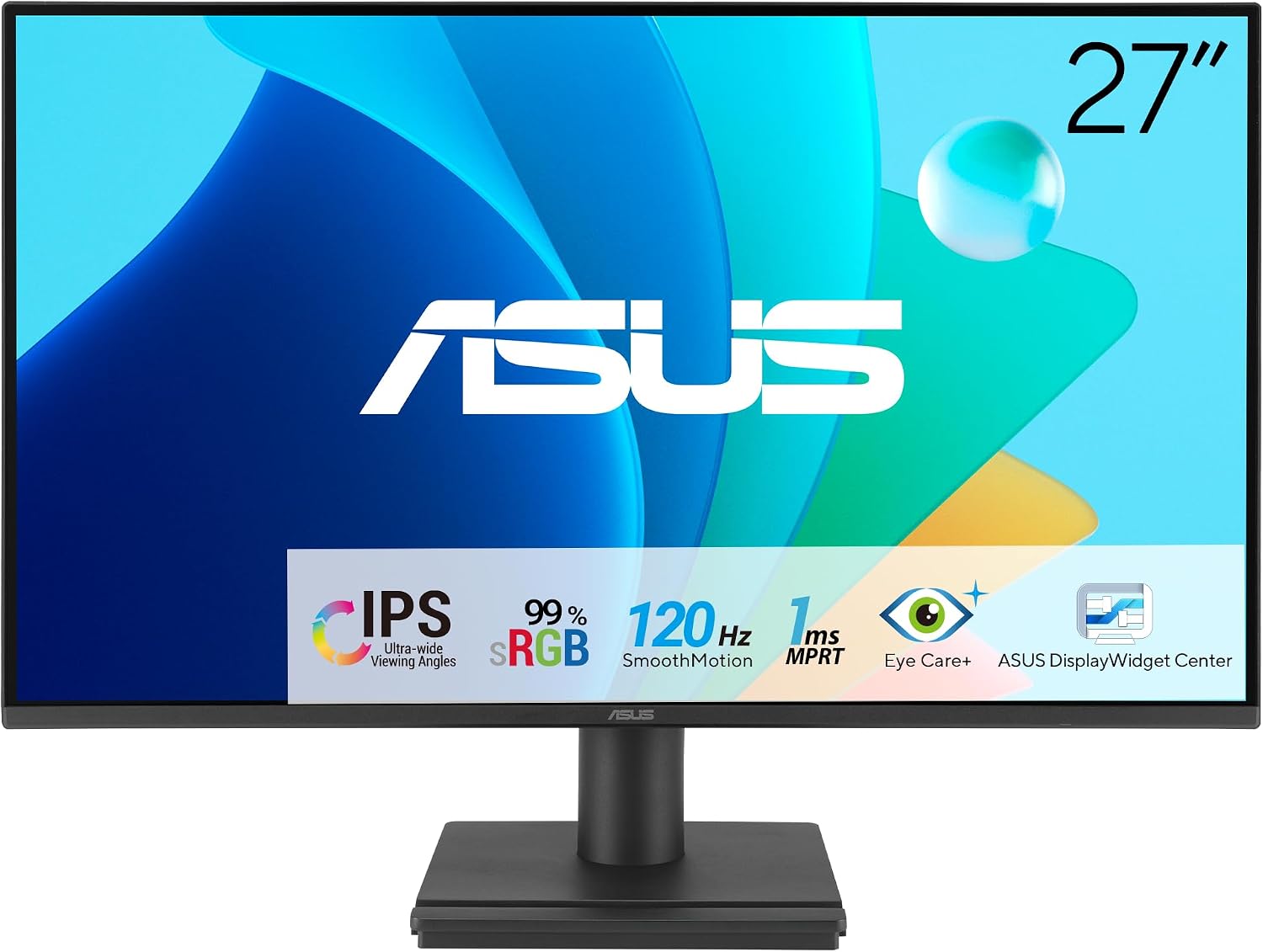
ASUS VA27EHF2 27-inch IPS Monitor
Our top recommendation for this category
Price as of Feb 27, 2026 — see current price on Amazon.
The monitors in this guide cost between $99 and $158. None of them feel like compromises. The budget monitor market has quietly gotten very good, and if you have not bought a screen in the past two years, you might be surprised how much you can get for less than a pair of noise-canceling headphones.
This guide cross-references testing from Wirecutter, PCMag, Tom's Guide, and RTINGS against real user feedback and Amazon purchase data to find the four sub-$200 monitors worth putting on your desk right now. I cut anything with TN panels (poor viewing angles for everyday use), anything that looked impressive on paper but had consistent color uniformity complaints in reviews, and anything with stands that could not even tilt.
If you want gaming-focused monitors with 1440p and 144Hz+, check the best budget gaming monitors guide. This guide is for everyone else: home office workers, students, dual-screen setups, and anyone who just wants a solid display that does not require a spreadsheet to buy.
Quick picks
| Monitor | Size | Resolution | Refresh Rate | Best For | Price | |
|---|---|---|---|---|---|---|
| ASUS VA27EHF2 | 27" | 1080p | 120Hz | Best under $100 | ~$99 | Check Price |
| BenQ GW2490 | 24" | 1080p | 100Hz | Eye care + speakers | ~$100 | Check Price |
| LG 27MR400-B | 27" | 1080p | 100Hz | Borderless design | ~$158 | Check Price |
| Dell S2725HSM | 27" | 1080p | 144Hz | Best overall under $200 | ~$147 | Check Price |
Best monitor under $100: ASUS VA27EHF2
ASUS VA27EHF2 27-inch IPS Monitor
Pros
- 27-inch IPS panel for under $100 is still genuinely hard to find
- 120Hz refresh rate, up from 100Hz on the outgoing VA27EHF
- 1ms response time keeps motion reasonably sharp for the price
- 99% sRGB coverage per the listing, better than typical at this tier
- Frameless design looks clean on any desk
- VESA wall-mount support for an arm or wall bracket
- Adaptive-Sync, Low Blue Light and Flicker Free per the listing
Cons
- Stand adjustment is not stated on the listing, so plan on a VESA arm if ergonomics matter
- HDMI and VGA only, no DisplayPort
- Speakers are not stated on the listing
- Brightness is not stated on the listing
Price as of Feb 27, 2026 — see current price on Amazon.
The VA27EHF2 is ASUS's successor to the VA27EHF, sold by ASUS directly at $99, and the spec sheet moved in the right direction. Per the listing you get the same 27-inch IPS panel class, 120Hz instead of 100Hz, 1ms response, 99% sRGB, Adaptive-Sync, and HDMI plus VGA inputs.
At $99, a 27-inch IPS monitor should not be this easy to recommend. Most monitors at this price use VA panels (decent contrast, poor off-axis) or low-quality IPS panels with visible color shift. ASUS's IPS panels in this line hold color reasonably well at wide viewing angles, which matters more than the spec sheet suggests.
For most people who spend the day in a browser, email client, and a few apps, this monitor checks every practical box. Text is sharp at 1080p on a 27-inch panel (82 PPI), the 120Hz refresh rate makes scrolling feel smooth, and the Flicker Free backlight cuts down on the eye strain that comes from extended screen time.
The stand is the thing to check. The listing does not state height or pivot adjustment, and the outgoing model was tilt only, so budget for a VESA arm if your eye level does not line up with the panel center. Anybody with a specific ergonomic requirement should move up the list. But for a straightforward second screen or a first monitor upgrade from something older, the VA27EHF2 delivers more display than its price suggests.
One practical note: at 27 inches, you will want the monitor roughly an arm's length away. 1080p at 27 inches reads fine for most content, but spreadsheets with small text will look slightly softer than on a higher-density panel. If pixel-dense text is a priority, the 24-inch BenQ below gets you higher apparent sharpness in a smaller footprint.
Best for eye care and long work sessions: BenQ GW2490
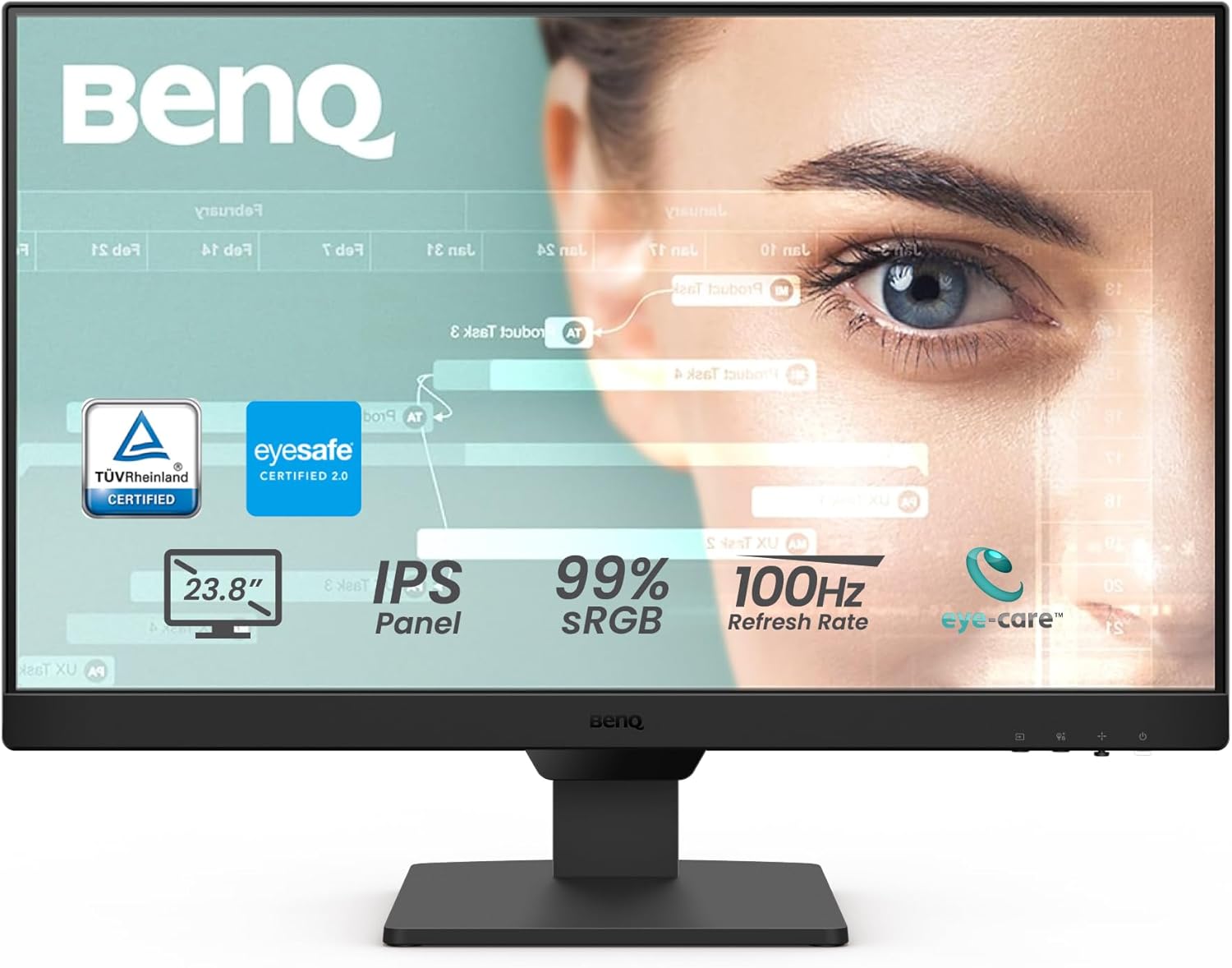
BenQ GW2490 24-inch IPS Monitor
Pros
- BenQ Eye-Care suite includes Brightness Intelligence, Low Blue Light, Flicker-Free
- Built-in 2x2W speakers are usable for meetings and background audio
- 100Hz refresh rate with adaptive brightness adjusts to ambient light
- DisplayPort + 2x HDMI for flexible source switching
- Anti-glare coating reduces window and overhead light reflections
- VESA-mountable, 3-year warranty
- 24-inch at 1080p gives better pixel density (93 PPI) than 27-inch alternatives
Cons
- Speakers are serviceable but not great for music or movies
- Stand is tilt-only (no height adjustment at this price)
- 24 inches may feel small if you are coming from a 27-inch
- Brightness ceiling (250 nits typical) is enough for indoor use but not bright rooms
Price as of Feb 27, 2026 — see current price on Amazon.
BenQ built its monitor reputation on eye care features, and the GW2490 is where that reputation is most accessible. The Brightness Intelligence sensor reads ambient light in the room and adjusts the screen brightness automatically. It sounds like a minor thing until you have used it through a full workday where light changes with the weather and the time of day. Your eyes do not have to compensate as much.
The Low Blue Light mode on the GW2490 is hardware-level, not a software filter. That distinction matters because software blue-light filters shift all content yellow to reduce blue, whereas hardware-based solutions target the specific wavelength range that disrupts sleep cycles without altering the overall color balance as aggressively.
At 24 inches and 1920x1080, you get 93 PPI. That is noticeably crisper than a 27-inch 1080p panel at the same resolution. Text rendering in Google Docs, Notion, and code editors feels tighter. For people who read and type all day, the difference is worth the smaller screen footprint.
The built-in speakers are a genuine plus for meetings. They will not replace a speaker or headset for media, but they handle Zoom audio and YouTube without requiring you to plug in headphones for every call. At $99.99, getting speakers at all is not something you can count on.
Cleanest 27-inch design: LG 27MR400-B
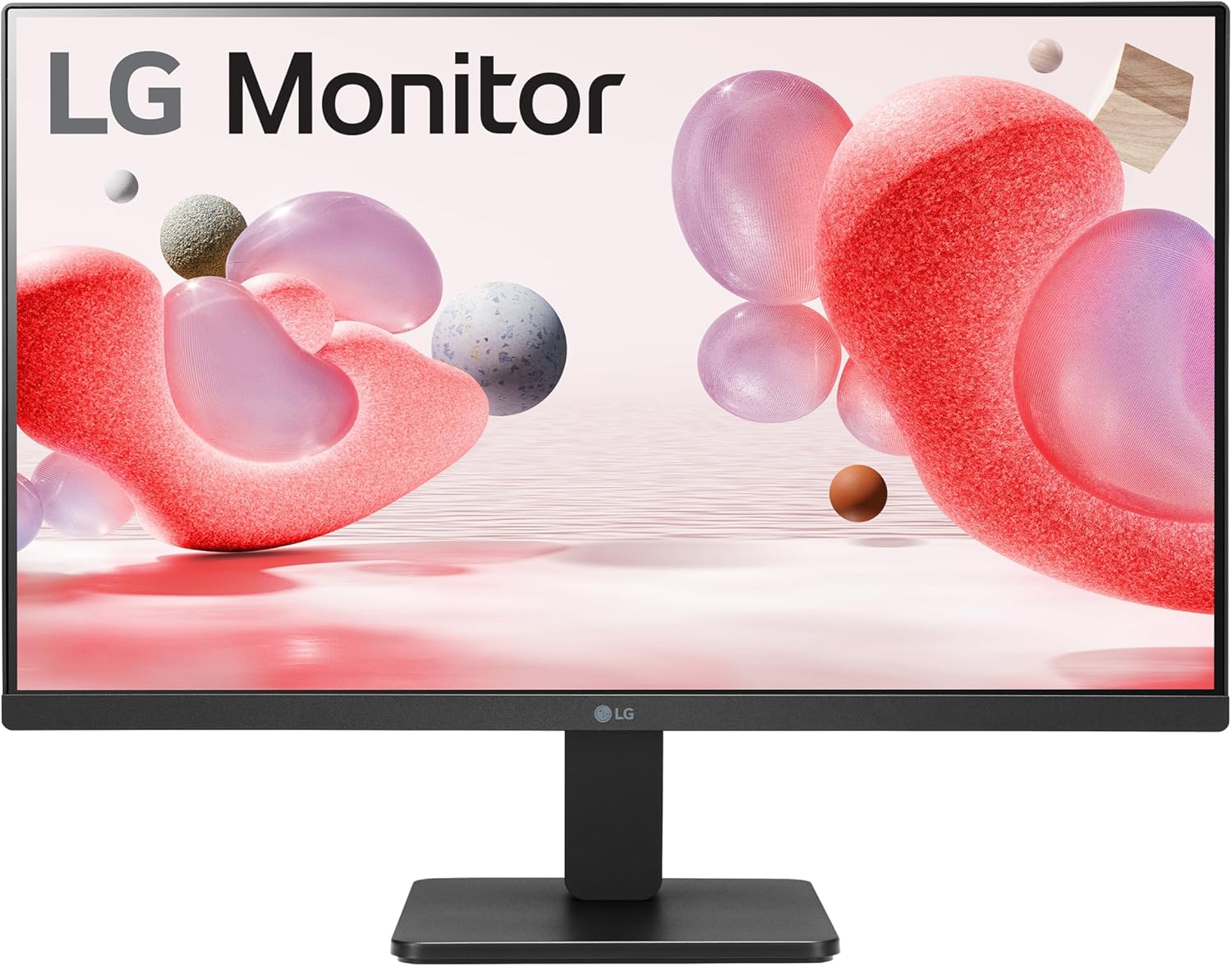
LG 27MR400-B 27-inch IPS Monitor
Pros
- LG IPS panel is among the better implementations at this price tier
- 3-side virtually borderless design suits dual-monitor setups well
- AMD FreeSync reduces tearing on compatible GPUs
- Reader Mode shifts color temperature for long reading sessions
- OnScreen Control software adjusts settings without physical buttons
- 100Hz covers everyday computing and light gaming
- Low profile and clean aesthetic fits minimalist desk setups
Cons
- No built-in speakers
- Stand only tilts, no height or rotation adjustment
- Single HDMI port and D-Sub (VGA) only, no DisplayPort
- Color coverage is standard sRGB, not wide-gamut
Price as of Feb 27, 2026 — see current price on Amazon.
LG has been making IPS panels long enough that its sub-$150 monitors carry more manufacturing confidence than comparable models from newer brands. The 27MR400-B is the current version of a panel LG has refined over several product generations, and it shows in the real-world color consistency and off-axis accuracy.
At 27 inches and 1080p, the pixel density is 82 PPI, same as the ASUS VA27EHF2 above. LG's advantage is in the panel quality itself. The IPS implementation handles off-angle viewing better, so the monitor looks accurate from the side when a coworker, partner, or client glances at your screen. For anyone running a desk where multiple people see the display, that matters.
The 3-side borderless design is one of the cleanest at this price. If you pair two of these in a dual-monitor configuration, the gap between them is minimal. That makes multi-screen work noticeably less distracting than monitors with thick bottom bezels. LG charges a real premium for that design: $158, which makes it the priciest monitor here and $11 more than the Dell below, which has a far better stand and 144Hz. Buy the LG only if the borderless look is the priority.
The lack of DisplayPort is the main thing to be aware of. HDMI and D-Sub only, so you are limited to one digital input. For most people connecting a single PC or laptop, this is not an issue. For anyone who wants to switch between two computers quickly, you will need a separate switch or a monitor with more inputs.
Best overall under $200: Dell S2725HSM
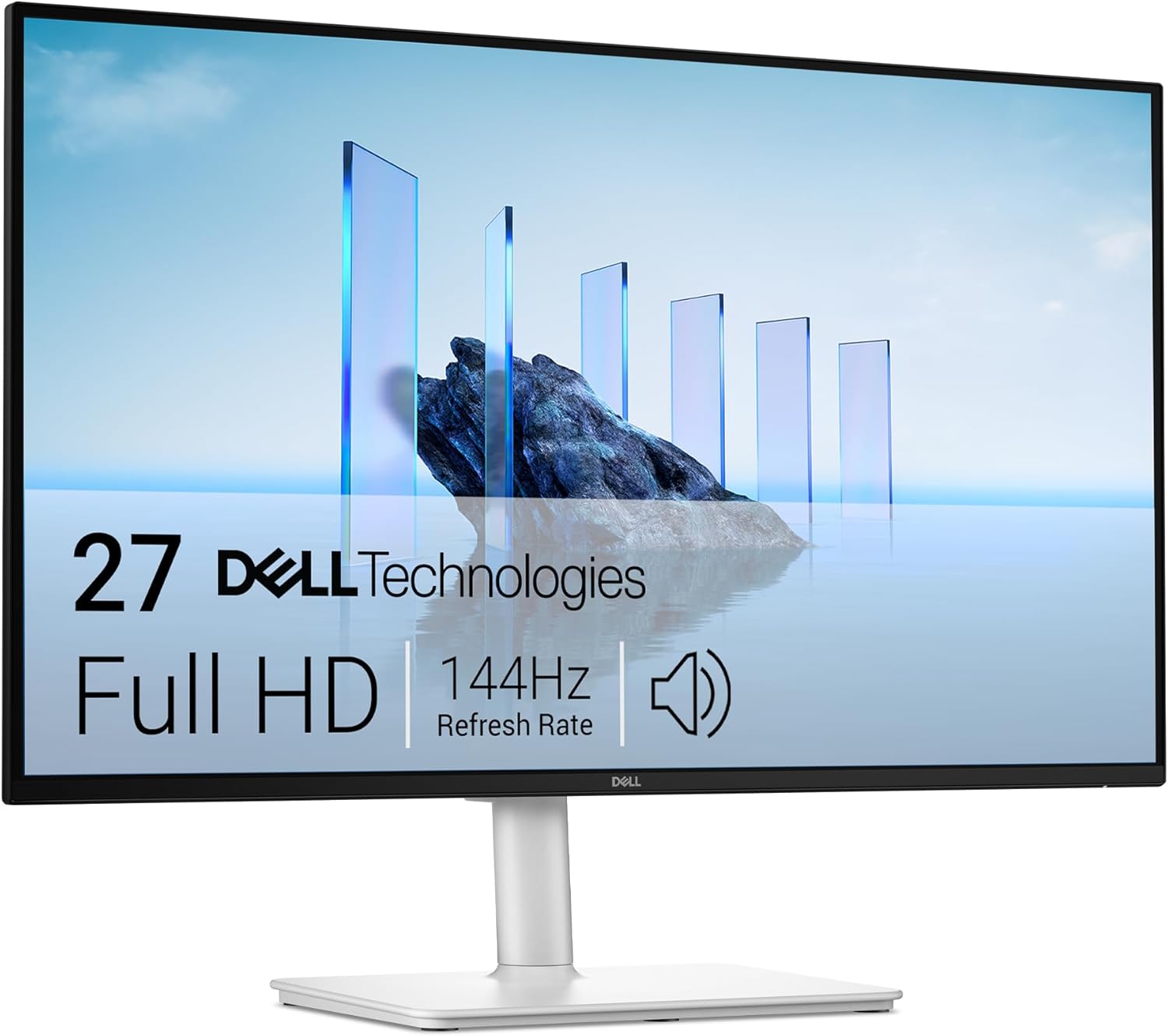
Dell 27 Plus Monitor S2725HSM
Pros
- Four-way adjustable stand: height, tilt, swivel, and pivot
- 144Hz refresh rate at 1080p handles work and gaming equally well
- 1ms GtG response time is the best in this price tier
- AMD FreeSync Premium for smooth variable refresh rate
- Built-in 2x3W speakers for basic audio needs
- Ash White color option matches modern desk setups
- HDMI connectivity, VESA-mountable
- TUV Rheinland certified for low blue light and flicker-free operation
Cons
- No USB-C (see USB-C monitor guide if you need that)
- Only HDMI connectivity, no DisplayPort
- Ash White color is not universally loved, no black option at this price
Price as of Feb 27, 2026 — see current price on Amazon.
The Dell S2725HSM is why this guide exists. It is what every budget monitor should be, and it costs $146.99. The four-way adjustable stand alone justifies the price premium over everything else on this list. Height adjustment, tilt, swivel, and pivot (the ability to rotate the panel to portrait mode) are ergonomic features that typically appear on monitors costing $250 or more. Dell included all four.
The stand matters more than most reviews give it credit for. A monitor you can raise, lower, and angle correctly costs you nothing in eye strain over a full workday. A monitor that sits at the wrong height and cannot be adjusted costs you your neck. If you work eight hours a day at a desk, the ergonomics of your display have a direct and measurable effect on how you feel by the end of a shift.
At 144Hz, the S2725HSM also covers every non-competitive gaming use case. Web browsing, YouTube, and casual games all benefit from the smoother frame delivery compared to 60Hz or 75Hz panels. You do not need 144Hz for productivity, but once you have used it you notice when it is gone.
The IPS panel delivers good color accuracy out of the box. Not calibration-grade, but accurate enough that photos and design work look representative on screen. The low blue light certification and flicker-free backlight mean you can run this monitor all day without the additional step of installing software filters.
The only real limitation is the connectivity. HDMI only, no DisplayPort, and no USB-C. If you need USB-C for a laptop connection or want to daisy-chain devices, check the best USB-C monitors guide. For a standard desktop or laptop with HDMI out, the S2725HSM covers everything you need.
What to look for in a budget monitor
Panel type
IPS (In-Plane Switching) is the right call for most people at this price range. It offers wider viewing angles and better color accuracy than VA or TN panels. Every monitor in this guide uses IPS.
VA panels offer higher contrast ratios (deeper blacks), which makes them good for movies and dark-theme environments. But VA panels suffer from a "smearing" artifact during fast motion and have slower response times than IPS at equivalent price points. For mixed-use computing, IPS wins.
TN panels should be avoided in 2026. The main advantage of TN was maximum pixel response for competitive gaming. At these price points, IPS has closed that gap enough that TN's other limitations (terrible viewing angles, washed-out colors) are not worth accepting.
Resolution and size
At 24 inches, 1080p gives you 93 PPI, which is sharp enough for everyday text and web content. At 27 inches, 1080p drops to 82 PPI, which is fine but visibly softer for small text. If you spend a lot of time in text editors, code, or documents, a 24-inch 1080p monitor will look cleaner than a 27-inch 1080p at the same resolution.
1440p at 27 inches (109 PPI) is the sweet spot for mixed work and gaming, but that tier starts at $160 for non-gaming monitors and $130 for gaming-focused ones. Check the best budget gaming monitors guide if 1440p is a priority.
Stand adjustability
Tilt-only stands are the norm under $150. If ergonomics matter to you, either buy a VESA arm separately or spend up to the Dell S2725HSM, which has full four-way adjustment built in. A monitor arm from a brand like Ergotron typically costs $30-50 and converts any VESA-compatible monitor into a fully adjustable setup.
Refresh rate
100Hz is the current baseline for budget monitors. It is noticeably smoother than 60Hz for everyday scrolling and comfortable for light gaming. The ASUS VA27EHF2 pushes that to 120Hz for $99, and 144Hz is available in this price range but only on the Dell S2725HSM among general-purpose monitors. If refresh rate matters, the Dell is the pick.
Pairing a monitor with a laptop or desktop
If you are setting up a work-from-home station with a budget laptop, a 27-inch monitor at desk height typically makes more difference than upgrading the laptop itself. The best laptops under $500 pairs well with any monitor in this guide via HDMI. A simple HDMI cable and 30 seconds of setup gives you a proper two-display workspace.
For the full home office setup, the best standing desks under $200 covers desk options that work with VESA monitor arms at the same budget level.
Frequently asked questions
- Is 27 inches too big for a desk monitor?
- At a standard desk depth (24-30 inches from your eyes to the screen), 27 inches is the most common preference. It fits the visual field without requiring you to move your head to read edge-to-edge content. 32-inch monitors at close range start to feel like you are watching a wall rather than a screen.
- Is 1080p still good enough for a monitor in 2026?
- For web browsing, video calls, documents, and casual gaming, yes. 1080p becomes noticeably limiting at 27 inches for small text work, and the pixel density at that size is softer than on smaller or higher-resolution panels. For spreadsheets and coding at 27 inches, a 1440p monitor is worth the additional cost.
- Do I need a monitor with built-in speakers?
- Most built-in monitor speakers are adequate for video calls and background audio but not for music or movie watching. If you only need occasional audio, the BenQ GW2490 and Dell S2725HSM cover that need. If audio quality matters, a separate speaker or headset will outperform any built-in monitor speakers at this price.
- What is the difference between this guide and the gaming monitor guide?
- The best budget gaming monitors guide focuses on 1440p panels, high refresh rates (144Hz+), and features like G-Sync and response times tuned for competitive games. This guide focuses on general-purpose monitors where color accuracy, ergonomics, and panel quality for everyday work take priority over maximum frame rate.
- Will these monitors work with a MacBook or iPad?
- All four monitors connect via HDMI. MacBooks with Thunderbolt/USB-C need a USB-C to HDMI adapter or cable, available for $10-15. iPad Pro users can connect via USB-C to HDMI as well. None of the four monitors in this guide include USB-C natively. If USB-C connectivity is a requirement, see the best USB-C monitors guide.
The verdict
The ASUS VA27EHF2 is the right pick if $100 is your hard ceiling and you need a 27-inch IPS panel. BenQ's GW2490 is the best option if eye fatigue is a regular issue and you want a monitor purpose-built for long hours. The LG 27MR400-B is the 27-inch upgrade once you know you want LG panel quality with a cleaner design. The Dell S2725HSM is the one to buy if you sit at a desk for eight hours a day and want a stand that adjusts properly, 144Hz smoothness, and a monitor that will not feel limiting in two years.
All four are under $200. At least one of them is better than the monitor you are using right now.
How We Pick
We pick products by combining spec-level research, price checks, trusted third-party benchmarks, and owner sentiment from high-signal sources.
- Performance and real-world value in the category this guide targets
- Price-to-performance and deal consistency over recent pricing windows
- Build quality, reliability patterns, and known long-term issues
- Recommendation refresh cadence to keep these picks current
Author
TheTechSearch Editorial Team
Independent product reviewers & PC builders
We compare real-world specs, reviews and owner reports, price trends, and user feedback to recommend gear that actually makes sense to buy.