Best KVM Switches 2026
The best KVM switches for sharing one keyboard, mouse, and monitor between two computers. Single and dual monitor picks for every budget. Expert picks, pros...
As an Amazon Associate we earn from qualifying purchases made through our links — this doesn't affect our picks.
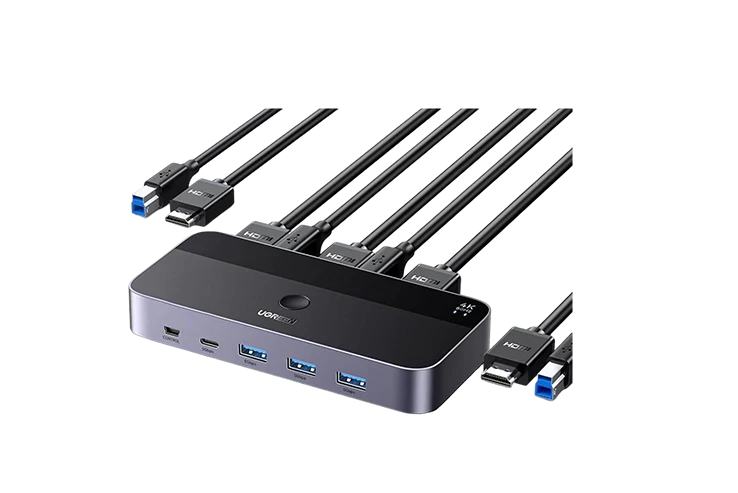
UGREEN USB 3.0 HDMI KVM Switch 4K@60Hz
Our top recommendation for this category
Price as of May 4, 2026 — see current price on Amazon.
Two computers on one desk used to mean a drawer full of duplicate keyboards and a web of cables behind the monitor. KVM switches fixed that mess years ago. But the category has gotten genuinely good in the last year or two. The 4K 60Hz models that ran $200+ in 2022 are now sitting around $50, and dual-monitor switches that used to require a $500 Raritan or Aten enterprise unit are now under $200 from UGREEN and TESmart.
I've been running a KVM between a work MacBook and a personal desktop for years. The cheap ones work fine. The good ones are invisible. Here's what's worth buying right now.
| Switch | Monitors | Computers | Resolution | Price | |
|---|---|---|---|---|---|
| UGREEN USB 3.0 HDMI KVM | 1 | 2 | 4K@60Hz | $49.99 | Check Price |
| Cable Matters HDMI KVM | 1 | 2 | 4K@60Hz | $79.99 | Check Price |
| TESmart Dual Monitor KVM | 2 | 2 | 4K@60Hz | $199.99 | Check Price |
| UGREEN HDMI KVM 2 Monitors | 2 | 2 | 4K@60Hz | $139.99 | Check Price |
| Cable Matters USB-C KVM Dock | 2 (USB-C) | 2 | 4K@60Hz | $299.99 | Check Price |
UGREEN USB 3.0 HDMI KVM Switch
UGREEN USB 3.0 HDMI KVM Switch 4K@60Hz
Pros
- Ships with all cables you need (HDMI + USB)
- Four USB 3.0 ports (3 USB-A, 1 USB-C)
- Desktop controller for switching without reaching behind the machine
- 4K@60Hz with HDR, no signal quality issues
Cons
- USB 2.0 protocol for keyboard/mouse (fine for most, not ideal for high-polling gaming mice)
- Plastic build feels a bit light for the price
Price as of May 4, 2026 — see current price on Amazon.
Honestly, this is the one I'd tell most people to buy. For under $50 you get an aluminum-trimmed switch that handles a monitor, keyboard, mouse, and three other USB devices across two computers. UGREEN throws in the HDMI cables and USB cables in the box, which sounds small until you realize most competitors at this price make you source your own.
Switching takes about 3 seconds. There's a desktop controller puck that sits on your desk so you don't have to reach behind the unit. That puck is a legitimately thoughtful touch for a $49 product.
The catch is USB 2.0 for keyboard and mouse data, which technically caps at 480Mbps. High-end gaming mice at 1000Hz polling rate might see a couple milliseconds of extra latency compared to direct connection. For coding, Zoom calls, or casual gaming, you won't notice. For competitive FPS, plug the mouse directly.
Resolution tops out at 4K@60Hz, with 2K@120Hz and 1080p@240Hz as fallbacks. It'll handle whatever monitor you're running.
Cable Matters USB 3.0 KVM Switch HDMI 4K
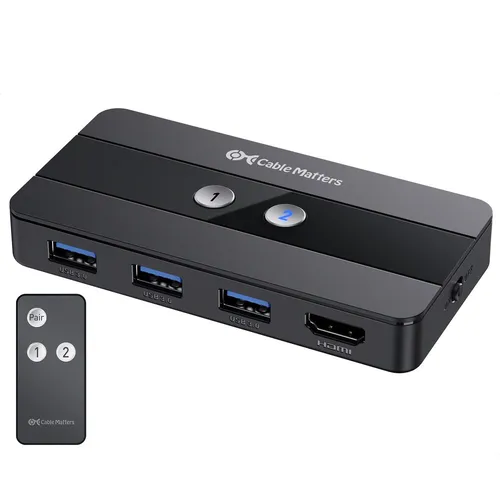
Cable Matters USB 3.0 KVM Switch HDMI 4K@60Hz
Pros
- Wireless RF remote control included (switch computers from across the room)
- USB 3.0 for peripheral sharing at 5Gbps
- LED-lit buttons make it easy to see which input is active
- On/off switch prevents power drain when idle
Cons
- Pricier than UGREEN for similar 1-monitor functionality
- Cables not included; you supply your own HDMI
Price as of May 4, 2026 — see current price on Amazon.
Cable Matters went in a different direction with this one. The RF remote control is the thing that separates it. Not IR. RF, which means it works from any angle, through obstacles, from 30 feet away if you want. If your KVM lives behind a monitor arm or tucked under the desk, you'll use this remote constantly.
USB 3.0 at 5Gbps for peripherals is the other upgrade over the UGREEN. For a keyboard and mouse, irrelevant. If you're sharing an external SSD between machines and actually moving files back and forth, it matters.
LED indicators on the front are bright and readable. Build feels solid, not flimsy. But cables aren't included, so add $10-15 for a couple decent HDMI cables.
This is the pick for anyone who wants to switch computers without touching anything. The $30 premium over UGREEN is exactly worth it if the RF remote is the feature you'd use.
UGREEN HDMI KVM Switch 2 Monitors 2 Computers
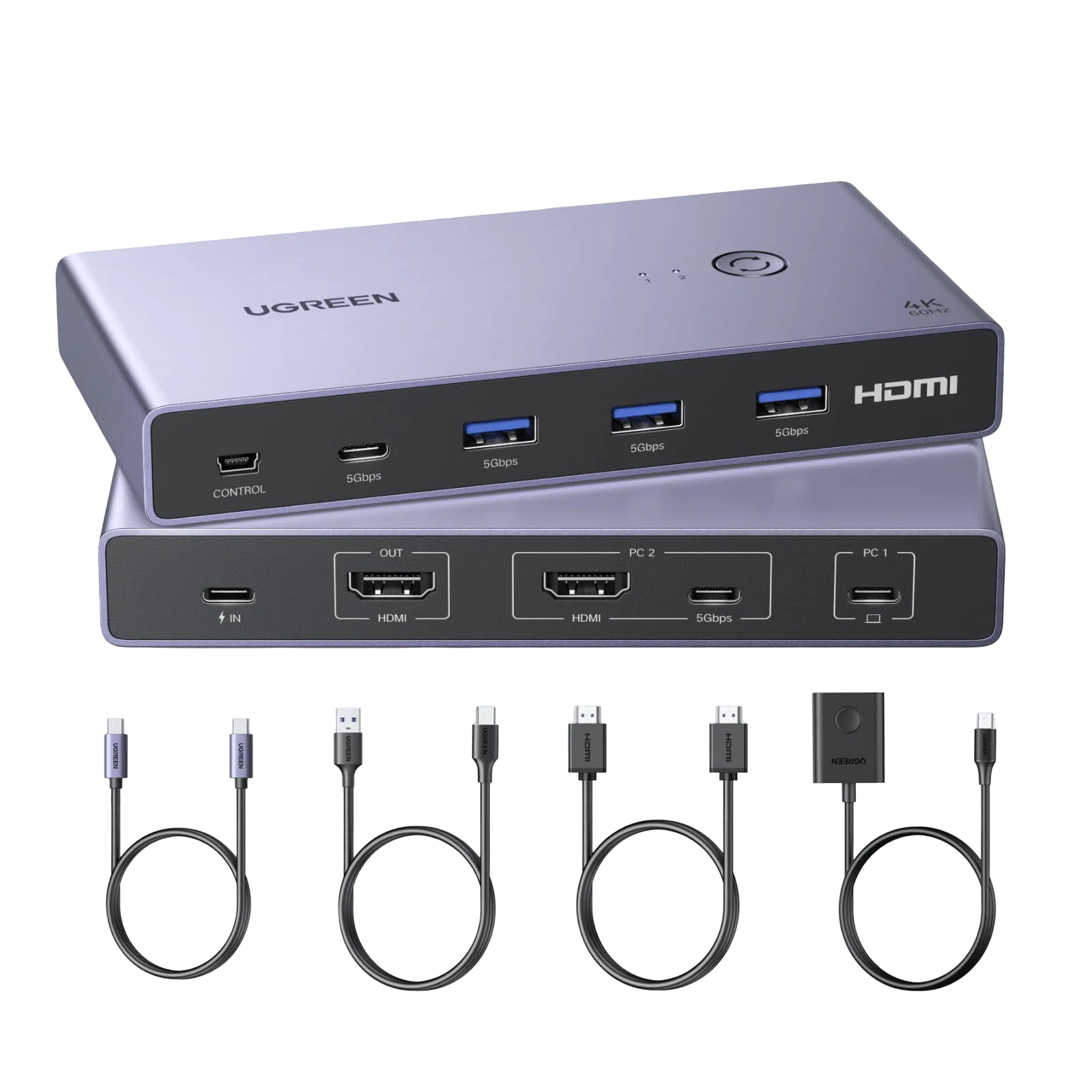
UGREEN HDMI KVM Switch 2 Monitors 2 Computers 4K@60Hz
Pros
- Dual monitor support at 4K@60Hz on both displays
- Four USB 3.0 ports shared between computers
- All cables included: 4 HDMI cables + 2 USB cables + power adapter
- Desktop controller included for easy switching
Cons
- HDMI-only limits compatibility with DisplayPort monitors
- No EDID emulation, so windows may reposition on switch
Price as of May 4, 2026 — see current price on Amazon.
Two monitors, two computers, and you don't want to spend $200. The UGREEN dual is the honest pick here. At $139.99 it's $60 cheaper than the TESmart and handles 4K@60Hz on both displays with HDR.
The box includes 4 HDMI cables, 2 USB cables, a power adapter, and the desktop controller. Competitors at this price often ship the switch and nothing else.
But. No EDID emulation. That's the real cost of the $60 savings.
Without EDID, when you switch computers, the machine you left thinks the monitor disconnected. It scrambles your window layout. If you have specific apps pinned to specific monitors and you switch between computers three times a day, this will drive you crazy within a week. If you switch once a day and your workflow isn't tightly window-managed, you probably won't care.
That's the actual decision: do you care about EDID? If yes, pay for the TESmart. If no, save $60 here.
TESmart Dual Monitor KVM Switch 4K@60Hz
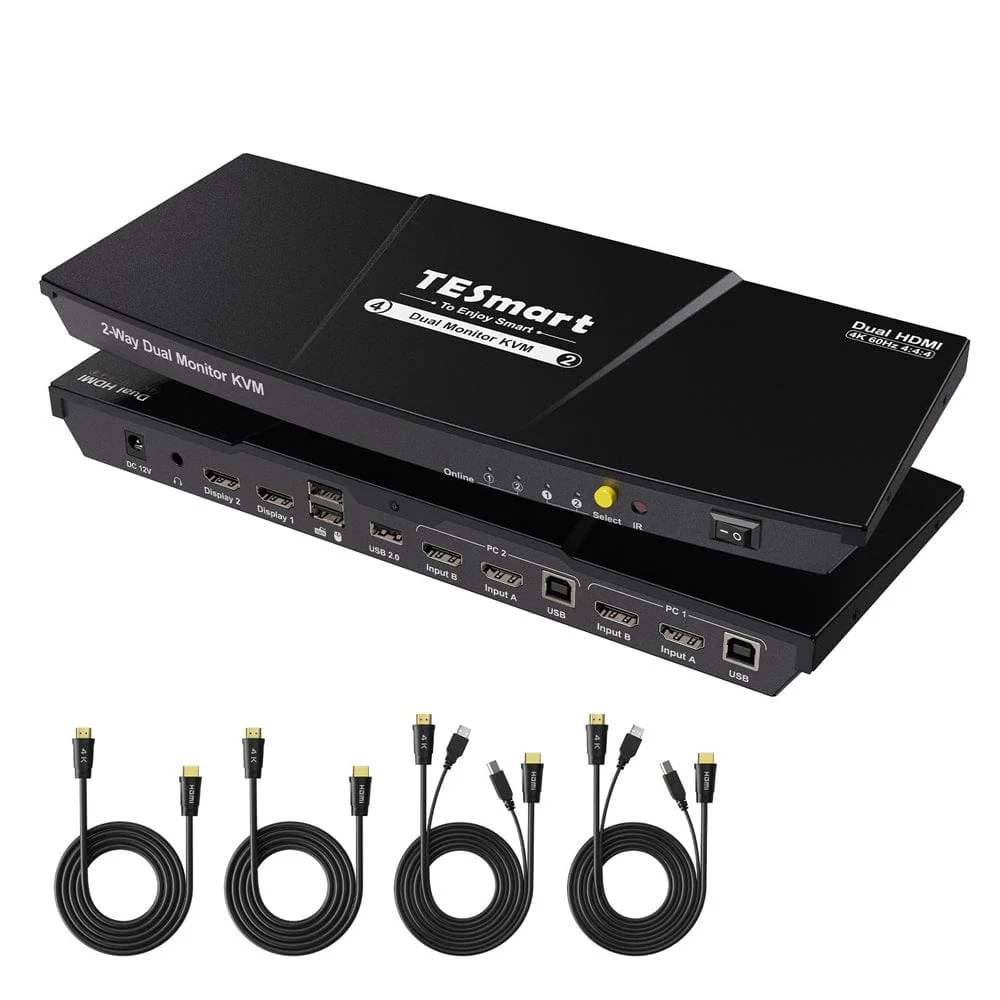
TESmart Dual Monitor KVM Switch HDMI 4K@60Hz
Pros
- EDID emulation prevents window repositioning on switch
- Three switching modes: hotkey, button, IR remote
- L/R audio output support
- Solid metal chassis, not plastic
Cons
- USB 2.0 only for peripheral sharing
- IR remote (not RF) requires line-of-sight
Price as of May 4, 2026 — see current price on Amazon.
TESmart's HKS202-E23 is the dual-monitor KVM that keeps coming up in r/homelab and r/sysadmin when people ask what actually works. It's been on the market long enough to have its firmware sorted, and it shows.
EDID emulation is the headline feature. EDID is the protocol where your monitor tells the connected computer what resolutions and refresh rates it supports. Without emulation, switching computers means the departing machine registers "monitor disconnected" and resets your window layout. With emulation, both machines always think they're connected. Windows don't move. Apps stay where you put them. For anyone running a tight dual-monitor workflow, this alone justifies the $60 premium over the UGREEN.
Three switching methods: keyboard hotkey (fastest, what most people end up using), front panel button (most reliable), and an IR remote. The IR needs line-of-sight, which is the one limitation. But honestly, if you set the unit where you can see it, it's fine.
USB 2.0 for peripherals is the tradeoff. 480Mbps. Keyboards and mice are fine. Shared NAS drives are not. Know what you're buying it for.
Cable Matters 14-in-1 USB-C KVM Switch Dock
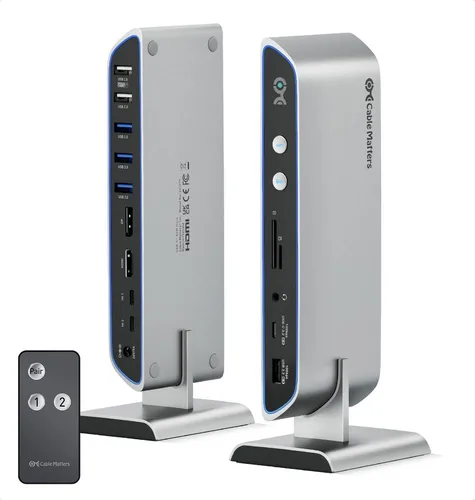
Cable Matters 14-in-1 USB C KVM Switch Dock
Pros
- All-in-one: KVM plus full docking station functionality
- Dual 4K 60Hz over DisplayPort and HDMI simultaneously
- Up to 100W laptop charging on primary port
- 14 ports total including card reader, 10Gbps USB-A/C
Cons
- Laptop-only: no support for desktop PCs or Chromebooks
- Expensive relative to pure KVM switches
- Currently listed as out of stock periodically
Price as of May 4, 2026 — see current price on Amazon.
Look, this is a different type of product from everything else on the list. But if you're running two laptops, a standard KVM switch doesn't solve the full problem. Laptops charge over USB-C, don't always have HDMI outputs, and need a dock anyway. This Cable Matters unit handles everything over a single cable: switch between machines, get dual 4K output, 100W charging on the primary port, 65W on the secondary, card reader, and 14 ports total.
The hard limitation is spelled out in the product listing: no desktop PCs, no Chromebooks. Two USB-C laptops with DisplayPort Alt Mode or Thunderbolt 4. That's it. MacBooks since 2019 work. Most Thunderbolt 4 Windows laptops work. If one of your computers is a tower desktop, get the TESmart and stop reading this section.
At $299 it's the most expensive thing here. But replace it with the math: one KVM switch plus two separate docking stations and you're probably looking at $350+ anyway with worse integration. As an all-in-one for a dual-laptop home office, it's the cleanest single-purchase solution available.
What to Look For in a KVM Switch
Single Monitor vs. Dual Monitor
Start here before looking at prices. Single-monitor KVMs run $40-$90 and are simple, reliable, and plentiful. Dual-monitor KVMs start around $130 and add real complexity: two simultaneous display connections, EDID handling, sometimes separate display signal paths. If you actually need both monitors to work on both computers, budget for it. Don't buy a single-monitor switch and assume you'll make it work.
EDID Emulation
Already covered above in the TESmart section, but it bears repeating. If you run multiple monitors and switch computers more than once a day, missing EDID emulation will bother you constantly. Your window layout resets every switch. The budget UGREEN skips it. The TESmart includes it. Most switches at $150+ include it. Below that, check.
USB Port Speed
The USB ports on a KVM switch are shared across both computers for peripherals. USB 2.0 (480Mbps) handles keyboards, mice, webcams, and printers without issue. USB 3.0 (5Gbps) is what you want if you're sharing an external SSD or any storage device between machines. Don't assume. Check the spec sheet.
HDMI vs. DisplayPort
The vast majority of KVM switches ship HDMI-only, and for most setups that's fine. But if your monitor maxes out at a resolution or refresh rate that requires DisplayPort 1.4 (like a 1440p 165Hz monitor or a 4K 144Hz display), an HDMI KVM will bottleneck you at 4K 60Hz. DisplayPort KVM switches exist but are less common and cost more. The Cable Matters DP 1.4 switch (B098TVP9ZL) is the one I'd look at for that use case.
How You'll Actually Switch
Button on the unit: most reliable, slightly inconvenient if the switch is hidden. Hotkey: fastest once you've memorized it, usually Ctrl+Ctrl or Scroll Lock twice. IR remote: fine if the switch is visible, annoying if it's not. RF remote: the best, works through walls and from any angle, but only a few switches include it (Cable Matters being the main example at this price range).
Frequently asked questions
- Can a KVM switch handle my gaming mouse at 1000Hz polling rate?
- Most KVM switches use USB 2.0 for peripheral data, which technically caps at 480Mbps. In practice, 1000Hz polling mice work on USB 2.0 switches but some switches introduce a few milliseconds of latency compared to direct connection. For competitive gaming, you're better off plugging the mouse directly into your gaming PC and only sharing a second mouse through the KVM for other work.
- Will a KVM switch work with my 4K 144Hz gaming monitor?
- Not with most HDMI KVM switches. HDMI 2.0 maxes out at 4K@60Hz. For 4K@144Hz you need DisplayPort 1.4, and DisplayPort KVM switches are less common and cost more. If 4K@144Hz is the goal, look at the Cable Matters DP 1.4 switch (B098TVP9ZL) or run a separate DisplayPort cable to the monitor and just use the KVM for 60Hz secondary use.
- What happens to my second monitor if I use a single-monitor KVM switch?
- Nothing automated. The second monitor would need to connect directly to both computers (one per input port) and you'd switch inputs manually on the monitor itself, or use the monitor's PIP/PBP mode if it has one. A proper dual-monitor KVM switch (TESmart or UGREEN dual) handles both monitors simultaneously.
- Do I need to install drivers for a KVM switch?
- For every switch listed here, no. All are plug-and-play on Windows, macOS, and Linux. The OS sees the keyboard and mouse as directly connected USB devices. Some switches have companion software for configuring hotkeys, but it's optional.
- Can I use a KVM switch to share between a Mac and a Windows PC?
- Yes. All the switches listed here are cross-platform. The keyboard shortcut for switching may behave slightly differently (the Mac will see the Command key differently) but basic hotkey switching, button switching, and remote switching all work fine between mixed-OS setups.
- Does a KVM switch add any display lag?
- Imperceptibly in most cases. Modern HDMI KVM switches pass through the signal without adding meaningful latency. If you're measuring with a high-speed camera you might find 1-2ms of additional latency, but in daily use, including gaming at 60Hz, you won't notice it.
Bottom Line
For most people with two computers on one desk, the UGREEN USB 3.0 HDMI KVM (B0CQM47NVX) at $49.99 is the right answer. It includes cables, has a desktop controller, and just works. Step up to the TESmart at $199.99 if you're running dual monitors and need EDID emulation to keep your window layout intact when switching. The Cable Matters USB-C dock at $299.99 is the play if you're switching between two laptops and want the docking station rolled in. Skip anything in between unless the RF remote on the Cable Matters HDMI switch is specifically what you're after.
How We Test
We score products by combining spec-level research, pricing history, trusted third-party benchmarks, and owner sentiment from high-signal sources.
- Performance and real-world value in the category this guide targets
- Price-to-performance and deal consistency over recent pricing windows
- Build quality, reliability patterns, and known long-term issues
- Recommendation refresh cadence to keep these picks current
Author
TheTechSearch Editorial Team
Independent product reviewers & PC builders
We test and compare real-world specs, price trends, and user feedback to recommend gear that actually makes sense to buy.