Best Drawing Tablets for Beginners 2026
The best drawing tablets for beginners in 2026, from $30 budget picks to pen displays — with real ASINs, honest tradeoffs, and brand comparisons. Expert pick...
As an Amazon Associate we earn from qualifying purchases made through our links — this doesn't affect our picks.
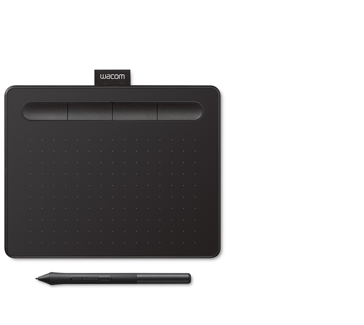
Wacom Intuos Small Graphics Drawing Tablet
Our top recommendation for this category
Price as of May 19, 2026 — see current price on Amazon.
The drawing tablet market has shifted a lot over the past two years. Huion and XP-Pen have genuinely closed the gap on Wacom, not just in price but in actual pen feel and driver stability. And the Huion Kamvas 13 Gen 3 launched with PenTech 4.0 and canvas-texture glass that was previously only found on tablets twice the price. If you bought your last tablet guide from 2022, what was true then isn't true now.
This guide covers the best options for beginners in 2026, across three tiers: sub-$50 screenless, mid-range screenless, and entry-level pen displays with screens. I'll tell you who each one is actually for and what the honest tradeoffs are. No filler.
Quick Picks
| Tablet | Price | Type | Active Area | Pressure | Best For | |
|---|---|---|---|---|---|---|
| Wacom Intuos Small | ~$40 | Screenless | 6x3.7" | 4,096 | Best pen feel, reliability | Check Price |
| XP-Pen StarG640 | ~$30 | Screenless | 6x4" | 8,192 | Tightest budget | Check Price |
| Huion Inspiroy H640P | ~$30 | Screenless | 6x4" | 8,192 | Budget + hotkeys | Check Price |
| XP-Pen Deco 01 V3 | ~$44 | Screenless | 10x6.25" | 16,384 | Biggest surface under $50 | Check Price |
| Huion Kamvas 13 Gen 3 | ~$249 | Pen display | 13.3" screen | 16,384 | Best beginner screen tablet | Check Price |
Wacom Intuos Small
Wacom Intuos Small Graphics Drawing Tablet
Pros
- Best pen feel in the sub-$50 category
- 4 programmable ExpressKeys
- Includes Corel Painter Essentials and Clip Studio Paint trial
- Rock-solid driver history, just works on Mac and Windows
Cons
- Smallest active area of any pick here at 6x3.7 inches
- Only 4,096 pressure levels (competitors offer 8,192+)
- No wireless option at this price
Price as of May 19, 2026 — see current price on Amazon.
The Wacom Intuos Small is the one I'd buy my younger sibling if they asked for a drawing tablet. It's not the flashiest, and the 4,096 pressure levels sound underwhelming next to XP-Pen's 16,384 marketing number. But pressure sensitivity differences above 4,096 are almost imperceptible to beginners and most intermediate artists. What actually matters is how the pen feels under the hand, and Wacom's EMR technology still has a slight edge. The cursor doesn't wobble, lines taper cleanly, and the surface texture is just right.
The active area is genuinely small at 6x3.7 inches. If you're used to working large, you'll feel it. But for most beginners learning the basics in Krita, Clip Studio Paint, or Procreate (via Sidecar on an iPad), it's enough. The included software isn't filler either. Corel Painter Essentials alone retails for $50.
One thing worth knowing: Wacom updated their driver software significantly in mid-2024 and it's now much cleaner. Reddit threads from early 2023 complaining about Wacom's driver bugs are outdated at this point.
XP-Pen StarG640
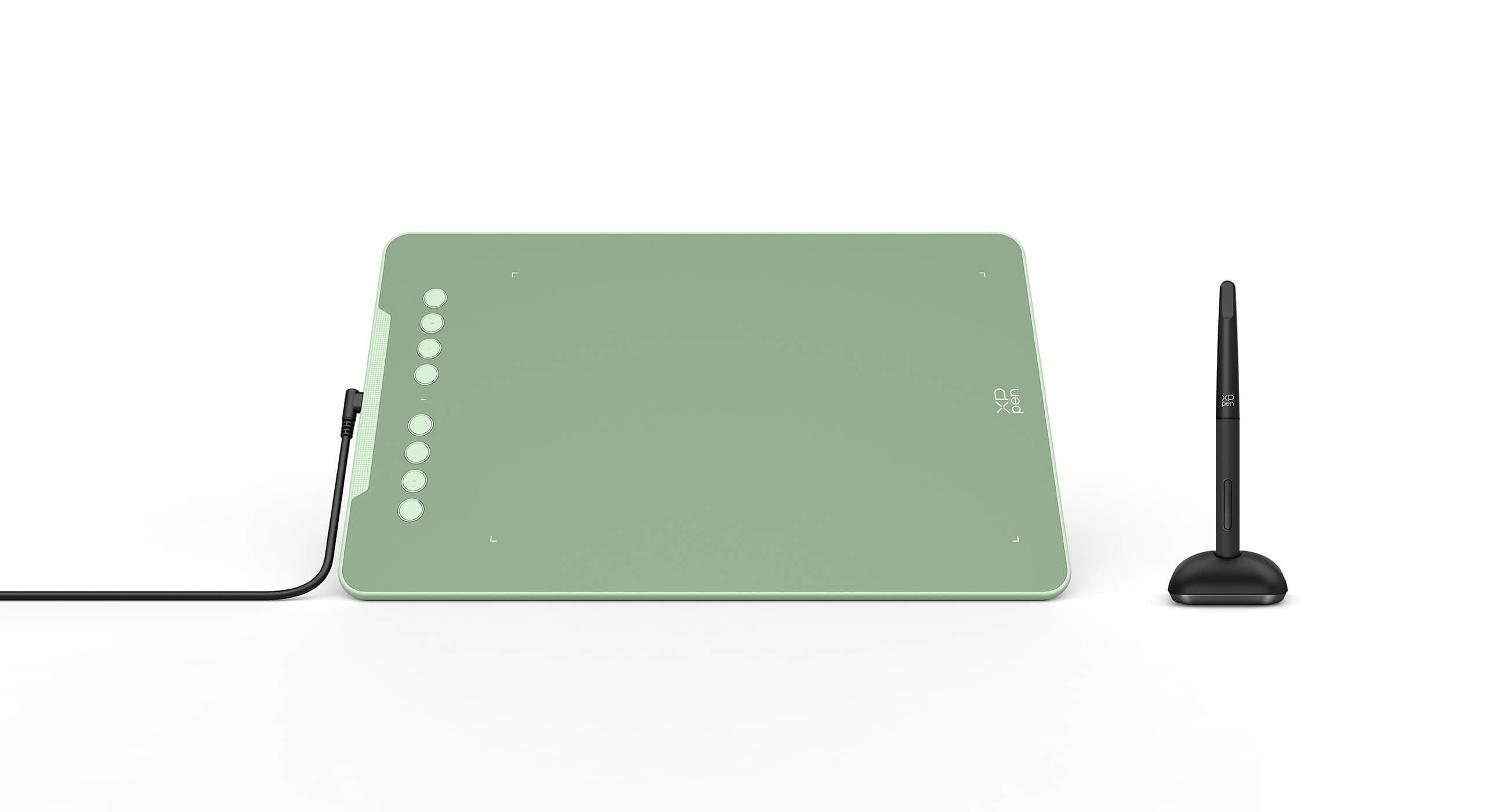
XP-Pen StarG640 Digital Graphic Tablet
Pros
- Under $30, cheapest verified pick here
- 6x4 inch active area (larger than Wacom Intuos Small)
- Battery-free stylus, 8,192 pressure levels
- Ultra-thin at 2mm, Chromebook compatible
Cons
- No hotkeys at all, you'll use keyboard shortcuts exclusively
- Surface scratches easily with extended use
- No tilt support on the pen
Price as of May 19, 2026 — see current price on Amazon.
Look, if someone told me they had $30 and wanted to start learning digital art, I'd tell them to buy the StarG640. Full stop. It's not going to win any awards for build quality (the plastic feels a bit hollow) but the fundamentals work. The battery-free stylus tracks cleanly, the 8,192 pressure levels perform well in Krita and Paint Tool SAI, and the 6x4 inch active area is actually larger than the Wacom Intuos Small for less money.
No hotkeys is the real limitation here. You'll be reaching for Ctrl+Z constantly, and after an hour of that it gets old. If that sounds annoying, step up to the Huion H640P below for the same price with six hotkeys included. But if budget is the absolute ceiling and you don't mind using keyboard shortcuts, the StarG640 won't hold you back artistically.
The surface wears down faster than Wacom or Huion equivalents. Plan to replace nibs every couple of months with daily use.
Huion Inspiroy H640P
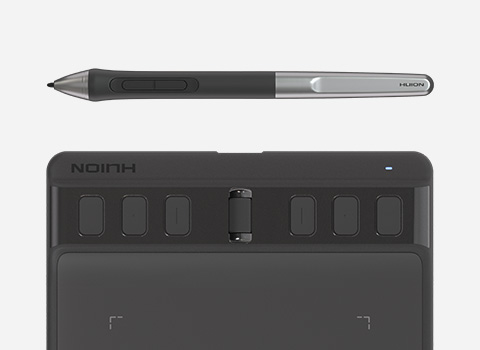
Huion Inspiroy H640P Drawing Tablet
Pros
- 6 customizable hotkeys at the same price as the StarG640
- 6x4 inch active area
- Battery-free stylus with 8,192 pressure levels
- Works on Mac, Windows, Android, and Linux
Cons
- Slightly older design compared to the Inspiroy 2 series
- No wireless option
- Pen tilt support is limited
Price as of May 19, 2026 — see current price on Amazon.
The H640P answers the "I want hotkeys but I can't spend more than $35" question pretty well. It's essentially the same active area and pressure level as the StarG640, but Huion packed in six programmable express keys. In practice you can map Undo, Brush Size Up/Down, Zoom, Rotate, and one custom action. That covers about 90% of what you need during a drawing session without touching the keyboard.
The H640P is technically the older model. Huion now sells the Inspiroy 2 S (H641P) at around $40, which adds a scroll wheel and Huion's newer PenTech 3.0 stylus. If you can stretch the extra $10, the Inspiroy 2 S is worth it. But the H640P has thousands of reviews and holds its own.
And Linux users: Huion's driver support is noticeably more reliable than XP-Pen's on Linux. That matters if you're running Ubuntu or Fedora.
XP-Pen Deco 01 V3
XPPen Deco 01 V3 Drawing Tablet
Pros
- 10x6.25 inch active area (largest in this price range by far)
- 16,384 pressure levels with the updated X3 chip stylus
- 8 customizable hotkeys
- Supports Android, Chromebook, Mac, Windows
Cons
- Larger footprint isn't ideal if desk space is limited
- No wireless
- Occasional driver update prompt that trips up some users
Price as of May 19, 2026 — see current price on Amazon.
The Deco 01 V3 is the value story of the sub-$50 segment. A 10x6.25 inch active area at $44 is genuinely hard to argue with. That spec used to cost $100+. XP-Pen updated this line with the X3 Smart Chip in the V3 revision, bumping pressure to 16,384 levels and cutting initial activation force to around 3 grams. You'll notice the difference in light line work.
The 8 hotkeys sit along the left edge and don't feel cramped. My personal layout: four keys for brush/eraser size adjustment, two for undo/redo, two free for whatever your app needs. Works great.
But. A 10x6 tablet takes up real desk space. If you're working on a small desk or moving your setup often, the Wacom or Huion H640P will be more practical. If you want the most working area per dollar, though, this is it.
Huion Kamvas 13 Gen 3
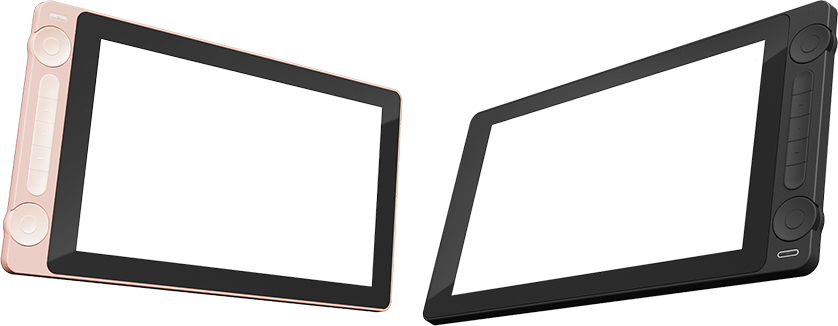
Huion Kamvas 13 Gen 3 Drawing Tablet with Screen
Pros
- 13.3-inch full-laminated screen with anti-sparkle canvas glass texture
- PenTech 4.0: 16,384 pressure levels, 60-degree tilt, 2g activation force
- Dual dials for canvas rotation and brush size adjustment
- 99% sRGB, factory-calibrated color accuracy
Cons
- You have to learn to draw on the screen surface rather than looking at a separate monitor
- At $249, it's a bigger commitment for beginners who aren't sure yet
- Single USB-C connection can cause issues with some older laptops
Price as of May 19, 2026 — see current price on Amazon.
A pen display with its own screen used to be a $400+ purchase for anything worth using. The Kamvas 13 Gen 3 changed that. At around $249, it brings PenTech 4.0, canvas-texture glass, and dual control dials into a price range that was previously full of garbage panels with poor color accuracy and glassy surfaces that made the pen slip.
The canvas glass texture is the standout feature. It mimics drawing on paper rather than on glass, cutting the pen slip that makes cheap pen displays feel unnatural. Huion says the anti-sparkle coating reduces glare by about 85%, and in practice it leaves no distracting texture pattern on the display. Previous Kamvas generations didn't come close to this.
The learning curve is real, though. Drawing on a screen feels intuitive in theory, but a lot of new artists struggle with the hand-eye coordination gap between looking at their hand and looking at the screen. Screenless tablets (everything above) sidestep this entirely. Honestly, if you're unsure whether you'll stick with digital art, start with a $30-$40 screenless tablet for a few months before committing $249 to a pen display.
But if you know you want to draw and you can spend $249, the Kamvas 13 Gen 3 is the best beginner pen display right now. The r/learnart community has been consistently recommending it since late 2024.
What to Look For in a Drawing Tablet for Beginners
Screenless vs. Pen Display
This is the first decision. A screenless tablet (just the pad, no screen) costs $30-$80 and has a gentler learning curve. You draw on the pad and watch your cursor move on your monitor. Most beginners start here.
A pen display has its own screen, so you draw directly where you see your work. It feels more natural for some people, but there's still a hand-eye adjustment period. Pen displays start around $150 and get better as you spend more.
Don't buy a pen display just because it sounds more "professional." Plenty of working illustrators use screenless tablets. It's about workflow preference.
Pressure Sensitivity Levels
You'll see numbers like 4,096, 8,192, and 16,384 on spec sheets. Here's what those numbers actually mean for you: not much, at the beginner level. The difference between 4,096 and 8,192 is subtle. The difference between 8,192 and 16,384 is even more subtle. What matters more is the pen feel and how well the driver translates pressure to your application of choice.
Wacom's 4,096 levels still feel better than some competitors' 8,192 because of how the stylus and surface interact. Don't let spec sheet numbers alone drive your decision.
Active Area Size
Bigger isn't always better. A 10x6 tablet sounds great until you realize your wrist travels 18 inches to cross the canvas, and your arm gets tired in an hour. Most beginners do fine on a 6x4 inch surface. It maps naturally to a 24-inch monitor at a comfortable scale. Go larger only if you know you prefer working large and have the desk space for it.
Hotkeys
Express keys (the physical buttons on the tablet body) speed up your workflow significantly once you build muscle memory. I'd consider at least 4 hotkeys a minimum for comfortable digital art. The XP-Pen StarG640 has none, which is fine at the absolute budget floor, but anything above $30 should include at least a row of express keys.
Driver Support and Compatibility
This used to be Wacom's biggest advantage. Their drivers were the most stable and widely supported. That gap has narrowed considerably in 2025-2026. Huion and XP-Pen both have reliable driver update cadences and broad OS support now. Huion has a slight edge on Linux specifically. If you're on Windows or Mac, any of these picks will work well.
Frequently asked questions
- Should I start with a screenless tablet or a pen display as a beginner?
- Start with a screenless tablet unless you have a specific reason to want a display. They're cheaper, have no learning curve for hand-eye coordination, and most professional digital artists started on screenless tablets. If you try one for 2-3 months and feel limited, then upgrade to a pen display.
- Is Wacom really worth the extra cost over Huion and XP-Pen in 2026?
- For beginners, probably not. The Wacom Intuos Small has a slightly better pen feel due to their EMR technology, and the software bundle has real value. But Huion and XP-Pen have genuinely closed the gap in driver stability and pen performance. If you're spending $30-$50, Huion or XP-Pen gives you more features per dollar. If budget isn't a constraint, Wacom's reliability is still a real selling point.
- What software should I use with my new drawing tablet?
- Krita is free and excellent for beginners. It handles pressure sensitivity well and has strong community tutorials. Clip Studio Paint has a permanent license for around $50 and is the most popular professional tool for manga and illustration. Photoshop works but is expensive. The Wacom Intuos Small includes Clip Studio Paint and Corel Painter trials, which makes it particularly good value for software bundling.
- Do I need a large drawing tablet if I have a large monitor?
- No, and this is a common misconception. Tablet active area doesn't need to match your monitor size. Most artists use a small to medium tablet (6x4 to 10x6 inches) even on 27-32 inch monitors. The tablet-to-screen mapping is handled by software and you can adjust the active area in the driver settings to map only to one monitor or a specific region.
- How long do drawing tablet nibs last?
- It depends on your drawing style and surface texture. Harder tablet surfaces (textured glass on pen displays, rougher pad surfaces) wear nibs faster. Expect to replace nibs every 1-6 months with regular use. Most tablets include spare nibs in the box. Huion and XP-Pen typically include 8-10; Wacom includes fewer (usually 3). Additional nib packs cost $5-$10 for a set of 10.
- Can I use a drawing tablet with an iPad or Android tablet?
- Several models support this. The Huion Inspiroy H640P, Wacom Intuos Bluetooth, and XP-Pen Deco 01 V3 all support Android via USB-C connection. The Huion Kamvas 13 Gen 3 also supports Android, which lets you use it as a display for Procreate-like apps when connected to a compatible Android device. iOS and iPadOS connectivity is not supported on any of these tablets; for iPad drawing, the Apple Pencil with iPad is the better choice.
Bottom Line
For most beginners, the Wacom Intuos Small at $40 is still the safest recommendation. The pen feel is excellent, the software bundle has real value, and you won't fight the drivers. If budget is genuinely tight, the Huion Inspiroy H640P gives you six hotkeys and the same active area for around $30. Want the most surface area for the money under $50? The XP-Pen Deco 01 V3 at $44 has a 10x6.25 inch working area that used to cost twice as much. And if you're ready to invest in a pen display from day one, the Huion Kamvas 13 Gen 3 at $200 is the best beginner screen tablet in this price range: canvas-texture glass, PenTech 4.0, and dual control dials at a price that's genuinely hard to argue with.
How We Test
We score products by combining spec-level research, pricing history, trusted third-party benchmarks, and owner sentiment from high-signal sources.
- Performance and real-world value in the category this guide targets
- Price-to-performance and deal consistency over recent pricing windows
- Build quality, reliability patterns, and known long-term issues
- Recommendation refresh cadence to keep these picks current
Author
TheTechSearch Editorial Team
Independent product reviewers & PC builders
We test and compare real-world specs, price trends, and user feedback to recommend gear that actually makes sense to buy.