Do You Need a Laptop Docking Station? Here's How to Decide
Wondering if a docking station is worth it for your setup? Here's exactly when to buy one, and when to skip it. Expert picks, pros and cons, and side-by-side...
As an Amazon Associate we earn from qualifying purchases made through our links — this doesn't affect our picks.
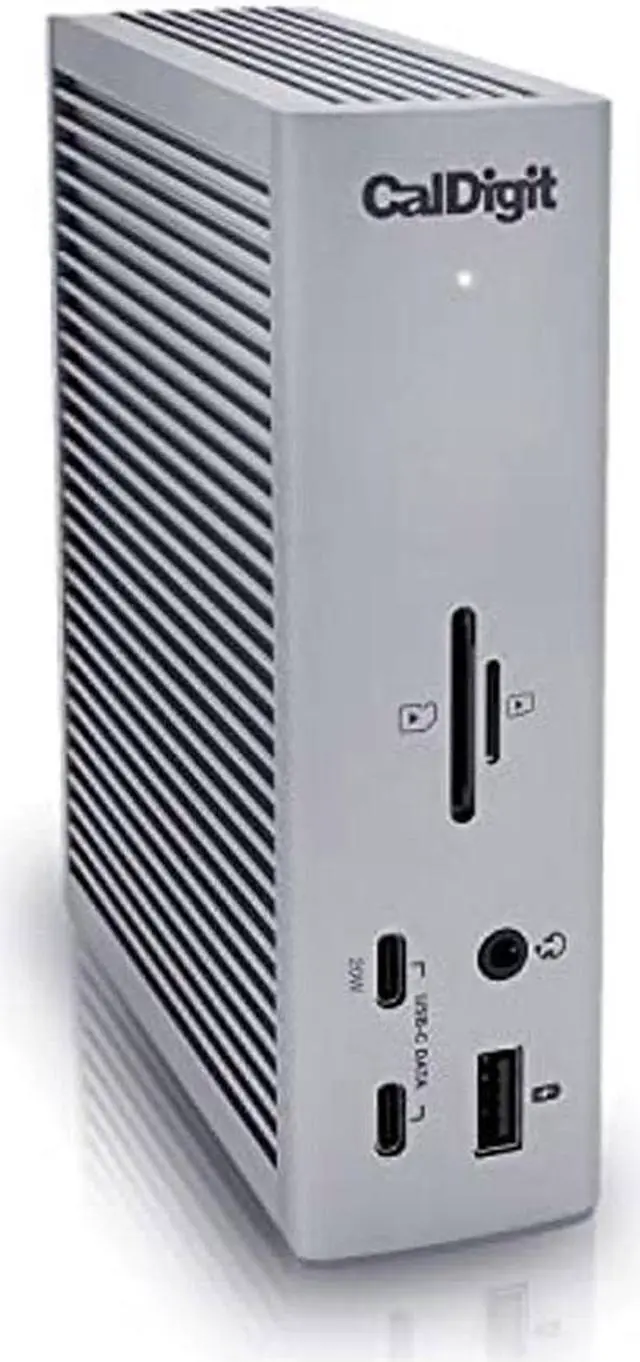
CalDigit TS4 Thunderbolt 4 Dock
Our top recommendation for this category
Price as of Aug 22, 2026 — see current price on Amazon.
You close the lid, go to a meeting, come back, and spend the next 90 seconds plugging in your monitor cable, USB hub, keyboard dongle, Ethernet adapter, and charger before you can do anything. If that's your daily routine, a docking station solves exactly that problem, one cable and you're back at full desk power in about two seconds.
But not everyone needs one. And buying the wrong dock (or an unnecessary one) is an easy way to waste $130 to $250. So here's the actual breakdown: when a dock pays for itself fast, when you can skip it, and which ones are worth buying if you decide you do.
| Scenario | With a Dock | Without a Dock |
|---|---|---|
| Daily desk setup time | ~2 seconds (one cable) | 60–90 seconds (multiple cables) |
| Dual monitor support | Yes, most docks handle 2–4 displays | Usually requires extra adapters |
| Laptop charging | Single cable charges while working | Separate charger required |
| USB peripherals | All connected to dock permanently | Re-plug each device every time |
| Ethernet | Built into most docks | Separate USB-to-Ethernet adapter |
| Upfront cost | $100–$250 depending on model | $0, but adapters add up |
What a Docking Station Actually Does
At its core, a dock is a powered hub that plugs into one port on your laptop, usually USB-C or Thunderbolt, and expands into a full suite of connections. We're talking HDMI and DisplayPort outputs for monitors, USB-A ports for older peripherals, Ethernet, audio jacks, SD card slots, and often enough power delivery to charge your laptop at the same time.
The key word there is "powered." Unlike a passive USB hub, a real docking station has its own power supply. That's what makes it possible to run two monitors, charge your laptop, and power a webcam and external SSD simultaneously without your laptop struggling.
Thunderbolt 4 docks (like the CalDigit TS4 I'll cover below) are the high end of this. They use Intel's Thunderbolt spec to push up to 40Gbps of bandwidth, which is why they can handle three external 4K displays without breaking a sweat. Standard USB-C docks are more affordable and work fine for most people, but they have lower bandwidth limits that cap at two monitors or lower resolution.
You Probably Need One If...
You set up at the same desk every day
This is the clearest signal. If you have a home office or a regular desk at work where you connect to the same monitor, keyboard, and mouse every single day, a dock pays for itself in convenience within the first week. No debate about it.
I'd also argue it protects your laptop. Plugging and unplugging USB-C cables repeatedly wears out the port over time. With a dock, the cable lives in the dock port and your laptop just connects to that, one clean cycle per day instead of five or six.
You want two or more monitors
Your laptop probably has one video output. Maybe two if you're lucky. To run a proper dual-monitor desk setup, one monitor straight ahead, one to the side, you need something to drive both displays at once. A dock handles this without you needing to figure out which adapters work with which ports.
Some docks, like the Plugable UD-3900C4, can handle four displays simultaneously. That's overkill for most people, but if you're doing video editing or need to spread spreadsheets across three monitors, it exists.
You're working with a lot of USB devices
Keyboard. Mouse. Webcam. Microphone. External SSD. USB-A to whatever. Laptops typically come with two or three USB ports total, which means something is always getting unplugged to make room for something else. A decent dock adds eight to twelve ports, enough that you can stop playing USB Tetris every time you need to charge something.
Your laptop is essentially a desktop replacement
Some people buy a laptop specifically so they CAN travel with it, but 90% of their time is spent at a desk. If that's you, a docking station lets you run your laptop like a full desktop workstation during the week and then just pull it off the dock and go when you need to. That single-cable disconnect is genuinely satisfying.
You Can Probably Skip It If...
You carry your laptop to different locations constantly
If you're working from three different desks, home, the office, a coffee shop, and you rarely have the same monitor setup twice, a dock may not make sense. You'd need to either buy multiple docks or carry one with you, and at that point a lightweight USB-C hub (a much cheaper option, $30–$50) might serve you better.
You only need one external monitor
If all you want is one external display and your laptop has a standard HDMI port, you might not need a dock at all. An HDMI cable runs about $12. A USB-C to HDMI adapter is $20. For a one-monitor setup with no other connectivity needs, there's no reason to spend $150.
The math changes if you also want Ethernet, a USB hub, and charging through the same connection. At that point, a dock saves money compared to buying those adapters separately.
Your laptop only has USB-A ports
Older laptops with no USB-C or Thunderbolt port can't use modern docks. You'd need a legacy docking solution specific to your laptop brand, or a USB 3.0 hub (which has much more limited display support). Worth checking your laptop's port situation before shopping.
The Best Docking Stations Right Now
If you've decided you need one, here are four solid options that cover the main use cases. Prices shift on Amazon, but these are the benchmarks as of mid-2026.
CalDigit TS4: Best Premium Dock
The CalDigit TS4 is the dock I'd buy if I was setting up a serious home office and didn't want to think about it again for three years. It runs on Thunderbolt 4, delivers 98W of charging to your laptop, and gives you 18 ports total, three Thunderbolt 4 ports, a full-size SD card slot, front-panel USB-A and USB-C for quick access, 2.5G Ethernet, and multiple DisplayPort and HDMI outputs.
The 98W PD covers most 15-inch MacBook Pros, Dell XPS 15s, and similar power-hungry machines that cheaper docks can't fully charge under load. If your laptop needs more than 60W while running, this is the dock to get.
CalDigit TS4 Thunderbolt 4 Dock
Pros
- 98W laptop charging handles power-hungry 15-inch machines
- 18 total ports including 2.5G Ethernet and SD slot
- Thunderbolt 4 means up to 3 external 4K displays
- Solid aluminum build, runs cool
Cons
- $249 is a real investment
- Requires Thunderbolt 4 port on your laptop, won't work on USB-C-only machines
- Overkill for light home-office use
Price as of Aug 22, 2026 — see current price on Amazon.
Dell WD19S 180W: Best for Dell Laptop Owners
Dell's own docking station is a genuinely good pick if you're using a Dell XPS, Latitude, or Inspiron. The 180W power brick means 130W actually gets delivered to your laptop via USB-C, enough to charge Dell's 17-inch gaming Inspirons that most docks can't keep up with.
Port-wise you get dual DisplayPort and HDMI (so three monitors total), four USB-A 3.1 ports, two USB-C, and Gigabit Ethernet. It's not as flashy as the CalDigit but it's priced lower and it handles the Dell-specific quirks better than third-party options tend to.
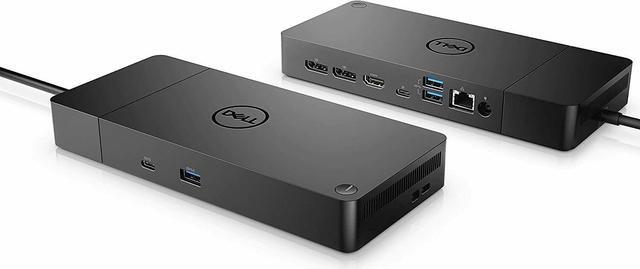
Dell WD19S 180W USB-C Docking Station
Pros
- 130W power delivery charges even high-wattage Dell laptops
- Dual DisplayPort + HDMI for three-monitor support
- Designed for Dell, works reliably with Dell-specific power features
- Solid, enterprise-grade build
Cons
- Less compelling if you don't own a Dell laptop
- No Thunderbolt, limited to USB-C 3.2 bandwidth
- The power brick is large
Price as of Aug 22, 2026 — see current price on Amazon.
Kensington SD4750P: Best Mid-Range Pick
If you want dual 4K monitors, Ethernet, and solid USB-C charging without spending $250, the Kensington SD4750P is a good answer. It accepts both USB-C and USB-A connections from your laptop, which is useful if you have a machine that doesn't have a great USB-C port but still want dock functionality. Power delivery tops out at 85W, which covers most 13-inch and 14-inch laptops comfortably.
The dual 4K output works well in extended desktop mode. Not a powerhouse, but a reliable workhorse for standard office setups.
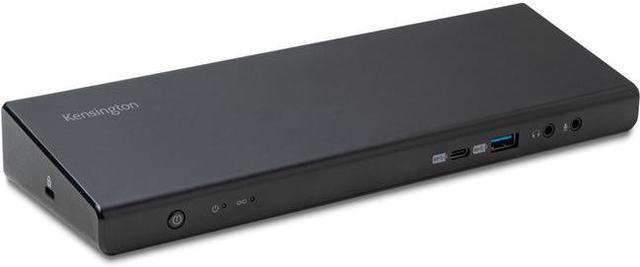
Kensington SD4750P USB-C and USB-A Dual 4K Docking Station
Pros
- Works with both USB-C and USB-A laptop connections
- Dual 4K display support at 60Hz
- 85W charging covers most thin-and-light laptops
- Kensington makes a solid durable product
Cons
- Not Thunderbolt, can't match TS4's bandwidth
- Doesn't support three or four monitors
- Older design compared to newer competitors
Price as of Aug 22, 2026 — see current price on Amazon.
Plugable UD-3900C4: Best for Multi-Monitor Power Users
The Plugable UD-3900C4 is the dock for people who genuinely need four displays running at the same time. It uses DisplayLink chip technology to drive up to four monitors from a single USB-C connection, which sounds impossible but works well in practice, with a small caveat that you need to install the DisplayLink drivers.
If you're a trader watching four charts, a video editor with reference monitors, or just someone who thrives on a lot of screen real estate, this fills a need that most docks don't. For a more normal two-monitor setup it's overkill, but the 14-in-1 port selection is genuinely useful.
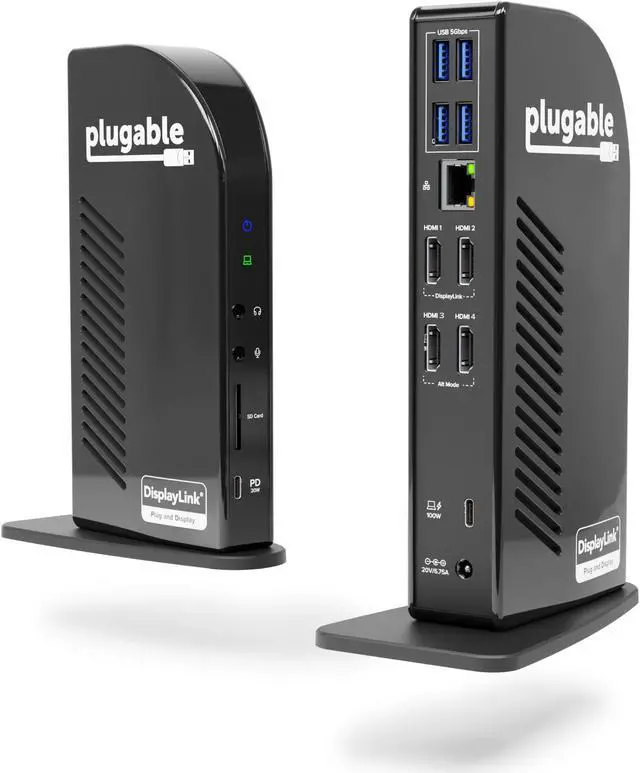
Plugable USB-C 14-in-1 Quad Display Docking Station UD-3900C4
Pros
- Drives up to four external displays from one USB-C port
- 14 total ports including SD card and multiple USB-A
- Works with Windows and Mac (with DisplayLink drivers)
- Strong value for the port count
Cons
- Requires DisplayLink driver install, some people find this annoying
- Display quality slightly compressed vs native Thunderbolt
- Bulkier than slim desktop docks
Price as of Aug 22, 2026 — see current price on Amazon.
What to Look for When Buying
Connection type matters first
Check what ports your laptop actually has before shopping. Thunderbolt 4 docks require a Thunderbolt port, you can't use a TS4 on a laptop that only has USB-C 3.2. USB-C docks will work on any USB-C port, but their display bandwidth is more limited. Dell and HP also sell proprietary dock connectors for their business laptops, which sometimes unlock additional features like wake-on-LAN.
Power delivery wattage
Look at how many watts your laptop charger delivers. A 13-inch MacBook Air charges at 45–65W. A 15-inch MacBook Pro runs at 96W under load. A gaming laptop might want 130W or more. Your dock's power delivery number needs to at least match your laptop's charging wattage, otherwise the laptop will charge slowly or not at all while you're working.
Monitor output count and resolution
Most USB-C docks max out at two 4K monitors at 60Hz. Thunderbolt docks can handle three or four. If you know you want triple monitors, shop specifically for that, not every dock with three video outputs can actually run all three simultaneously, so check the specs and reviews carefully before buying.
Frequently asked questions
- Can I use any USB-C dock with any laptop?
- Not exactly. Most USB-C docks work with any USB-C laptop, but feature support varies. If your laptop only has Thunderbolt 3 or 4, a standard USB-C dock will work but at lower bandwidth. Some docks are better matched to specific brands (Dell docks with Dell laptops, for instance). Always check your laptop's USB-C spec, USB 3.2 Gen 2 and Thunderbolt 4 give you very different results.
- Do I need a Thunderbolt dock or will a USB-C dock do?
- For most home office setups with one or two monitors, a USB-C dock is perfectly fine and costs about half as much. Thunderbolt docks are worth it if you want three or more external displays, need 4K at 120Hz, or are running very high-bandwidth accessories like external GPUs. MacBook Pro users in particular benefit more from Thunderbolt since Apple leans heavily on that standard.
- Will a docking station work with my MacBook?
- Yes, MacBooks have used USB-C and Thunderbolt ports since 2016, so they're very compatible with modern docks. The CalDigit TS4 is particularly popular with Mac users because Apple and CalDigit have worked closely together on driver support. Just make sure you're buying a dock that matches your MacBook's port (Thunderbolt 3 on older Macs, Thunderbolt 4 or USB4 on M-series chips).
- Can I use a docking station with a gaming laptop?
- You can, but gaming laptops are power-hungry and some docks struggle to charge them under load. A 15-inch gaming laptop might pull 150W or more during a gaming session, more than any dock can deliver through USB-C. For pure gaming, you'd want to use the laptop's own charger. But for work tasks at a desk with a gaming laptop, a dock still works fine, it just means keeping the original charger plugged in alongside it if you're doing heavy workloads.
- Is a USB hub the same as a docking station?
- Not quite. A passive USB hub just adds USB ports, no power delivery, no video output, no Ethernet. A docking station is a powered device that handles all of those things from a single cable connection. Hubs cost $20-50 and are great for adding USB ports on the go. Docks cost $100-250 and are designed for permanent desk setups where you want everything connected through one cable.
- How long do docking stations last?
- A well-built dock should last five to seven years easily. CalDigit, Kensington, and Dell all make enterprise-grade docks that see heavy use in corporate environments and hold up well. The main risk is buying a cheap no-name dock that generates too much heat or uses poor capacitors, those tend to fail within a year or two. Sticking with established brands and reading reviews specifically about long-term reliability is worth it at this price range.
Bottom Line
If you're at the same desk every day with a modern USB-C or Thunderbolt laptop, a docking station is one of the best quality-of-life purchases you can make for your workspace. The frustration of plugging in six separate cables every morning adds up fast, and a good dock eliminates it entirely. CalDigit's TS4 is the best-in-class option if you have the budget and a Thunderbolt machine. The Kensington SD4750P hits the sweet spot for most people who want reliable dual-monitor support without overspending. And if you're a Dell user or a multi-display power user, the WD19S and Plugable UD-3900C4 fill those specific needs well.
If you're a nomad who genuinely works in three different places and never has a fixed desk? Save the money and get a small USB-C hub instead.
How We Test
We score products by combining spec-level research, pricing history, trusted third-party benchmarks, and owner sentiment from high-signal sources.
- Performance and real-world value in the category this guide targets
- Price-to-performance and deal consistency over recent pricing windows
- Build quality, reliability patterns, and known long-term issues
- Recommendation refresh cadence to keep these picks current
Author
TheTechSearch Editorial Team
Independent product reviewers & PC builders
We test and compare real-world specs, price trends, and user feedback to recommend gear that actually makes sense to buy.