Best X870 Motherboards 2026
The best AMD X870 and X870E motherboards for Ryzen 9000 builds in 2026, from $289 value picks to $499 premium flagships. Expert picks, pros and cons, and sid...
As an Amazon Associate we earn from qualifying purchases made through our links — this doesn't affect our picks.
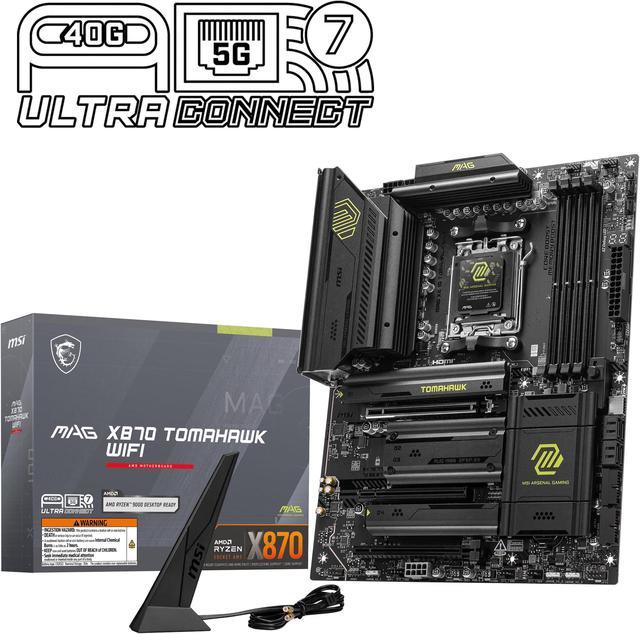
MSI MAG X870 Tomahawk WiFi Gaming Motherboard
Our top recommendation for this category
Price as of Jul 2, 2026 — see current price on Amazon.
X870 is AMD's top-tier AM5 chipset in 2026, and it's finally reached prices where recommending it over B850 actually makes sense for more than just workstation builds. The chipset mandates USB4, PCIe 5.0 on both the primary GPU slot and at least one M.2 slot, and boards in this range tend to ship with VRM configurations that don't flinch at a Ryzen 9 9950X running sustained all-core loads.
The B850 Tomahawk at $229 is still the right call for most gamers. But if you're running a Ryzen 9 9900X or 9950X, need more than four USB-A ports on the rear I/O, or want dual USB4 for Thunderbolt peripherals and fast external storage, you're in X870 territory. Here's what's actually worth buying.
Quick Picks
| Motherboard | Chipset | Form Factor | VRM Stages | Max DDR5 | Price | |
|---|---|---|---|---|---|---|
| MSI MAG X870 Tomahawk WiFi | X870 | ATX | 80A SPS | 8400+ MT/s | ~$289 | Check Price |
| ASUS TUF Gaming X870-PLUS WiFi | X870 | ATX | 16+2+1 80A | 8000+ MT/s | ~$309 | Check Price |
| ASUS ROG Crosshair X870E Hero | X870E | ATX | 18+2+2 | 8000+ MT/s | ~$429 | Check Price |
| ASRock X870E Taichi | X870E | E-ATX | 24+2+1 | 8200+ MT/s | ~$449 | Check Price |
| Gigabyte X870E Aorus Master | X870E | ATX | 16+2+2 110A | 8600+ MT/s | ~$499 | Check Price |
MSI MAG X870 Tomahawk WiFi: Best Value X870
MSI MAG X870 Tomahawk WiFi Gaming Motherboard
Pros
- 5G LAN standard at this price is unusual and welcome
- PCIe 5.0 x16 plus M.2 Gen5, covers all the bases
- DDR5 up to 8400+ MT/s OC for serious memory tuning
- WiFi 7 and USB 40Gbps rear I/O
- Proven Tomahawk reliability track record since the B450 days
Cons
- Phase count not published as clearly as ASUS or Gigabyte boards
- No USB4 Type-C on rear I/O (standard X870, not X870E)
- BIOS usability lags behind ASUS UEFI for new builders
Price as of Jul 2, 2026 — see current price on Amazon.
The Tomahawk name carries weight at this point. MSI has shipped some version of this board for every major AMD platform since Ryzen launched, and each generation gets tighter. The X870 Tomahawk WiFi sits right at the X870 entry point, $289 gets you the chipset-mandated PCIe 5.0, WiFi 7, and USB 40Gbps without any of the flagship pricing attached to the ROG or Gigabyte boards.
What actually stands apart is the 5G LAN. The B850 Tomahawk MAX has 5G LAN and that's part of why it's been a community favorite. The X870 version carries that forward, which is meaningful if you're running a NAS or moving large files around a home network. Most boards at this price still ship with 2.5G.
The M.2 slot count covers real builds: there are M.2 Gen5 slots for NVMe storage with PCIe 5.0 speeds, plus additional Gen4 slots. For a Ryzen 9 9900X workstation or a gaming rig that's overkill-proofed against a future upgrade, this is where I'd start on the X870 side.
One honest note: if all you're doing is gaming with a 9800X3D, the B850 Tomahawk MAX at $229 gives you 95% of what this does. The extra $60 here buys you the 5G LAN and the X870 chipset's bandwidth headroom. That matters for some builds and not at all for others.
ASUS TUF Gaming X870-PLUS WiFi: Best Overall
ASUS TUF Gaming X870-PLUS WiFi AMD AM5 ATX Motherboard
Pros
- 16+2+1 power stages with 80A each -- handles any Ryzen 9000 chip cleanly
- USB4 40Gbps Type-C on rear I/O, rare at this price point
- Four M.2 slots total, the most you'll find under $350
- BIOS FlashBack for CPU-free firmware updates
- ASUS UEFI is the best in the business for usability
Cons
- 2.5G LAN where the MSI gets 5G for $20 less
- RGB implementation is subdued compared to ROG boards
Price as of Jul 2, 2026 — see current price on Amazon.
The ASUS TUF X870-PLUS WiFi hits the balance that most builders in this segment actually need. Four M.2 slots at $309 is genuinely unusual. You'd typically pay ROG money to get a fifth slot, and most people don't need five. Four covers a boot drive, a game drive, and two spares with room to breathe.
The 16+2+1 power stage count with 80A per stage is what separates this from cheaper boards that list X870 compatibility but run hotter under sustained CPU loads. A Ryzen 9 9950X at full PBO draws real current. Boards with weaker VRM configurations start thermal throttling before the CPU hits its limits, which defeats the point of buying a $600 processor. This board doesn't have that problem.
USB4 at 40Gbps on the rear I/O is worth calling out specifically. Most boards at this price have USB4 internally (as required by the X870 spec) but don't bring it to the rear panel without a bracket or cable. ASUS does it right here.
The BIOS is probably the best reason to choose ASUS over MSI if you're on the fence. Fan curve configuration, EXPO/XMP setup, and PBO tuning are all genuinely easier in ASUS's UEFI than in MSI's. It's a subjective thing, but if you've never dug into a BIOS before, ASUS is the friendlier starting point.
At $309, this is the board I'd actually put in a Ryzen 9 build. Not the cheapest option, not overkill, just right.
ASUS ROG Crosshair X870E Hero: Best High-End
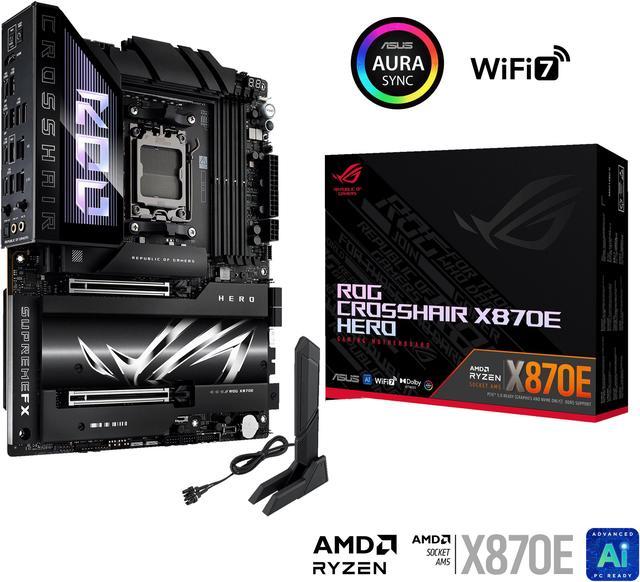
ASUS ROG Crosshair X870E Hero AMD X870E AM5 ATX Motherboard
Pros
- 18+2+2 power stages, serious headroom for the 9950X under sustained loads
- Five M.2 slots, most on any ATX board in this guide
- X870E chipset means dual USB4, both on the rear I/O
- AI Overclocking profiles reduce manual tuning guesswork
- PCIe Slot Q-Release Slim for single-hand GPU removal
Cons
- $429 is a significant jump over the TUF for modest feature gains for most buyers
- AI Overclocking is legitimately useful but marketing can oversell it
Price as of Jul 2, 2026 — see current price on Amazon.
The X870E chipset adds one thing over regular X870: dual USB4 with bandwidth requirements from the chipset itself, not just from the CPU. In practice that means the Crosshair X870E Hero ships with two USB4 ports on the rear I/O instead of one, and the bandwidth behind them doesn't compete with the GPU lane for resources.
Five M.2 slots on an ATX board is the headline spec here. If you're running a dedicated boot drive, a primary game or work drive, a scratch disk for video editing, and planning to add a PCIe 5.0 NVMe later, you'll actually use that fifth slot. For pure gaming with two drives, it's overkill. But for content creators and people running Handbrake or Blender overnight, five slots changes how you organize storage.
The 18+2+2 power stage configuration is the right spec for a 9950X running sustained multi-threaded workloads. Tom's Hardware tested the Crosshair X870E Hero extensively and found VRM temperatures stayed under 60 degrees C even during sustained Cinebench R23 nT runs without a chipset fan assist. That's a real number.
Honestly, I expected more from ASUS at $429 on the networking side. The Gigabyte Aorus Master gets you 5GbE LAN for $70 more, while the Crosshair X870E Hero ships with standard 2.5G LAN. For most people that doesn't matter. But for anyone running a multi-gig switch at home, the LAN speed gap is real.
ASRock X870E Taichi: Best for Overclocking
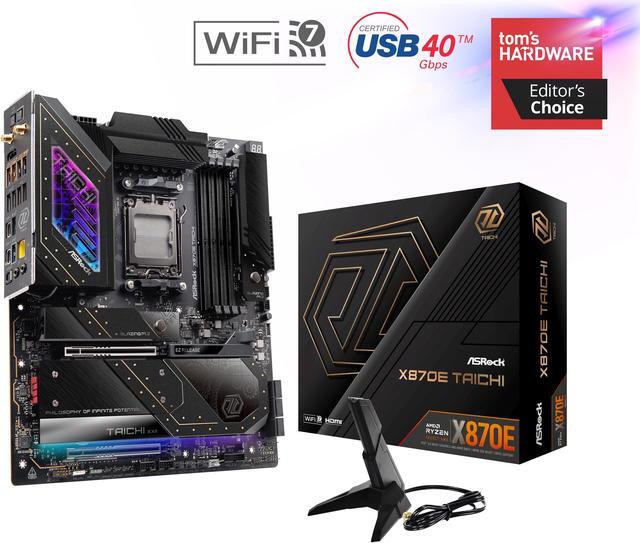
ASRock X870E Taichi AMD AM5 Motherboard
Pros
- 24+2+1 power phases, highest phase count of any board in this guide
- DDR5 support up to 8200+ MT/s OC with solid memory controller tuning
- 5G LAN on an X870E board, uncommon at this tier
- USB4 dual ports per X870E spec
- Premium build quality with titanium aesthetic
Cons
- E-ATX form factor requires a case that explicitly supports Extended ATX
- ASRock BIOS is functional but not as polished as ASUS UEFI
- The extra phases matter less for gaming than for content creation
Price as of Jul 2, 2026 — see current price on Amazon.
The Taichi's headline spec is that 24+2+1 power stage count. ASRock built this board for people who want to push the Ryzen 9 9950X as hard as possible, and the VRM headroom reflects that. More phases means the load distributes more evenly, temperatures stay lower per stage, and you can run higher sustained power limits without thermal throttling pulling your results down.
There's a catch you need to know before ordering: this is an E-ATX board, measuring 305mm x 272mm vs the standard 305mm x 244mm for ATX. Most mid-tower cases stop at ATX. Full towers and specific mid-towers (like the Fractal Design Torrent or be quiet! Dark Base 901) handle E-ATX, but check your case specs before clicking buy. I've seen this trip up more builders than any other spec on the page.
The 5G LAN at this price tier and chipset is worth calling out. You'd expect 2.5G on an X870E board to cut costs, and ASRock didn't do that. If you have a 2.5G NAS or a multi-gig router at home, the Taichi will saturate a faster connection than the ROG board.
Memory overclocking performance on the Taichi is legitimately strong. The ASRock team has historically been good at memory compatibility tables and BIOS-level EXPO tuning, and the X870E Taichi continues that. Getting 6000 MT/s or 6400 MT/s stable with first-boot EXPO is something this board does well. Going to 7200 MT/s requires some manual sub-timing work but is achievable.
Gigabyte X870E Aorus Master: Best Premium
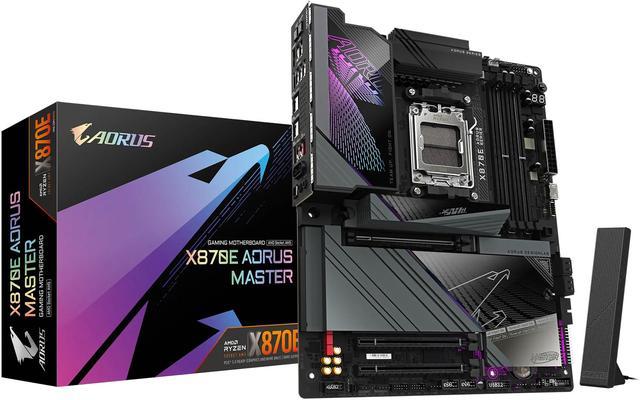
Gigabyte X870E Aorus Master AMD AM5 ATX Motherboard
Pros
- 16+2+2 stages with 110A each -- more amperage per phase than any other board here
- 5GbE LAN, the fastest wired networking option in this guide
- DDR5 up to 8600 MT/s OC, highest rated in this roundup
- Dual USB4 Type-C rear I/O per X870E spec
- 5-year warranty, best coverage in this guide by two years
- EZ-Latch tool-free M.2 installation across all four slots
Cons
- $499 is the highest price here, hard to justify purely for gaming
- Four M.2 slots vs five on the ROG board for $70 less
Price as of Jul 2, 2026 — see current price on Amazon.
The 110A per phase spec on the Aorus Master's VRM is the standout number. Most boards in this guide use 80A stages. Going to 110A means each individual stage can handle more current before heating up, which translates to cooler operation under the same load. For a Ryzen 9 9950X doing sustained rendering or simulation work, that thermal margin matters. Gigabyte's testing shows VRM temps staying in the mid-50s C under 230W all-core loads.
The 5GbE LAN is what you're paying for at the top end here, well sort of. A 5G connection to a NAS or a 10G network switch is genuinely different from 2.5G when you're moving large files. Not relevant for gaming at all, but for a workstation that's also a media server or a video editing machine, it's the spec that changes your transfer queue from "overnight" to "this afternoon."
EZ-Latch across all four M.2 slots is a quality-of-life feature that I didn't expect at this price but genuinely appreciate. Swapping NVMe drives doesn't require a screwdriver. When you're adding a drive or troubleshooting a boot issue at 11pm, not having to find the tiny screw and a #0 Phillips is actually nice.
The 5-year warranty is legitimately unusual in this segment. Most AMD boards ship with 3-year coverage. Gigabyte's 5-year warranty means this board is covered until mid-2031 if you buy it today, which is meaningful for a platform you're planning to keep through an additional CPU upgrade.
At $499, this is the board for builders who want to run the 9950X at full power, move large files over 5G ethernet, and not worry about the board being the failure point for the next half decade.
What to Look for in an X870 Motherboard
X870 vs X870E: What Actually Changes
This trips up a lot of people. X870 and X870E both require PCIe 5.0, both support AM5 CPUs, both ship with DDR5 and WiFi 7. The difference is USB4.
X870 requires one USB4 connection from the CPU. X870E requires two, with the second coming from the chipset itself. In practice, X870E boards tend to have dual USB4 on the rear I/O, while X870 boards may have one USB4 port or route the single USB4 through a bracket.
For most use cases, X870 is fine. Dual USB4 matters if you're running multiple Thunderbolt 5 peripherals simultaneously, daisy-chaining external GPU enclosures, or using bandwidth-hungry external storage at full speed on both ports at once. That's a specific workflow, not a general one.
VRM Phases and Amperage
This is the spec most buyers gloss over and regret later. A Ryzen 9 9950X at 230W all-core is a serious power draw, and cheap VRM implementations on budget boards thermal throttle the CPU before it reaches its performance ceiling. The boards in this guide all have adequate power delivery for any AM5 CPU, but the phase counts differ.
For gaming builds (9800X3D at roughly 90W gaming power draw), any board here is overkill. For workstation use with a 9950X, the Gigabyte Aorus Master's 110A stages or the ASRock Taichi's 24+2+1 configuration give you more headroom before thermal throttle kicks in.
M.2 Slot Count and PCIe Generations
X870 requires at least one PCIe 5.0 M.2 slot. The boards in this guide range from two Gen5 slots (MSI Tomahawk) to three Gen5 slots (Gigabyte Aorus Master). The ROG Crosshair Hero has five M.2 slots total with a mix of Gen5 and Gen4.
Honest take: PCIe 5.0 NVMe drives are faster on benchmarks and essentially identical in real-world use. A Gen5 drive like the WD Black SN850X successor runs twice the sequential read speed of a Gen4 Samsung 990 Pro. In actual gaming, the difference in load times is under a second, if measurable at all. Buy a Gen5 drive if you're doing large file transfers for work. Stick with Gen4 for gaming.
Memory Compatibility and EXPO Support
All five boards support EXPO profiles for AMD-tuned memory kits. The community sweet spot for Ryzen 9000 is still 6000 MT/s CL30 DDR5. At 6000 MT/s, the Infinity Fabric runs at 2000 MHz in a 1:1 mode that keeps latency low. Going above 6000 MT/s offers diminishing returns for gaming and real gains for memory-bandwidth-sensitive workloads.
If you're targeting 7200 MT/s or higher, check the board's qualified vendor list (QVL) before buying RAM. Not every kit runs cleanly at extreme speeds on every board, and return logistics for incompatible RAM are annoying enough to be worth five minutes of research upfront.
Form Factor
Four of the five boards here are standard ATX. The ASRock X870E Taichi is E-ATX, which is wider. E-ATX fits full-tower cases and some larger mid-towers like the Fractal Design Torrent XL, Corsair 7000D, or Lian Li PC-O11 Dynamic XL. If you're in a standard mid-tower, stick with ATX boards.
Frequently asked questions
- Is X870 worth it over B850 for gaming?
- For pure gaming, no. The B850 Tomahawk MAX at $229 matches X870 gaming performance on Ryzen 9000. X870 becomes worth considering when you need dual USB4 ports, a fifth M.2 slot, 5GbE LAN, or you're running a 9950X at sustained all-core loads where the extra VRM headroom matters. If your use case is gaming plus occasional streaming, save the money and buy B850.
- What's the difference between X870 and X870E?
- Both chipsets require PCIe 5.0 and USB4. X870E adds a mandatory second USB4 connection from the chipset itself, which is why X870E boards typically have dual USB4 Type-C ports on the rear I/O. X870 gets one USB4. X870E boards also tend to have more power phases and higher-end VRM configurations because the chipset attracts enthusiast buyers. The practical difference only matters if you need two simultaneous USB4 bandwidth connections.
- Which X870 board is best for the Ryzen 9 9950X?
- The Gigabyte X870E Aorus Master or the ASRock X870E Taichi. The Aorus Master's 110A power stages run cooler per phase under sustained 230W+ workloads, and the 5-year warranty makes sense for a board running a $700 CPU. The ASRock Taichi's 24+2+1 stage count gives it the highest phase count in this guide and is the better choice if you're pushing PBO and manual overclocking limits.
- Can I use an X870 motherboard with a Ryzen 7000 or 8000 CPU?
- Yes, all X870 and X870E boards support Ryzen 7000, 8000, and 9000 series processors on the AM5 socket. You may need a BIOS update before an older CPU will post, which is where BIOS FlashBack comes in on the ASUS boards. Ryzen 7000 and 8000 CPUs run DDR5, so there's no memory compatibility issue.
- How much DDR5 RAM does an X870 board support?
- All X870 and X870E boards have four DDR5 DIMM slots and support up to 256GB total (4 x 64GB). Standard JEDEC speeds run at 4800 or 5600 MT/s. With EXPO enabled, most boards in this guide handle 6000 MT/s without any manual tuning, and the Gigabyte Aorus Master is rated for up to 8600 MT/s OC with compatible kits. For gaming, 32GB (2 x 16GB) at 6000 MT/s CL30 is the practical sweet spot.
- Do I need a new cooler for an X870 motherboard?
- No, if your current cooler already fits AM5. X870 boards use the same AM5 socket as every other 2022-and-later AMD platform. Any cooler with AM5 mounting kit compatibility works, including most modern 240mm and 360mm AIOs from Corsair, NZXT, and be quiet. If you're upgrading from AM4 (Ryzen 3000/5000), check that your cooler's mounting hardware includes an AM5 bracket, which most coolers shipped after 2022 include as a separate kit.
Bottom Line
For builders who specifically want the X870 chipset, the ASUS TUF Gaming X870-PLUS WiFi at $309 is where most people should land. Four M.2 slots, USB4, a strong 80A VRM, and ASUS's excellent BIOS make it hard to argue against. Step up to the ROG Crosshair X870E Hero if you need five M.2 slots or dual USB4, and to the Gigabyte X870E Aorus Master if you want 5GbE LAN or the extended warranty for a workstation build. The MSI MAG X870 Tomahawk WiFi at $289 is the right call if you want X870 with the Tomahawk pedigree and 5G LAN at the lowest price in this category. The ASRock X870E Taichi is for serious overclockers who need the phase count and can fit an E-ATX board in their case.
How We Test
We score products by combining spec-level research, pricing history, trusted third-party benchmarks, and owner sentiment from high-signal sources.
- Performance and real-world value in the category this guide targets
- Price-to-performance and deal consistency over recent pricing windows
- Build quality, reliability patterns, and known long-term issues
- Recommendation refresh cadence to keep these picks current
Author
TheTechSearch Editorial Team
Independent product reviewers & PC builders
We test and compare real-world specs, price trends, and user feedback to recommend gear that actually makes sense to buy.