Best Monitors for College Students 2026
Top monitors for dorm rooms and college desks, sharp displays, easy USB-C setup, and real value under $350. Expert picks, pros and cons, and side-by-side com...
As an Amazon Associate we earn from qualifying purchases made through our links — this doesn't affect our picks.
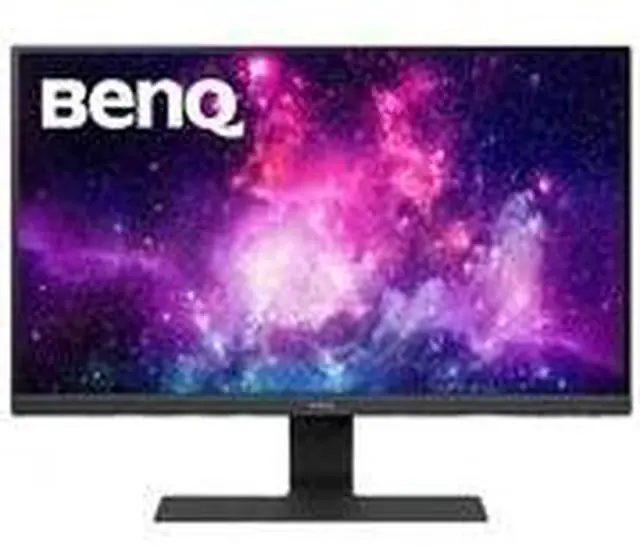
BenQ GW2780 27-Inch FHD 1080p IPS Monitor
Our top recommendation for this category
Price as of Aug 22, 2026 — see current price on Amazon.
In this guide
- BenQ GW2780 27-Inch: Best for Long Study Sessions
- LG 27MN60T-W 27-Inch: Best Pure Budget Pick
- Dell S2722DC 27-Inch USB-C: Best for MacBook Users
- ASUS ProArt PA278CV 27-Inch: Best for Design and Art Students
- Samsung M5 27-Inch Smart Monitor: Best for the Dorm Room Experience
- How to Pick the Right Monitor for Your Dorm
- Bottom Line
Laptop screens are fine for class. They're miserable for six hours of essay-writing, coding sessions, or binge-watching whatever everyone else is watching at 2am in the dorm. A decent external monitor fixes all of that, and in 2026 you don't have to spend a lot to get something genuinely good.
The tricky part is knowing what matters and what's marketing noise. Refresh rate specs borrowed from gaming monitors, HDR badges that mean nothing at this price tier, and bezels that claim to be "ultra-thin" when they're just regular thin. I've gone through the actual options worth considering and picked five monitors that earn their spot in a student's room.
| Monitor | Price | Resolution | Size | USB-C | Best For | |
|---|---|---|---|---|---|---|
| BenQ GW2780 | ~$150 | 1080p | 27" | No | Budget / eye care | Check Price |
| LG 27MN60T-W | ~$140 | 1080p | 27" | No | Pure budget pick | Check Price |
| Dell S2722DC | ~$280 | 1440p | 27" | Yes (65W) | MacBook / one-cable setup | Check Price |
| ASUS ProArt PA278CV | ~$300 | 1440p | 27" | Yes (65W) | Design and art students | Check Price |
| Samsung M5 Smart Monitor | ~$300 | 1080p | 27" | Yes | Streaming without a PC | Check Price |
BenQ GW2780 27-Inch: Best for Long Study Sessions
The BenQ GW2780 is what I'd tell most college students to buy first. It's a 27-inch IPS panel at 1080p, which is genuinely a comfortable resolution for a monitor at normal desk distance. The thing that makes it stand out at this price is BenQ's eye care package: hardware-level flicker-free backlight, low blue light mode, and automatic brightness adjustment based on ambient light.
That sounds like feature-sheet filler but it genuinely helps during long nights where you're grinding through reading or coding in a dim room. After a few weeks of using one of these I noticed I wasn't getting headaches on the bad study days the way I did on a generic panel. Could be placebo. Probably isn't.
The build quality is solid. The stand adjusts for tilt and height, which matters more than people realize when you're spending eight hours at a desk. There's no USB-C here (HDMI and DisplayPort only), so Windows laptop and desktop users are the target audience. Built-in speakers are nothing special but they work fine as background audio.
BenQ GW2780 27-Inch FHD 1080p IPS Monitor
Pros
- Flicker-free IPS panel genuinely reduces eye strain on long sessions
- Height-adjustable stand included, rare at this price
- 27 inches at 1080p is comfortable viewing density
- Built-in speakers handle background music
Cons
- No USB-C input, HDMI and DisplayPort only
- 1080p shows its limits at 27 inches if you sit very close
- Older design, no thin-bezel aesthetic
Price as of Aug 22, 2026 — see current price on Amazon.
LG 27MN60T-W 27-Inch: Best Pure Budget Pick
If the BenQ is out of stock or you find the LG at a better price, the 27MN60T-W is a perfectly capable alternative at the same budget tier. LG's IPS panels have a good track record for accurate colors at lower prices, and this one delivers. The borderless design on three sides looks clean on a desk.
What it doesn't have: USB-C, DisplayPort, or anything beyond basic HDMI and VGA connectivity. For a Windows laptop or desktop with an HDMI port, that's all you need. For newer MacBook Air or MacBook Pro users, you'll need a USB-C to HDMI adapter, and at that point the Dell S2722DC below makes more sense because it handles charging too.
At this price though, the LG 27MN60T-W is hard to argue with. The 178-degree viewing angles mean it looks good from anywhere in the room, useful for movie watching with a roommate.
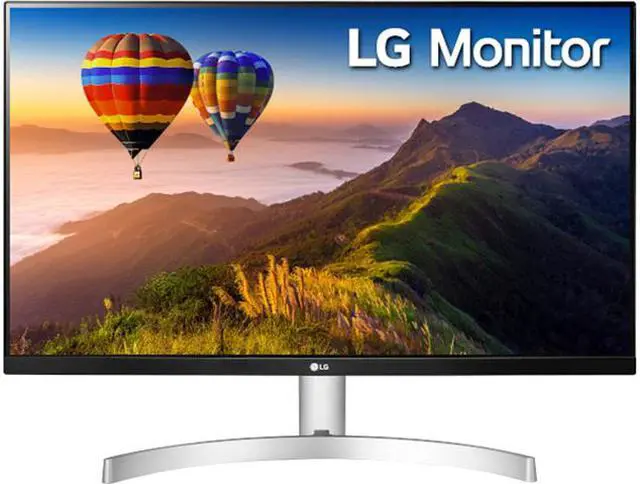
LG 27MN60T-W 27-Inch FHD IPS Monitor
Pros
- One of the cheapest 27-inch IPS monitors worth buying
- Wide 178-degree viewing angles, great for shared viewing
- Borderless design on three sides looks modern
- LG IPS quality is reliable at this tier
Cons
- No USB-C or DisplayPort, HDMI and VGA only
- Stand is basic, tilt-only with no height adjustment
- Lacks eye care features of the BenQ
Price as of Aug 22, 2026 — see current price on Amazon.
Dell S2722DC 27-Inch USB-C: Best for MacBook Users
If you're bringing a MacBook to college, the Dell S2722DC is the monitor that just works and makes life genuinely easier. It's a 27-inch 1440p panel (2560x1440) with a 65W USB-C power delivery port, which means one cable connects your MacBook to the monitor and charges it at the same time. No power brick on the desk. No separate HDMI dongle. Just one cable.
The 1440p resolution at 27 inches is a step up from 1080p that you actually notice. Text is sharper, web pages look cleaner, and if you're doing any kind of photo or design work, the extra pixel density helps. The IPS panel covers 99% of sRGB which is more than enough for typical student work, photos, presentations, design projects.
Dell's build quality is reliably good, and the stand has solid tilt and height adjustment. This one regularly goes on sale and drops below $250, so worth setting a price alert if you're watching it.
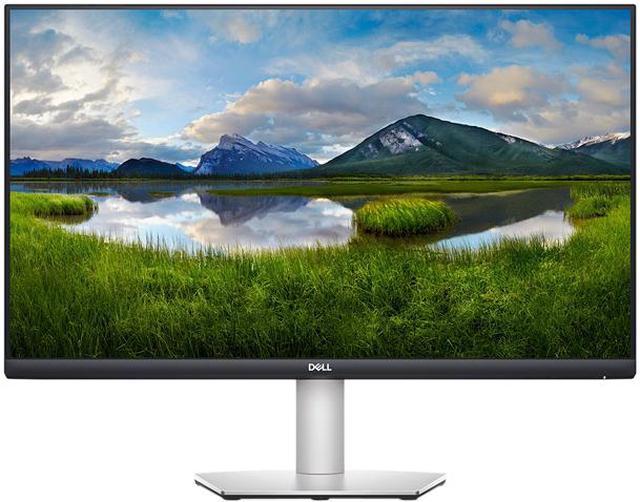
Dell S2722DC 27-Inch QHD USB-C Monitor
Pros
- Single USB-C cable handles both display and 65W charging
- 1440p at 27 inches is noticeably sharper than 1080p
- 99% sRGB, accurate enough for design coursework
- Works with MacBook Air and MacBook Pro out of the box
Cons
- Costs about $130 more than the budget picks
- 75Hz refresh rate, not a gaming monitor, just fine for everything else
- USB-C PD only 65W, fine for Air and 13-inch Pro, slightly slow for 15-inch Pro under load
Price as of Aug 22, 2026 — see current price on Amazon.
ASUS ProArt PA278CV 27-Inch: Best for Design and Art Students
Art, graphic design, architecture, film, any major where color accuracy actually matters. The ASUS ProArt PA278CV is Calman Verified, which means every panel is individually calibrated and comes with a report showing it meets color accuracy specifications. It covers 100% of sRGB and 100% of Rec. 709, with a Delta E of less than 2 (basically imperceptible color error to the human eye).
It's also got 65W USB-C power delivery, which makes it a MacBook-friendly option like the Dell above. The stand is one of the better ones at this price, full ergonomic adjustment including pivot to portrait mode, which is genuinely useful for coding or reading long documents.
If you're not in a color-critical field, honestly just get the Dell S2722DC and save $20-30. The extra calibration is wasted on casual use. But if your professor is going to critique your color grading or print layouts, having a calibrated reference monitor from day one is worth it.
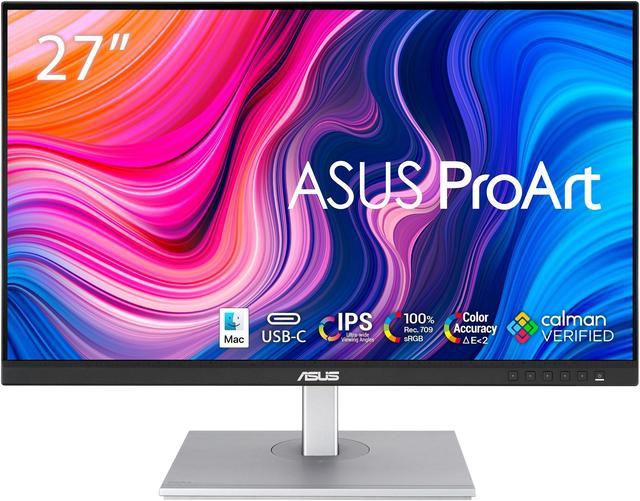
ASUS ProArt PA278CV 27-Inch WQHD USB-C Monitor
Pros
- Calman Verified, individually calibrated at the factory
- 100% sRGB and 100% Rec. 709 coverage
- Full ergonomic stand with pivot, height, tilt, and swivel
- 65W USB-C PD works well with MacBook
Cons
- Color accuracy benefits are wasted outside design/art majors
- At $300, it's toward the top of the student budget
- Looks more utilitarian than stylish, boring bezel design
Price as of Aug 22, 2026 — see current price on Amazon.
Samsung M5 27-Inch Smart Monitor: Best for the Dorm Room Experience
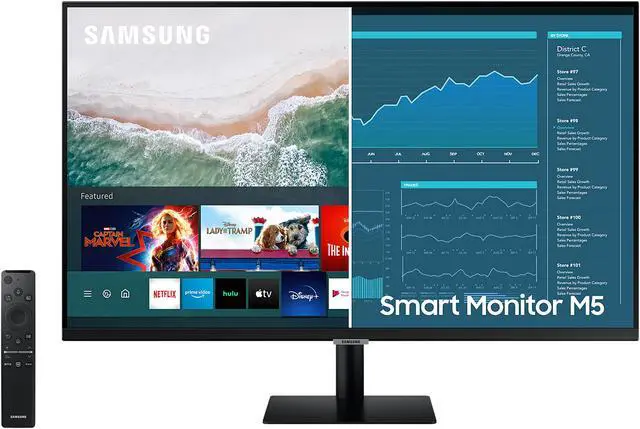
The Samsung M5 is the odd one out on this list and I mean that as a compliment. It runs Samsung's Tizen smart TV operating system natively, meaning Netflix, Disney+, YouTube, Prime Video, and most streaming apps work directly on the monitor itself without a PC, laptop, or streaming stick connected at all.
For a dorm room, that's genuinely useful. Your laptop stays closed in your bag, you pick up the Samsung remote, and you're streaming in about 10 seconds. Then your roommate wants to use it for studying and you plug their laptop in via HDMI, and it works as a normal monitor. The M5 switches between those two modes cleanly.
It also has built-in WiFi and decent built-in speakers, better than most monitors in this price range. The 1080p resolution at 27 inches is the one honest downside: it's not as sharp as the 1440p options above when used as a PC monitor for close-up work. But for a device that pulls triple duty as a TV, streaming device, and monitor, nothing else at $300 comes close.
Samsung 27-Inch M5 Smart Monitor LS27AM500NNXZA
Pros
- Native smart TV apps, Netflix, YouTube, etc. work without a PC
- Built-in WiFi and Bluetooth
- Better built-in speakers than most monitors
- USB-C and HDMI inputs for laptop use
Cons
- 1080p shows pixel density limits at close PC monitor distance
- Smart TV features add a layer of complexity versus a plain monitor
- Remote control only for TV mode, can feel awkward
Price as of Aug 22, 2026 — see current price on Amazon.
How to Pick the Right Monitor for Your Dorm
Size: 27 inches is the sweet spot
24-inch monitors feel small at a desk once you've used a 27-inch for a week. They also cost nearly the same now, so 27 inches is the default for most people. Go 32 inches only if you plan to sit a bit further back, at close desk distance, a 32-inch 1080p monitor looks noticeably soft.
1080p versus 1440p
For a $150 budget monitor, 1080p at 27 inches is absolutely fine. The step up to 1440p (the Dell, ASUS) is noticeable but not night-and-day for non-visual work. Where 1440p earns its keep: design students who need accurate color representation, coders who benefit from more vertical screen space, and anyone who plans to use the monitor for five years and wants it to feel current.
If you're getting a monitor with USB-C so one cable handles everything, the options happen to be 1440p anyway, so you get the upgrade by default.
USB-C versus HDMI
MacBook users need to pay attention here. MacBook Air and Pro only output video through USB-C or Thunderbolt, you can't use HDMI without an adapter. If you want a clean one-cable desk (and you do), get a monitor with a USB-C input that delivers power back to the laptop. The Dell S2722DC and ASUS ProArt PA278CV both do this.
Windows laptop users with HDMI ports can use any monitor on this list. If your laptop is newer and charges via USB-C, the Dell and ASUS are still nice because you consolidate your cable count.
Built-in speakers
Most monitor speakers are bad but functional, fine for YouTube, passable for video calls, not for music you actually care about. The Samsung M5 has the best built-in audio on this list by a meaningful margin. The BenQ GW2780's speakers are next (serviceable). Dell and ASUS are monitor-grade, which is to say they work.
If audio quality matters to you, either get a monitor with a headphone jack and use headphones, or budget a separate set of computer speakers. The BenQ GW2780 has a headphone out jack. So does the Samsung M5.
Frequently asked questions
- What size monitor should I get for a dorm room desk?
- 27 inches works well for most dorm desks. It gives you enough real estate for split-screen studying or having a video call and your notes open side by side, without taking up the whole desk. 24-inch monitors are an option if desk space is really tight, but they're hard to recommend since 27-inch pricing is nearly the same now. Avoid 32 inches unless you plan to sit further back, at close desk distance the 1080p models look blurry.
- Do I need a 144Hz gaming monitor for college?
- Not unless you're planning to game on it seriously. For studying, writing, video streaming, and design work, 60–75Hz is perfectly smooth. High refresh rate monitors cost significantly more and the advantage is only noticeable in fast-paced games. The money is better spent on a higher-resolution panel or better color accuracy if those matter to your major.
- Will any of these monitors work with a MacBook?
- The Dell S2722DC and ASUS ProArt PA278CV work perfectly with MacBook via a single USB-C cable, they charge the laptop and display at once. The Samsung M5 also has USB-C but at lower wattage. The BenQ GW2780 and LG 27MN60T-W are HDMI-only, so you'd need a USB-C to HDMI adapter (around $15-25) to use them with a MacBook, functional but adds a cable and loses charging.
- Can I use one of these monitors as a TV in my dorm room?
- The Samsung M5 is the clear answer here, it runs Netflix, YouTube, and other streaming apps natively without any device connected. The others would need your laptop connected and running. If watching TV in your room matters as much as studying, the Samsung M5's hybrid monitor-plus-smart-TV setup genuinely earns its price over a standard monitor.
- How do I connect a monitor to my laptop?
- Most laptops have HDMI output or USB-C output (or both). HDMI monitors connect directly with an HDMI cable, the cable usually isn't included so budget $10-15 for one. USB-C monitors with a USB-C cable are the cleanest setup: one cable handles both video and charging. If your laptop has USB-C but the monitor only has HDMI, buy a USB-C to HDMI adapter. Most monitors auto-detect the input source when you plug in.
- What's the difference between a smart monitor and a regular monitor?
- A regular monitor only displays whatever your connected device is showing. A smart monitor like the Samsung M5 has a built-in processor and operating system, so it can run apps independently, no PC or laptop required. For dorm rooms this is convenient for streaming entertainment. The tradeoff is that smart monitors sometimes add a layer of lag or complexity, and the built-in OS (Samsung's Tizen) isn't as fast or app-complete as a proper streaming stick.
Bottom Line
Most college students will be happy with either the BenQ GW2780 (best budget, great eye care) or the Dell S2722DC (best one-cable MacBook setup with 1440p). The Samsung M5 is the best pick if your dorm doubles as your living room and you want streaming built in. The ASUS ProArt is the only real choice for design or art students who need calibrated color from day one.
Whatever you pick, getting a second screen makes a real difference to how you work, and at these prices, it doesn't have to be a hard decision.
How We Test
We score products by combining spec-level research, pricing history, trusted third-party benchmarks, and owner sentiment from high-signal sources.
- Performance and real-world value in the category this guide targets
- Price-to-performance and deal consistency over recent pricing windows
- Build quality, reliability patterns, and known long-term issues
- Recommendation refresh cadence to keep these picks current
Author
TheTechSearch Editorial Team
Independent product reviewers & PC builders
We test and compare real-world specs, price trends, and user feedback to recommend gear that actually makes sense to buy.