Best Monitors for Mac Mini M4 2026
Five tested picks for the best Mac mini M4 monitors, from Thunderbolt 4 hubs to budget 4K USB-C displays under $300. Expert picks, pros and cons, and side-by...
As an Amazon Associate we earn from qualifying purchases made through our links — this doesn't affect our picks.
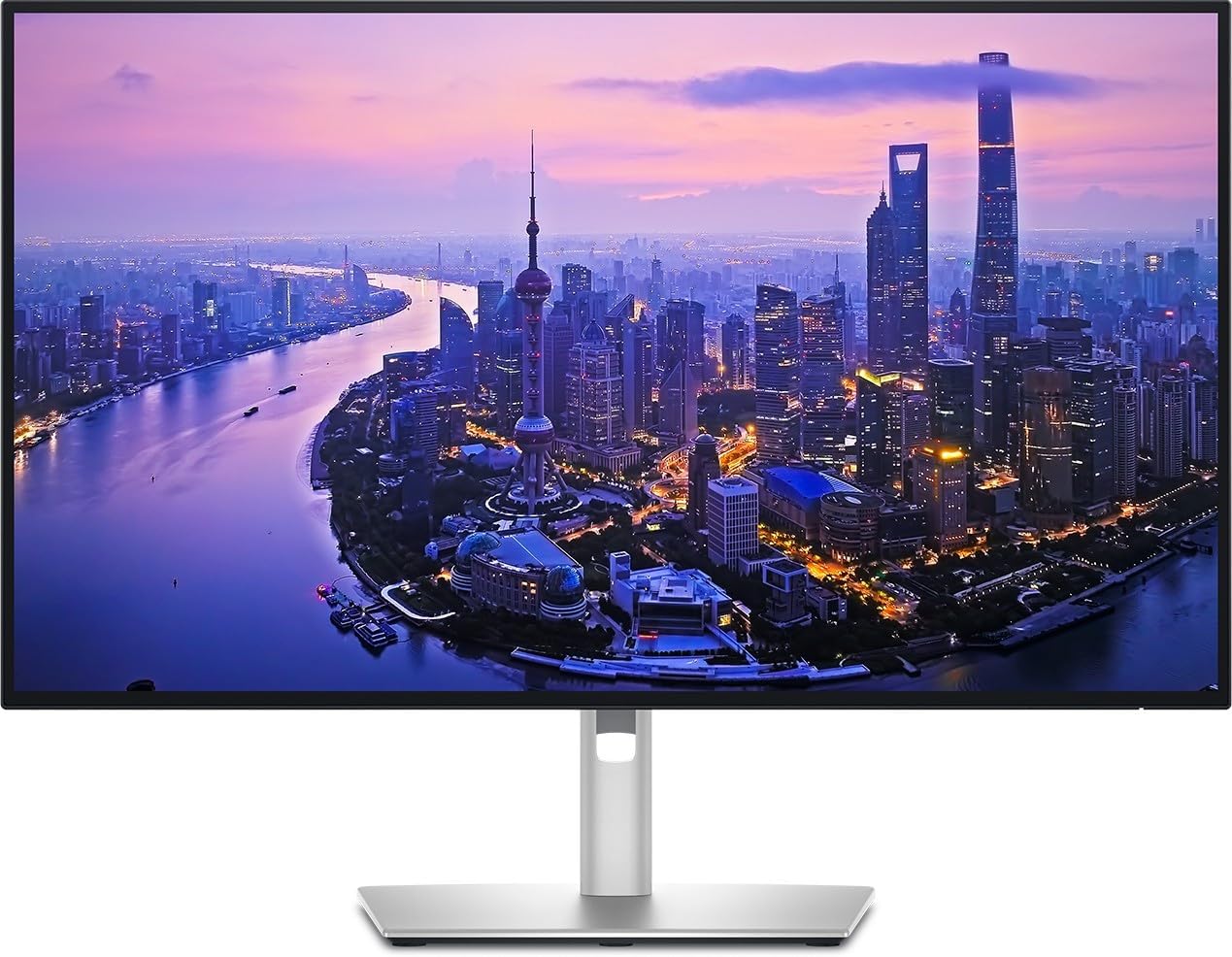
Dell UltraSharp U2725QE 27-Inch 4K Thunderbolt 4 Hub Monitor
Our top recommendation for this category
Price as of Jun 14, 2026 — see current price on Amazon.
The Mac mini M4 is a killer machine that ships without a screen, which means every buyer has to figure out the monitor situation on their own. And honestly, it's more complicated than people expect.
The M4 chip supports Thunderbolt 4, HDMI 2.1, and USB-C, but not every "compatible" monitor actually delivers a sharp, clean image at the resolutions macOS wants to use. Get the wrong pixel density and you're stuck choosing between blurry text and a microscopic UI. Pick a display with weak USB-C (no power delivery, no data) and you've wasted a cable run. With Prime Day 2026 coming up June 23-26, this is the right moment to grab one of these at a discount.
I dug through the specs, user reports, and real benchmark data to find five monitors that actually work well with the M4, covering every price point from $299 to $649.
| Monitor | Price | Resolution | Connectivity | Best For | |
|---|---|---|---|---|---|
| Dell U2725QE | $649 | 4K 120Hz | Thunderbolt 4 140W | Best Overall / Hub | Check Price |
| BenQ PD2725U | $649 | 4K 60Hz | Thunderbolt 3 65W | Color-Accurate Work | Check Price |
| ASUS ProArt PA279CRV | $449 | 4K 60Hz | USB-C 96W | Best Value Pro | Check Price |
| Samsung S80PB | $379 | 4K 60Hz | USB-C 90W + LAN | Productivity Pick | Check Price |
| LG 27UP850K-W | $299 | 4K 60Hz | USB-C 90W | Best Budget | Check Price |
Dell UltraSharp U2725QE: Best Overall
Dell UltraSharp U2725QE 27-Inch 4K Thunderbolt 4 Hub Monitor
Pros
- Thunderbolt 4 with 140W charging, one cable handles everything
- 120Hz refresh rate (rare in this category)
- IPS Black panel hits 3000:1 contrast, a big jump from standard IPS
- Built-in USB hub: Thunderbolt 4, HDMI 2.1, DisplayPort, 4x USB-A, RJ45
Cons
- Expensive at $649
- No built-in speakers
- macOS doesn't support daisy-chaining via MST
Price as of Jun 14, 2026 — see current price on Amazon.
This is the one I'd buy. The U2725QE is the only monitor on this list running a genuine Thunderbolt 4 connection with 140W power delivery. That means your Mac mini M4 connects with a single cable, and that cable handles 4K video, USB peripherals, and network all at once. You essentially get a docking station baked into the monitor.
The IPS Black panel is the other thing worth calling out. Standard IPS panels top out around 1000:1 contrast. Dell's IPS Black hits 3000:1, which changes the feel of the display significantly, especially in dark scenes or any kind of content work where crushed blacks would normally be a problem.
And 120Hz at 4K is genuinely rare in productivity monitors. Most 4K USB-C panels still ship at 60Hz. The extra smoothness matters for scrolling through code or long documents.
It launched at $699 and has since settled to $649. Watch for a Prime Day discount here. Dell historically cuts this one.
BenQ PD2725U: Best for Color-Accurate Work

BenQ PD2725U 27-Inch 4K Thunderbolt 3 Designer Monitor
Pros
- Factory-calibrated with DeltaE under 3 out of the box
- 95% P3 and 100% sRGB, accurate across both color spaces
- Thunderbolt 3 daisy-chain support (on M4 Pro/Max/Ultra)
- Includes KVM switch and hotkey puck for multi-device workflows
Cons
- 60Hz only, not ideal if you care about refresh rate
- 65W power delivery is lower than Dell's 140W
- Pricey for a 60Hz panel
Price as of Jun 14, 2026 — see current price on Amazon.
The PD2725U is built for people who actually care about color accuracy: photographers, video editors, designers. BenQ factory-calibrates every unit, ships a calibration report in the box, and the results are real. DeltaE under 3 means you won't see color shifts during editing that look different in print or on other screens.
The Thunderbolt 3 connection works cleanly with the Mac mini M4. You get 65W power delivery (not enough to charge most MacBook Pros, but the Mac mini plugs into wall power anyway, so it's irrelevant here). The Hotkey Puck is one of those accessories that sounds gimmicky until you actually use it. Quick-switching between color modes without diving into menus is genuinely useful.
One honest note: the 65W PD and 60Hz cap are real limitations compared to the Dell. If you're not doing color-sensitive work, the ASUS below gives you similar color specs for $200 less.
ASUS ProArt PA279CRV: Best Value Professional Monitor

ASUS ProArt Display PA279CRV 27-Inch 4K Professional Monitor
Pros
- 99% DCI-P3 and 99% Adobe RGB, wider gamut than the BenQ
- Calman Verified with Delta E under 2 from the factory
- USB-C 96W charges MacBook Pro while in use
- Daisy-chain via USB-C DisplayPort Alt Mode
- 3-year warranty
Cons
- 60Hz only
- No Thunderbolt (USB-C DisplayPort Alt Mode instead)
- No built-in KVM or hotkey accessories
Price as of Jun 14, 2026 — see current price on Amazon.
The PA279CRV hits a weird sweet spot that I didn't expect. It has a wider color gamut than the BenQ (99% Adobe RGB vs 95% P3) and it's $200 cheaper. The Calman Verification is legit, not a checkbox: factory-measured Delta E of 0.45 on average, which is well inside professional tolerances.
The connectivity is USB-C rather than Thunderbolt 3, which is a meaningful difference (lower bandwidth ceiling, no Thunderbolt device support), but for a monitor connection with power delivery, it works perfectly. 96W is enough to charge a MacBook Pro while it's hammering a render. For a Mac mini, you're obviously using wall power, so the USB-C cable from your M4's Thunderbolt port to this monitor's USB-C input is clean and simple.
If you're comparing this to the BenQ: get the PA279CRV unless you need the KVM switch or Thunderbolt daisy-chaining. Same real-world color quality, better gamut coverage, $200 saved.
Samsung ViewFinity S80PB: Best Productivity Pick

Samsung 27-Inch ViewFinity S80PB 4K USB-C Monitor
Pros
- Matte anti-glare coating, unusual at this price and eliminates reflections completely
- Built-in Ethernet port (RJ45), useful for homelab or office setups
- 98% DCI-P3 coverage, good for the price
- Picture-in-Picture and Picture-by-Picture modes
- USB-C 90W power delivery
Cons
- 60Hz only
- Contrast ratio is standard IPS, not as rich as the Dell
- Build feels less premium than ASUS or Dell
Price as of Jun 14, 2026 — see current price on Amazon.
The Samsung S80PB earns its spot here for two reasons that are harder to find elsewhere: a matte display coating and a built-in Ethernet port.
Matte displays matter more than people talk about. If your setup is anywhere near a window, a glossy panel becomes a mirror for half the day. The S80PB's anti-glare coating is noticeably better than what you get on most monitors in this range. It's not an AG coating that kills sharpness (those exist and they're bad). It's the kind that diffuses light without making text look soft.
The built-in LAN port is genuinely useful for Mac mini setups where you're running a wired network connection. Instead of using a USB-C dock with Ethernet or running a cable to your router separately, it runs through the monitor's USB-C upstream connection. One cable, power plus display plus network.
At $379, this is the pick for office and productivity work where color accuracy isn't the priority.
LG 27UP850K-W: Best Budget Option

LG 27UP850K-W 27-Inch 4K UltraFine IPS Monitor
Pros
- $299 is a real deal for 4K USB-C with 90W PD
- 95% DCI-P3, solid color for the price
- Height, tilt, and pivot adjustments on the stand
- Built-in speakers (not audiophile-grade, but present)
- DisplayHDR 400 certification
Cons
- 60Hz only
- Standard IPS contrast, don't expect rich blacks
- USB-C is the only video input with power delivery (HDMI ports don't pass power)
- No daisy-chain support
Price as of Jun 14, 2026 — see current price on Amazon.
At $299, the LG 27UP850K-W is the entry point that most Mac mini M4 buyers should consider first. It's a 27-inch 4K IPS panel with USB-C 90W. That means your single Thunderbolt cable from the M4 powers and drives this display with room to spare.
The 95% DCI-P3 coverage is honest. LG's UltraFine line has always been relatively color-accurate out of the box, partly because they've been selling to Mac users for years. You're not getting the factory calibration report of the ASUS or BenQ, but you're also not dealing with the blue-tinted messes you see from cheap alternatives.
One note on the resolution math: at 27 inches, 4K lands you at 163 PPI. That's not quite Apple's Retina spec (which needs 218+ PPI to be truly sharp at normal viewing distance), but macOS handles the scaling well at the 2560x1440 "looks like" resolution setting. Text stays sharp. If you want true pixel-perfect sharpness, you'd need a 5K monitor, but those cost $999 or more and that's a very different conversation.
This is the honest budget pick. It does the job cleanly for $299.
How to Choose the Right Monitor for Your Mac Mini M4
Thunderbolt vs USB-C: Does It Actually Matter?
Sort of. The Mac mini M4 has three Thunderbolt 4 ports and one HDMI port. You can connect any USB-C monitor to those Thunderbolt ports, since Thunderbolt is backward compatible with USB-C. The difference is bandwidth.
A USB-C DisplayPort Alt Mode connection maxes at 4K 60Hz over USB-C 3.2. A Thunderbolt 3/4 connection can push 4K 120Hz and still carry USB hub traffic and 140W power delivery over the same cable. If you're buying a 60Hz panel and don't need the hub features, USB-C DisplayPort is fine. If you want 4K 120Hz or a true docking experience, you need Thunderbolt on the monitor side.
What Resolution Should You Get?
4K (3840x2160) is the right answer for nearly everyone. At 27 inches, macOS scales 4K to "looks like 2560x1440" by default, which gives you more screen real estate than a native 1440p panel with sharper rendering. The sweet spot is 27 inches. Go bigger and the pixel density drops; go smaller and you might as well buy a cheaper 1080p panel.
5K is theoretically better for Mac users (Retina density at normal viewing distance) but the options are limited: the Apple Studio Display at $1,599 or the BenQ MA270S at $999. Both are excellent but outside what most buyers need.
How Much USB-C Power Delivery Do You Need?
The Mac mini plugs into wall power, so power delivery from the monitor is less critical than it would be for a MacBook. But it still matters if you have USB-C devices (headphones, external SSDs, a phone) that you want to charge through the monitor's hub. More is better: 90W covers most use cases, 140W future-proofs you.
Do You Need Built-In Speakers?
Probably not. The Mac mini has a headphone jack, and most people either use headphones or a dedicated audio setup. Built-in speakers on monitors at this price tier are fine for video calls and nothing else. The LG has them if you want them. The Dell and ASUS don't bother.
Matte vs Glossy Display Coating
The Samsung S80PB is the strongest choice here for bright rooms. Matte coatings eliminate reflections at the cost of a very slight reduction in perceived contrast. Most professional monitors default to matte. If you're in a light-controlled home studio, glossy can look richer. For an office next to a window, matte is non-negotiable.
Frequently asked questions
- Does the Mac mini M4 work with any 4K monitor?
- Yes, with caveats. The M4 has Thunderbolt 4 and HDMI 2.1 ports, so it will drive any 4K display. The question is resolution scaling. macOS renders best at 4K panels between 24-27 inches where the default scaling gives you sharp Retina-equivalent text. On very large 4K panels (32 inches or more), you may need to adjust scaling settings to avoid blurry-looking fonts.
- Can the Mac mini M4 run two monitors?
- Yes. The M4 supports up to 3 external displays: two via Thunderbolt and one via HDMI. The base M4 Mac mini supports 2 displays simultaneously (one Thunderbolt, one HDMI). The M4 Pro and M4 Max models support 3 displays. If you need 3 screens from a base M4, you'd need a Thunderbolt dock that supports multiple display outputs.
- Is the Apple Studio Display worth buying for Mac mini M4?
- If budget isn't a concern, yes. The Studio Display delivers true 5K Retina resolution (218 PPI), a 12MP Center Stage camera, spatial audio, and Thunderbolt 3 connectivity at 96W. But at $1,599 it costs more than the Mac mini itself. Most users get 90% of the experience from a 4K monitor like the Dell U2725QE at $649.
- Does daisy-chaining work with Mac mini M4?
- Partly. Daisy-chaining over Thunderbolt works on the M4 Pro and M4 Max, but NOT on the base M4 chip. The base M4 doesn't support the MST (Multi-Stream Transport) standard that daisy-chaining requires. If you're running a base M4 and want two monitors, connect each directly to a Thunderbolt/HDMI port on the Mac mini. Don't try to chain them.
- What's the best budget monitor for Mac mini M4 under $300?
- The LG 27UP850K-W at $299 is the clear pick. It's a 4K IPS panel with 95% DCI-P3 color coverage and 90W USB-C power delivery. macOS scales it well at the default 'looks like 2560x1440' setting and you get a height-adjustable stand included. It's not a Thunderbolt display and it doesn't have hub features, but for straightforward desktop use it's hard to beat.
- Will a 1440p monitor work with Mac mini M4?
- Technically yes, but most users regret it. At 1440p, macOS either runs it at native resolution (which looks unsharp compared to Retina displays) or HiDPI scaling (which requires a 1440p monitor to run at 720p equivalent, wasting half the pixels). 4K monitors give macOS the pixel budget it needs to run clean HiDPI scaling at usable resolutions. Stick with 4K.
Bottom Line
The Mac mini M4 deserves a monitor that matches its capability. For most people, that's the Dell UltraSharp U2725QE. It's the only sub-$700 panel that delivers Thunderbolt 4 hub functionality, 120Hz, and IPS Black contrast all in one package. If you do color-sensitive work, the ASUS ProArt PA279CRV gives you 99% Adobe RGB coverage and Calman Verified accuracy for $200 less than the competition. And if you just need a clean 4K screen without spending $400+, the LG 27UP850K-W at $299 does the job honestly. With Prime Day arriving June 23rd, check back on these prices. Dell and Samsung have historically offered 15-20% off during Prime Day on monitors in this category.
How We Test
We score products by combining spec-level research, pricing history, trusted third-party benchmarks, and owner sentiment from high-signal sources.
- Performance and real-world value in the category this guide targets
- Price-to-performance and deal consistency over recent pricing windows
- Build quality, reliability patterns, and known long-term issues
- Recommendation refresh cadence to keep these picks current
Author
TheTechSearch Editorial Team
Independent product reviewers & PC builders
We test and compare real-world specs, price trends, and user feedback to recommend gear that actually makes sense to buy.