Best Monitors for Video Editing 2026
The best monitors for video editing in 2026: color-accurate 4K picks with real DCI-P3 coverage for YouTube creators, filmmakers, and designers. Expert picks,...
As an Amazon Associate we earn from qualifying purchases made through our links — this doesn't affect our picks.
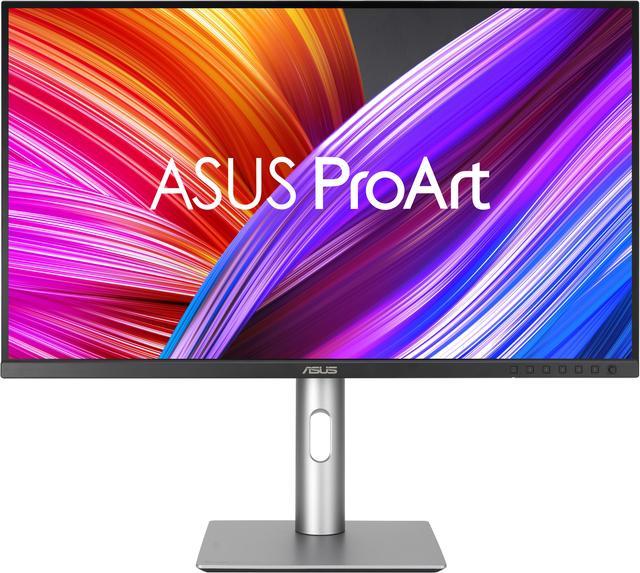
ASUS ProArt Display 27-inch 4K HDR Professional Monitor PA279CRV
Our top recommendation for this category
Price as of Jul 21, 2026 — see current price on Amazon.
The monitor market for video editors has genuinely gotten better in the last two years. Panels that used to cost $1,200 to get factory-calibrated with real DCI-P3 coverage now start around $400. Most of the marketing hype around "100% sRGB" has shifted to actual DCI-P3 percentages, and USB-C with real power delivery is now standard on anything worth considering. That's a lot of progress for the price.
That said, the specs that matter for video editing are different from what gaming monitor reviews focus on. Refresh rate is irrelevant here. What matters is color gamut coverage, Delta E accuracy, whether calibration holds over time, and whether the connectivity is set up for how you actually work, not how a spec sheet reads.
Here are the five that actually hold up.
Quick Picks
| Monitor | Size | Resolution | DCI-P3 | USB-C PD | Price | |
|---|---|---|---|---|---|---|
| ASUS ProArt PA279CRV | 27" | 4K UHD | 99% | 96W | $399 | Check Price |
| Dell UltraSharp U2723QE | 27" | 4K UHD | 98% | 90W | $649 | Check Price |
| BenQ PD2725U | 27" | 4K UHD | 95% | 65W TB3 | $599 | Check Price |
| LG 32UN650-W | 32" | 4K UHD | 95% | No | $399 | Check Price |
| BenQ PD2706U | 27" | 4K UHD | 95% | 90W | $419 | Check Price |
ASUS ProArt PA279CRV: Best Overall
ASUS ProArt Display 27-inch 4K HDR Professional Monitor PA279CRV
Pros
- 99% DCI-P3 and 99% Adobe RGB, Delta E under 2 out of the box
- USB-C with 96W power delivery charges most laptops while you work
- Daisy-chain DisplayPort lets you run two monitors from one cable on supported MacBooks
- Calman Verified calibration is confirmed by a third party, not just ASUS
Cons
- Stand is functional but not as polished as Dell's or BenQ's
- 60Hz only, so PC gaming on the side is off the table
Price as of Jul 21, 2026 — see current price on Amazon.
The PA279CRV earns the top spot because ASUS actually delivers on the color specs, not just prints them on the box. Factory Delta E under 2 means colors are accurate enough that what you grade on this panel is what your audience sees on a calibrated display. The Calman Verified badge backs that up. Calman is third-party software; ASUS can't fudge a Calman report the way they can self-report Delta E numbers.
Color gamut coverage is 99% DCI-P3 and 99% Adobe RGB. For most YouTube editing and short-form content work, DCI-P3 is what you're working toward. The Adobe RGB coverage matters more for photographers doing print work, but having both at this price is genuinely unusual.
The 96W USB-C is the practical win. Plug in a MacBook Pro M4 and you're running the monitor, charging the laptop, and routing data through a single cable. That's one cable, no separate power brick on the desk. The daisy-chain DisplayPort output goes further: connect a second ProArt display to the first and you're running a dual-4K setup from one cable out of the Mac. Setup time drops from twenty minutes of cable management to about four.
One real limitation: 60Hz is the ceiling. If your editing workstation doubles as a gaming machine, you'll want to think carefully about this one. For dedicated creative work, 60Hz is completely invisible.
At $399, this is the one I'd buy.
Dell UltraSharp U2723QE: Best for the Home Office Editor
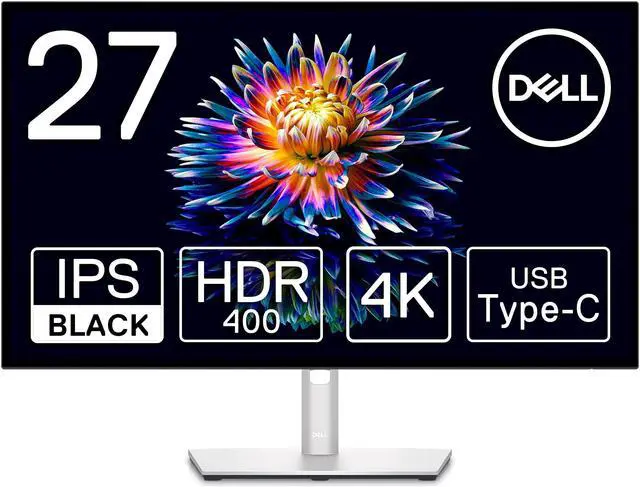
Dell UltraSharp U2723QE 27-inch 4K USB-C Hub Monitor
Pros
- Built-in USB hub with two USB-C and five USB-A ports plus Ethernet
- IPS Black panel delivers noticeably better contrast than standard IPS
- 90W USB-C PD and KVM switch for two-computer setups
- Dell reliability: three-year premium support included
Cons
- 60Hz refresh rate
- At $649, it's $250 more than the ASUS for similar color specs
- No hardware calibration
Price as of Jul 21, 2026 — see current price on Amazon.
The Dell U2723QE does something the ASUS doesn't: it replaces your desk dock entirely. The built-in USB hub has two USB-C 3.2 Gen 2 ports, five USB-A ports, an RJ45 Ethernet jack, and 90W power delivery. For someone running a MacBook or a Windows laptop and tired of unplugging and replugging peripherals, this matters more than color accuracy differences you need a spectrophotometer to detect.
The panel itself is IPS Black, which is Dell's name for a version of IPS with roughly 2000:1 contrast ratio instead of the typical 1000:1. That doesn't sound like much, but dark scenes in video editing look noticeably different. The blacks sit deeper, which helps when you're grading footage that has a lot of shadow detail to preserve.
Color specs land at 98% DCI-P3 and 100% sRGB, with factory Delta E under 2. Not quite the 99% DCI-P3 of the ASUS, but genuinely close. The practical difference when editing Rec.709 H.264 footage from a Sony a7 or a Canon R8 is not visible. Where you might notice it is in high-gamut HDR footage that was shot in LOG and needs a P3 monitoring space.
The KVM switch is worth calling out separately. Two computers, one keyboard, one mouse, one monitor. Flip the input and your peripherals switch with it. For anyone bouncing between a work laptop and a personal machine, this alone might justify the price delta.
Dell's three-year premium support is also better than it sounds. If a pixel goes dead, they replace it. Not a "we'll evaluate it" policy, an actual replacement guarantee.
BenQ PD2725U: Best for Mac Users
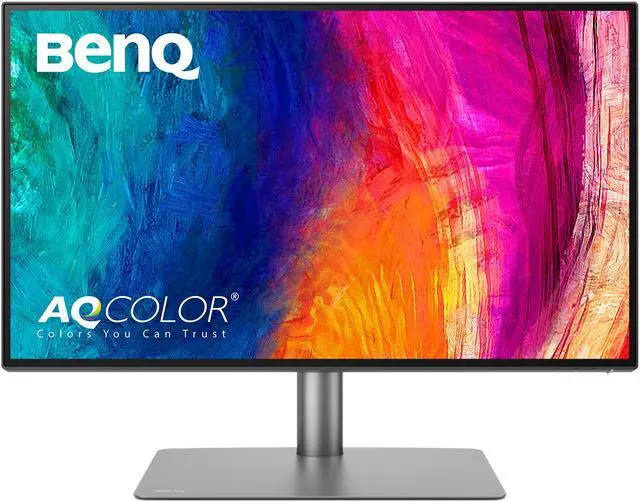
BenQ PD2725U Thunderbolt 3 27-inch 4K UHD Monitor
Pros
- Thunderbolt 3 gives 40Gbps bandwidth for external GPU or RAID drives on Mac
- DualView mode shows two color spaces side-by-side (P3 and sRGB) simultaneously
- HotKey Puck hardware controller switches color modes without touching software
- Daisy-chain Thunderbolt 3 to a second display from a single Mac port
Cons
- $599 is the second steepest price on this list, behind only the Dell
- Color accuracy spec is Delta E under 3, which is looser than the ASUS and Dell
- No factory calibration report included
Price as of Jul 21, 2026 — see current price on Amazon.
The BenQ PD2725U is the one to buy if Thunderbolt 3 specifically matters to your workflow. Not USB-C, Thunderbolt 3. The distinction is bandwidth: USB-C tops out at 10Gbps in most monitor implementations. Thunderbolt 3 runs at 40Gbps. If you're using an external RAID array, a Thunderbolt NAS, or an eGPU with a MacBook Pro M3 or earlier, that bandwidth actually gets used. You can daisy-chain a second Thunderbolt display off the back of this one and still have remaining bandwidth for storage.
The DualView mode shows up on other BenQ monitors too, but it earns its keep on a color-grading panel like this one. Split the screen in half, display P3 on one side and sRGB on the other, and watch how your grade translates between color spaces without rendering anything. It's genuinely useful when you're delivering content for both YouTube (Rec.709/sRGB) and Apple TV or Netflix (P3 HDR).
The HotKey Puck is a small dial that sits on your desk and lets you switch between preset color modes, adjust brightness, and change inputs without hunting through monitor menus. After using one for a couple of months you stop thinking of it as an accessory and start thinking of it as essential.
Where this one doesn't quite match the ASUS is accuracy. BenQ specs Delta E under 3 here, which is acceptable for professional work but slightly looser than the under-2 you get from the PA279CRV. If you need to hit broadcast delivery specs to the letter, you'd want an external colorimeter anyway. For YouTube and long-form web video, Delta E under 3 is fine.
At $599 it's the second most expensive pick on this list, behind the Dell at $649. For Mac users who actually use Thunderbolt peripherals, it earns that price. For everyone else, the ASUS or Dell is the smarter call.
LG 32UN650-W: Best 32-Inch Option
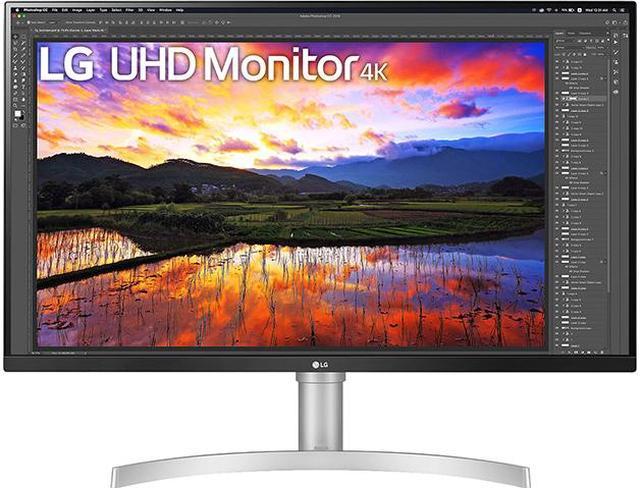
LG 32UN650-W 32-inch UHD 4K IPS Ultrafine Monitor
Pros
- 32 inches at 4K puts you at 138 PPI, which is excellent for reading text and fine detail
- 95% DCI-P3 is enough for most video work
- Height-adjustable stand with solid ergonomics
- AMD FreeSync for occasional gaming without a second monitor
Cons
- No USB-C power delivery, only standard USB-A hub
- No factory calibration, expect some variability between units
- Delta E spec is not published by LG, calibrate before grading
Price as of Jul 21, 2026 — see current price on Amazon.
There's a real argument for 32 inches in a video editing setup. At 27 inches with 4K, you're looking at about 163 PPI. Crisp, but a lot of editors run at 125% or 150% scaling to keep text readable, which partially defeats the purpose of the extra resolution. At 32 inches, 4K lands at 138 PPI, which is dense enough for sharp images while keeping most text readable at 100% scale without squinting.
The LG 32UN650-W covers 95% DCI-P3 on an IPS panel. Not the 99% of the ASUS, but the remaining 4% sits in the green-heavy corner of the P3 gamut that you'd need professional reference monitors and specific deliverables to actually care about. For Rec.709 and P3 HDR delivery, 95% is enough.
What LG doesn't publish is a factory Delta E number. Based on reviews from DisplayNinja and RTINGs, units typically arrive with Delta E between 2 and 4. That's a wider range than I'd like for color grading. If you buy this one, a colorimeter calibration pass before your first serious project is worth the time. An X-Rite ColorMunki or Calibrite Display SL takes about 15 minutes and gets you to Delta E under 1 reliably.
The connectivity is a step behind the ASUS and Dell. No USB-C PD, just a standard USB-A hub. The power brick stays on your desk. For an all-in-one desk setup, that's a ding. But if you already have a docking station and just need a second display or a primary screen in a dedicated edit suite, the missing USB-C isn't a dealbreaker.
At $399 for 32 inches, this is the only way to get into 32-inch 4K territory on the list without going over $400.
BenQ PD2706U: Best Value
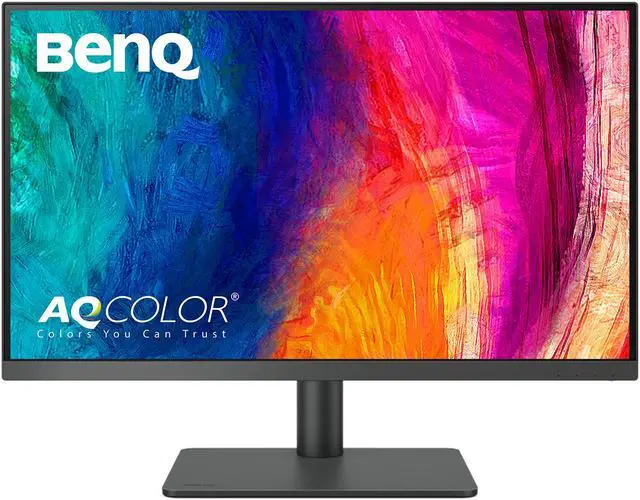
BenQ PD2706U 27-inch 4K UHD Designer Monitor
Pros
- 90W USB-C PD plus dedicated DisplayPort KVM switch
- Darkroom Mode and Animation Mode for specific editing workflows
- HotKey Puck G2 included for quick color space switching
- DisplayHDR 400 certified
Cons
- 95% DCI-P3 is fine, not exceptional
- Delta E under 3 is slightly looser than the top two picks
- No Thunderbolt, just USB-C
Price as of Jul 21, 2026 — see current price on Amazon.
The BenQ PD2706U is the value pick if you want the HotKey Puck and 90W USB-C PD without paying for Thunderbolt 3 that your setup doesn't actually use. At $419 it's $180 less than the PD2725U above, and the practical difference comes down to two things: connection bandwidth and color accuracy.
On accuracy, both land at Delta E under 3. Both use IPS panels with 95% DCI-P3 coverage. They're genuinely close. The PD2706U adds Darkroom Mode, which reduces brightness and increases contrast for evaluating dark scenes in footage, and Animation Mode, which adjusts gamma to show subtle tone gradation that matters when reviewing hand-drawn or CG animation. These aren't gimmicks. If you work in those specific areas, they save you from maintaining separate ICC profiles for different viewing scenarios.
The KVM switch works off a dedicated DisplayPort input, separate from the USB-C input. So you can have a MacBook on USB-C and a PC on DisplayPort, and switch between them with the HotKey Puck without touching a single cable. That's a better implementation than monitors where the KVM only works on specific inputs.
The 90W USB-C PD handles most laptops, though not all. MacBook Pro 16-inch models need 96W or higher for full-speed charging. On a MacBook Pro 16, this monitor will charge your battery at a slightly slower rate when the laptop is under load. MacBook Pro 14 and MacBook Air M3/M4 charge fine at 90W.
For editors who already have a Thunderbolt dock and don't need the extra bandwidth, the PD2706U is the smarter buy over the PD2725U.
What to Look for in a Video Editing Monitor
Color Gamut: DCI-P3 Is the Number That Matters Now
The shift from sRGB to DCI-P3 as the delivery color space happened gradually but it's complete now. YouTube, Vimeo, Netflix, Disney+, and Apple TV all support P3 HDR content. If you're grading to Rec.709 only because that's what you learned five years ago, you're leaving quality on the table.
For a monitor used in video editing, you want 95% DCI-P3 as a floor and 99% as the target. Every monitor on this list hits 95% minimum. Where the gap shows up is in heavily saturated greens and magentas. If your footage has a lot of foliage or neon signage, 99% DCI-P3 versus 95% DCI-P3 is visible on-screen.
"100% sRGB" coverage on a monitor spec sheet means less than it used to. The sRGB gamut is a subset of P3. A monitor covering 95% DCI-P3 also covers 100% sRGB by definition. If a spec sheet only shows sRGB and omits DCI-P3, that's usually a signal that the P3 coverage isn't worth advertising.
Delta E and Factory Calibration
Delta E is the distance between the color a monitor displays and the color it was asked to display. Delta E under 2 is considered the threshold where most people can't reliably see the difference with the naked eye. Under 1 is reference-grade. Over 3 and color-critical work starts showing visible inaccuracies.
Factory calibration means the manufacturer ran each individual unit through a colorimeter before shipping and adjusted the internal lookup tables. Some monitors have a Delta E spec of under 2 but only calibrate a sample from each production run. Others calibrate each unit individually and include the calibration report. The ASUS ProArt PA279CRV does the latter. Check whether the spec refers to a sample or a per-unit calibration before trusting the number.
If you're doing broadcast-level color grading for cinema or television, external hardware calibration with a device like the X-Rite i1Display Studio or Calibrite ColorChecker Display Pro is worth doing regardless of how good the factory calibration is. Monitors drift over time. A well-calibrated monitor from two years ago without a recalibration pass is often significantly off from where it started.
USB-C and Thunderbolt Connectivity
90W USB-C power delivery is the practical floor for laptop-based editing workflows. Below 90W, your laptop can't run at full load and charge simultaneously. The machine will technically charge, just slowly.
Thunderbolt 3 or 4 (as opposed to generic USB-C) matters if you're connecting Thunderbolt storage, an external GPU, or another Thunderbolt display. The 40Gbps bandwidth supports all three simultaneously. If your workflow doesn't include Thunderbolt peripherals, the $180 premium for Thunderbolt 3 (as on the BenQ PD2725U) doesn't pay for itself.
One thing to verify before buying: check whether the USB-C power delivery port is the video input port or a separate charging port. Some monitors have both a USB-C video input (which includes charging) and a dedicated USB-C charging port that doesn't carry video. You want the video input to carry power, because that's one cable for everything.
Panel Size and Working Distance
27 inches is the default for a reason. At 4K resolution, 27 inches hits 163 PPI, which means text is sharp enough to work with at 100% scale and individual video frames are detailed at their full resolution. At a comfortable desk working distance of two to three feet, a 27-inch panel fills most of your field of view without forcing you to move your head.
32 inches works well for editors who run dual-monitor setups and want one large screen for the timeline and a second for reference. Or for editors who work in a dedicated edit suite with a slightly further viewing distance. At 32 inches and 4K, the PPI drops to 138, which still looks sharp but text scaling becomes more of a personal preference.
Hardware Calibration vs Software Calibration
Hardware calibration adjusts the monitor's internal 3D LUT, not your graphics card's gamma curve. Software calibration (what you get from most free colorimeter software) adjusts the graphics card output, which means you're throwing away some of your GPU's color precision and the calibration profile has to be loaded each session. Hardware calibration is permanent in the display and doesn't depend on software loading correctly.
The monitors that support hardware calibration at this price point are limited. The ASUS ProArt PA279CRV doesn't support full hardware calibration out of the box but works with BenQ's Palette Master software when paired with a compatible colorimeter. If hardware calibration is a firm requirement, the higher-end ProArt monitors or BenQ's SW series handle it natively.
Frequently asked questions
- Do I need 4K for video editing?
- Yes, if you're editing 4K footage. Editing 4K on a 1080p or 1440p monitor means you're always working with a downscaled preview, which makes it harder to evaluate sharpness, noise, and fine detail in your grades. On a native 4K panel you can display at 1:1 pixel mapping and actually see the footage the way your audience will see it on a 4K TV or phone screen.
- Is IPS or OLED better for video editing?
- IPS for most professional workflows, OLED for evaluation and color grading if you have burn-in procedures in place. IPS has no burn-in risk, consistent brightness across the panel, and long-term calibration stability. OLED produces truer blacks and higher peak contrast, which helps when grading dark scenes, but static overlays and UI elements can imprint over time. Most edit suite monitors are still IPS for this reason.
- What's the difference between DCI-P3 and sRGB for video editing?
- sRGB is the older standard used for web content and older displays. DCI-P3 is a wider gamut covering about 26% more color volume than sRGB, and it's the delivery standard for streaming platforms including YouTube HDR, Netflix, and Apple TV. If your delivery target is YouTube 2026, you should be monitoring in a P3 color space. A monitor covering 95% or more DCI-P3 lets you see what you're actually delivering.
- How important is factory calibration for video editing?
- Very important if you're doing color-critical work. A monitor can spec Delta E under 2 as an average for its production run while individual units ship at Delta E 3 or 4. Factory calibration with a per-unit report (like ASUS ProArt) means your specific monitor was measured and adjusted, not a sample from the batch. For client delivery, broadcast work, or anything where color accuracy has commercial stakes, factory calibration or a calibration pass with a hardware colorimeter is worth the time.
- Does my video editing monitor need USB-C?
- If you're using a laptop as your editing machine, yes, 90W USB-C PD is worth insisting on. It's the difference between one cable and three (separate power, video, and USB hub). For desktop workstations with a dedicated tower, USB-C matters less because you're likely using DisplayPort or HDMI anyway and power comes from the wall outlet.
- Can I use a gaming monitor for video editing?
- You can, but most gaming monitors trade color accuracy for refresh rate. A gaming monitor at 240Hz with 95% sRGB coverage is designed for fast motion clarity, not color fidelity. For video editing you want a panel that covers 95% DCI-P3 or more with a Delta E under 2, and those specs rarely show up on monitors built and marketed for gaming. The overlap exists (some OLED gaming monitors have good color specs) but you're usually paying for refresh rate you don't need.
Bottom Line
The ASUS ProArt PA279CRV is the pick for most video editors. At $399 it covers 99% DCI-P3, ships with factory per-unit calibration, and provides 96W USB-C PD so your laptop setup lives on one cable. The Dell U2723QE, at $649, only edges ahead if you need the built-in hub and IPS Black contrast for dark-scene grading; at that price the ASUS wins on value. Mac users who have Thunderbolt peripherals should look at the BenQ PD2725U instead. And if you want 32 inches without going over $400, the LG 32UN650-W covers 95% DCI-P3 at that size for less than most 27-inch professional monitors.
How We Pick
We pick products by combining spec-level research, price checks, trusted third-party benchmarks, and owner sentiment from high-signal sources.
- Performance and real-world value in the category this guide targets
- Price-to-performance and deal consistency over recent pricing windows
- Build quality, reliability patterns, and known long-term issues
- Recommendation refresh cadence to keep these picks current
Author
TheTechSearch Editorial Team
Independent product reviewers & PC builders
We compare real-world specs, reviews and owner reports, price trends, and user feedback to recommend gear that actually makes sense to buy.